WinScript Live Resources Page 14
Sequence Columns
Notice the columns labeled D, A, L and Status just before the Sequence Name column. Clicking on
the box places a check mark in the column for that sequence.
D is disable, the sequence will not be checked for errors or run. This allows you to remove that line
from the show without deleting it from your script.
A is autostart and will run the sequence when the script is started.
L is for looping the sequence.
Status/Control is a real time event indication of what is running in the show controller when in
"Live" mode. Also you can control the sequence as you wish outside the normal script flow.
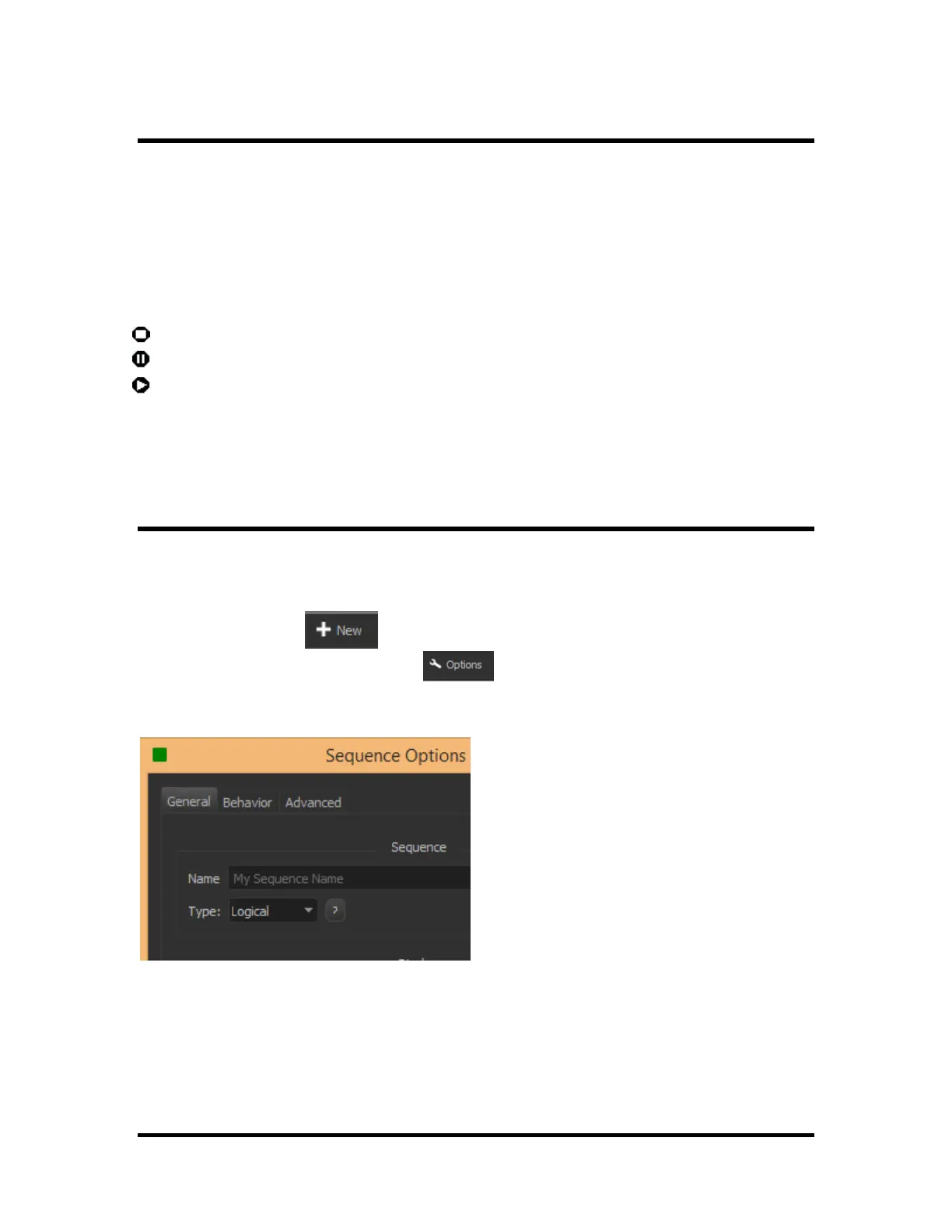
Sequence is stopped if highlighted, will stop it the sequence if it is running
Sequence is paused if highlighted, will pause the sequence if it is running.
Sequence is running when highlighted, will start the sequence if it is stopped.
Each sequence will need a name so that it can be call if needed and to identify its function.
The sequence may require a trigger to start and is defined by the trigger column.
Sequence Clock
Each sequence runs according to its own "Sequence Clock." This clock keeps track of the current frame for
that sequence. This sequence clock can be generated using the show controller's internal timecode, using
the show controller's SMPTE/EBU generated timecode, or using an external SMPTE/EBU timecode
source.
Creating a New Sequence
or clicking on the ‘Sequence Options’ button
allows configuration of the sequence clock.
Selecting this option will bring up a dialog where the options can be changed. These options can also be
changed from the "Events" screen (see next section).
▪ Logical In this mode, the events in a sequence are executed as fast as possible when the sequence
is started. If the sequence is looping, the events may execute more than once within a single frame.


 To Next Page