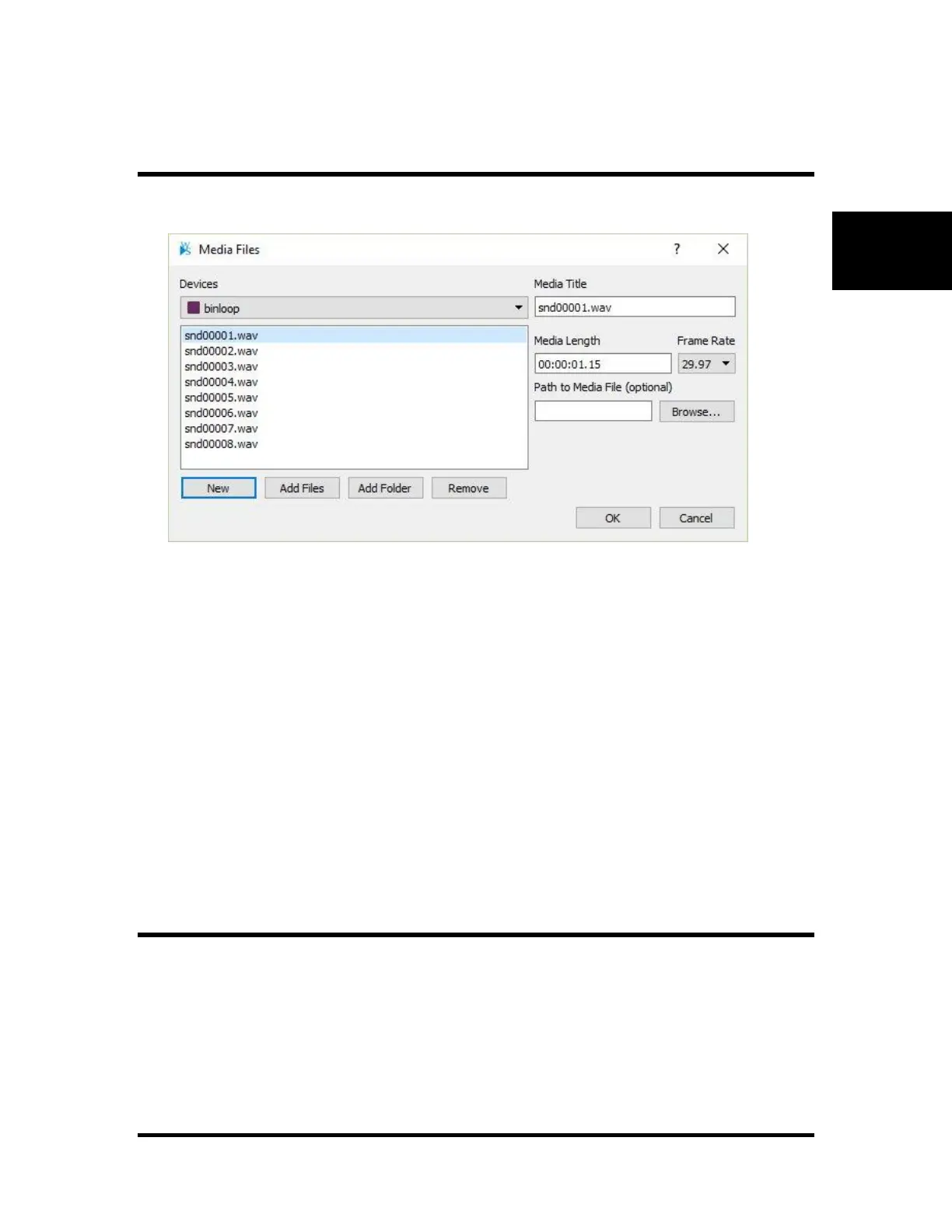
Media Files Dialog
The Media Files Dialog allows the user to add, edit, and remove Media File information for a device.
• Devices – Select the device to work with
• New – Add a new Media File entry to enter manually
• Add Files – Select one or more files from the local file system. The file name will be used as
the Media Title. This is a very fast way to add multiple Media Files.
• Add Folder – Select a folder from the local file system. The folder name will be used as the
Media Title. This is used for devices that play an entire folder instead of a file.
• Media Title – The name that is used when generating the play command for the device. If the
device uses file numbers and the name contains the number, it can be automatically converted
to the proper value depending on how the product file was written.
• Media Length – The entire length of the media in hours:minutes:seconds:frames. The frames
field is in the Frame Rate specified for the media file.
• Frame Rate – The frame rate of the media file. This can be different than the frame rate of the
sequence and the controller will perform the calculations necessary to display the media
properly.
• Path to Media File – If the Add Files or Add Folder button is used, this is a reference to the
location that was selected. This is an optional field.
New Media Event
Once Media Files have been added to a device, they may be used with any media event. The easiest way to
add a media event is to drag a Media File from the Resource tree and into a Sequence. This will work with
Sequences in the Grid view, but it is recommended to use a Timeline Sequence because it is easy to
visualize when the media will play in relation to other events in the show.


 To Next Page