Working with Media Files Page 42
Working with Media Files
The following sections describe how to work with devices that play audio, video, and other time-based
media formats. Before you begin, add a device that has product file support for media file playback (such
as the Alcorn McBride Inc. Uncompressed Binloop). See the section on WinScript Live Resources Devices
for how to add new devices to your show. Once a device with media file support is added, all media file
features will become available.
IMPORTANT: WinScript Live will not store your Media Files in the .ws4 file or on your device.
Management of media file data is the user’s responsibility. Media File Resources in WinScript Live are
simply references to actual media, which is used to simplify adding and synchronizing show events.
Adding Media
There are several ways to access the Media Files dialog that allows Media Files to be added and removed
from a device resource.
• Resource Menu – From the menu bar, select Resources->Media Files and then select the device
you would like to work with from the drop down menu
• Resource Tree – From the menu bar, select View->Resources if you do not already have the tree
view open. In the Resources tree view, select the device you would like to work with and then
double click on the Media Files resources to open the Media Files dialog for that device
• Timeline – When a Timeline Sequence is open, select the Media button to choose a device to work
with. The selected media file will be added to the Timeline automatically when OK is pressed.
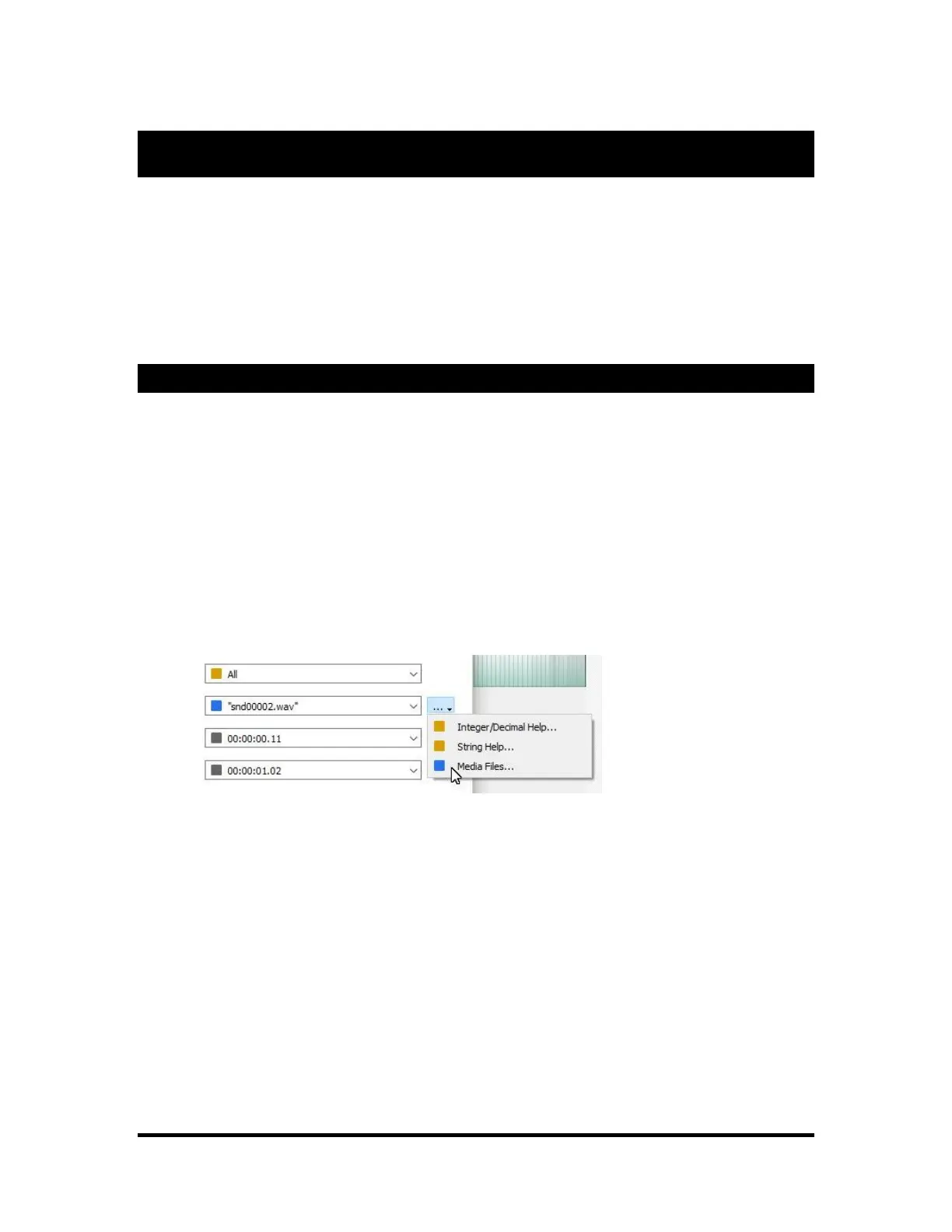
• Event Wizard – Add an event to any Sequence and open the Event Wizard. Choose a media
playback command that supports Media Files and click the “…” button to access the “Media
Files…” menu option.


 To Next Page