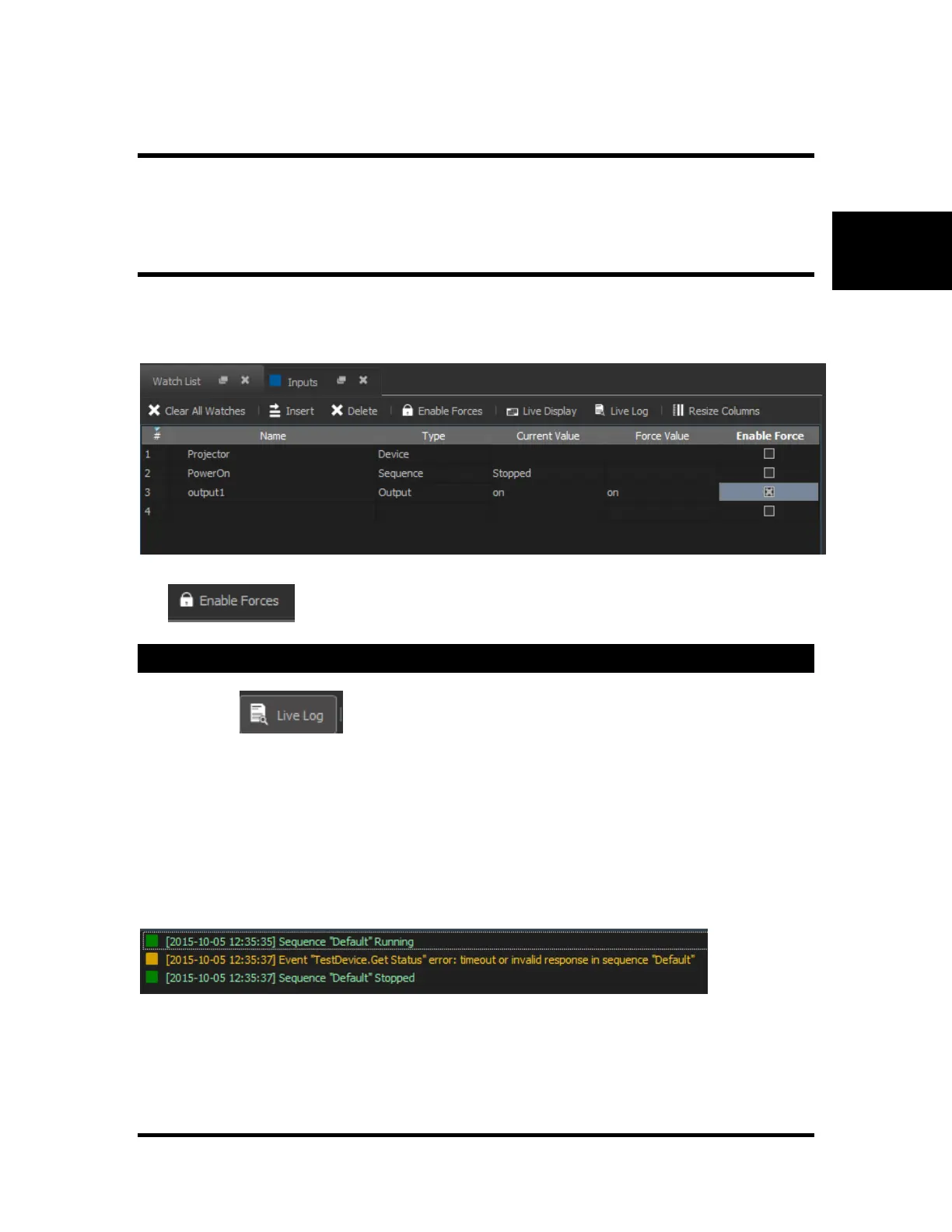
Viewing/Changing Value
The Current Value column shows the current value of the resource while the script is running. Typing into
the Current Value column sends a command to the show controller to change the current value.
Forces
Typing in the Force Value column then clicking in the Enable Force column to check the box. When the
box is checked, a variable’s or output’s value will not change as instructed by the sequences in the script.
Instead, it will retain the constant value of whatever is placed in the Force Value column. When the Enable
Force box becomes unchecked, the value will return to whatever value the script has instructed it to be.
The button will check all of the “Enable Force” column rows at once.
Live Log
Clicking on the button in the watch window shows a list of sequences as they are started
and stopped. Communication to devices listed in the “watches” list is also recorded in the log.
Note: incoming messages will always appear before outgoing messages. If an outgoing message occurs,
and an incoming comes in a few frames later, the incoming message may still appear before the outgoing
message.
Error Messages that cause the V16Pro/V4Pro “ERR” light to blink on the front of the device are also
automatically sent to the log. This message indicates what event and device caused the front error light to
blink.
Custom log messages can also be sent to the Live Log by using the “Log Message” event. See “Log
Message” on page 84.


 To Next Page