Timeline Page 40
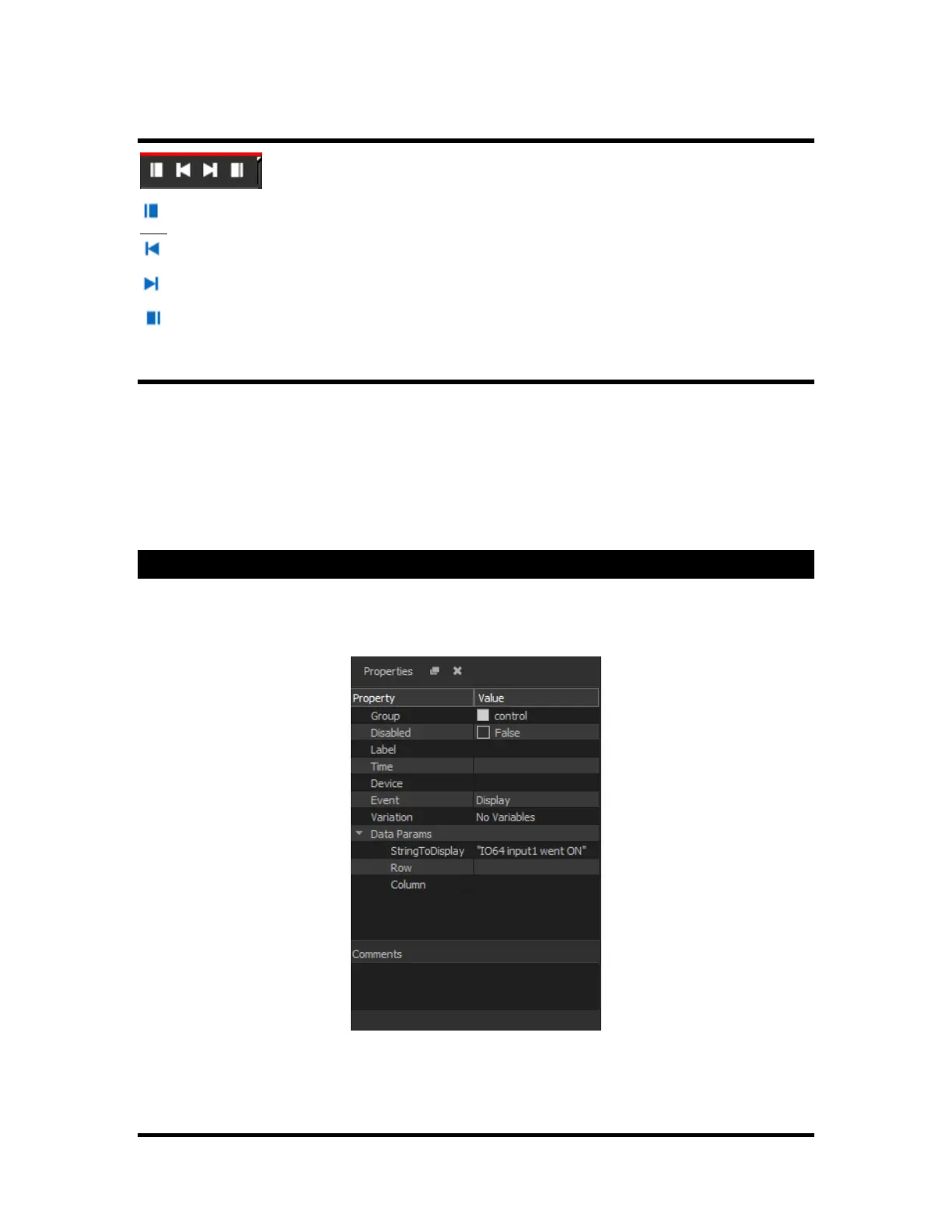
Event Buttons
These buttons help you to easily navigate your events.
Select First Event: This button will select your first event, taking you to it on the timeline.
Select Previous Event: This button will select your previous event, taking you to it on the timeline.
Select Next Event: This button will select your next event, taking you to it on the timeline.
Select Last Event: This button will select your last event, taking you to it on the timeline.
Other Functionalities
Creating Events and Dragging: You can create a new event by dragging it from the resources list on the
left, and dropping it on the desired spot. When dragging an event to a time that is outside of the current
view, the timeline will automatically expand as you approach the margin of the Timeline while dragging an
element. This functionality has two different speeds depending on the distance to the margin.
Changing Groups: After an event has been created, you can change the group by dragging and dropping,
or changing it from the Properties window.
Other Way to Access Options: Most of the Timeline options can be accessed via the View top menu.
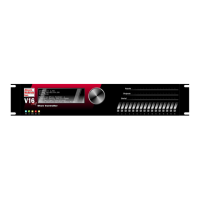
Properties Window
The properties window allows you to configure an event. It provides the same options that are found in
Grid view, and the parameters that are specific to an event. All of the values shown can be edited as
needed.
Data Params: The list of parameters changes depending on the type of the event that has been selected.
Explanations on what each parameter does can be found at the bottom of the window.


 To Next Page