WinScript Live "Live Mode" Page 54
Setting Device Addresses
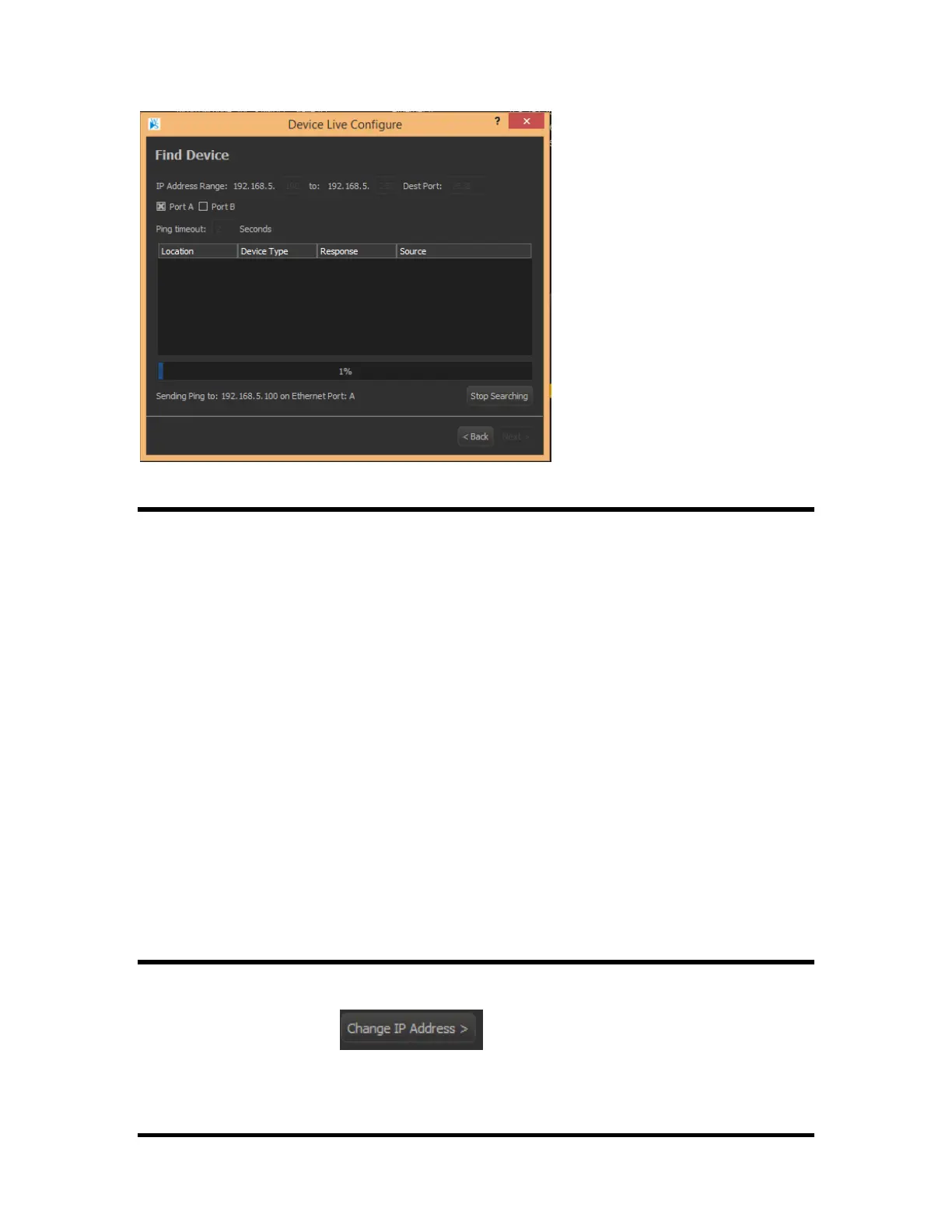
After the scan, once you select the device you wish to connect to and click “Next”, a “Change Location”
dialog will appear, offering the following options:
Option 1: Change the device to use WinScriptLive location
This option should be used if you want to change the AMI/O's IP address to match the address you
have already specified in WinScriptLive
Option 2: Change Winscript to use found device location
This option is only available if you have already set the IP address of the AMI/O, and have found
the device on the same network as your show controller. This will only change the WinScriptLive
script and not the AMI/O.
Option 3: Change WinScript and device to be location
The WinScriptLive's script is changed to the specified IP address. The AMI/O device is also set to
the IP address specified.
After clicking “Next”, a new window will appear detailing the progress of the previous selected action.
Once it finishes the configuring (100%), click “Finish” to close the dialog. Your device connection
configuration should now be complete.
Resetting IP Addresses – AMI/O
The “Live Config” functionality can be used to reset then set up the IP Address of an AMI/O product. If
during the “Pinging Devices” tutorial, you were unable to find the address of your AMI/O product, you can
select the “Change IP Address” option within the “Find Device” dialog


 To Next Page