Timeline Page 38
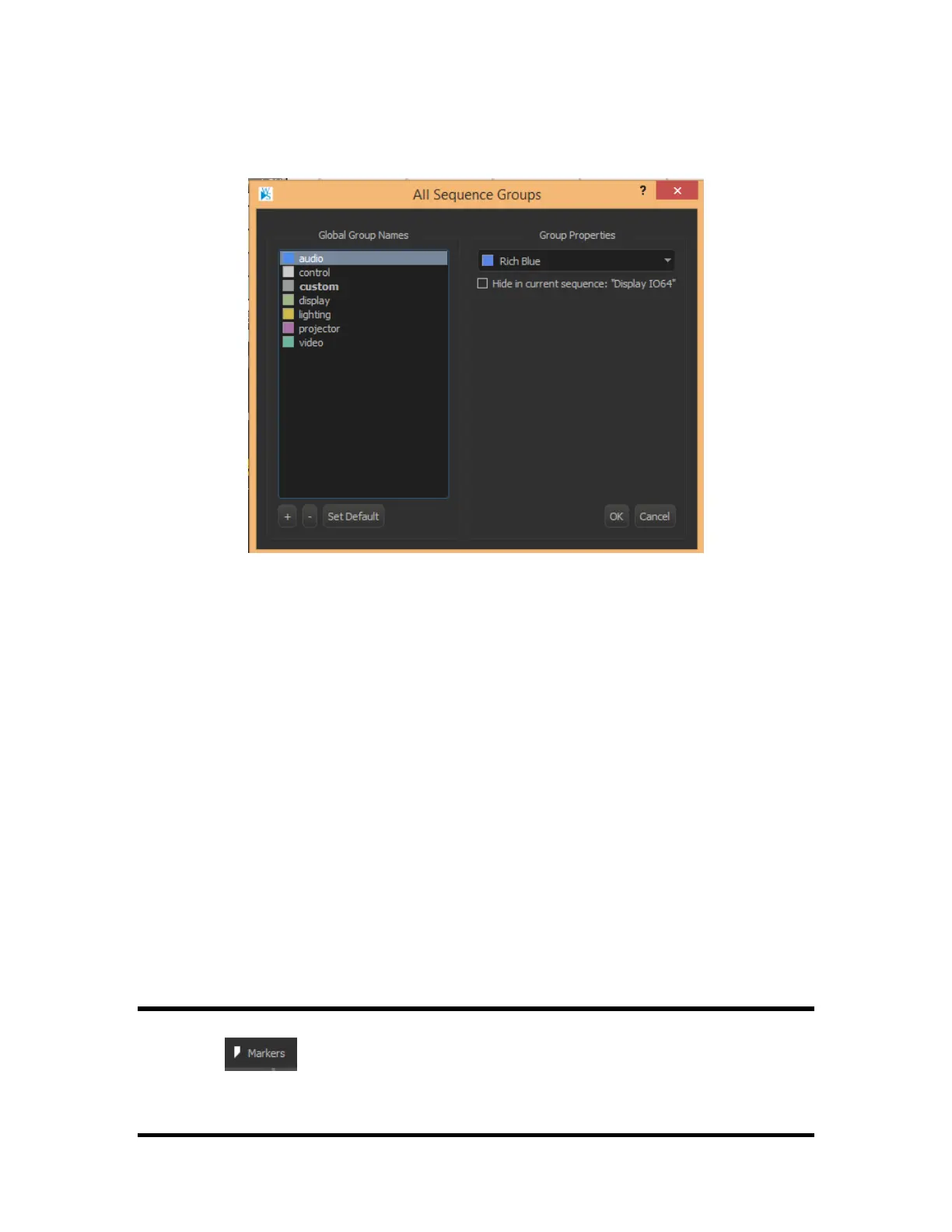
In this new window, shows the list of all the groups. From this window, you can add new groups, delete old
groups, change their colors, hide a specific group for a sequence, and set a default group.
Add New Group: To add a new group, click the “+” symbol. This will add a new group to the global list
with a default name. To change the name, double click on the new group from the list, and it will allow you
to edit it. Any groups you add will be included in any other sequences; to hide a group from a sequence,
click the Hide checkbox.
Delete Group: To delete a group, select a group from the list then click on the “-” symbol. This will delete
the currently selected group from the list.
Set Default: This button will set the selected group to be the default. When a new event is created in grid
view, if the group is not specified, the default group will be selected, and the newly created events will be
added to it.
Change Color: By clicking on this dropdown list, you can change the color of a group by selecting a
specific color from the list, or click More… to pick a color from the palette.
Hide in Current Sequence: Mark this checkbox if you wish to hide the selected group from the current
sequence.
Once you are done editing your groups click OK to save your changes.
Markers
Markers allow you to mark a specific time on the Timeline. They can be accessed and edited by clicking on
the Markers button or, alternatively, in live mode, they can be placed at the current frame by
pressing M on your keyboard as the current time marker advances.


 To Next Page