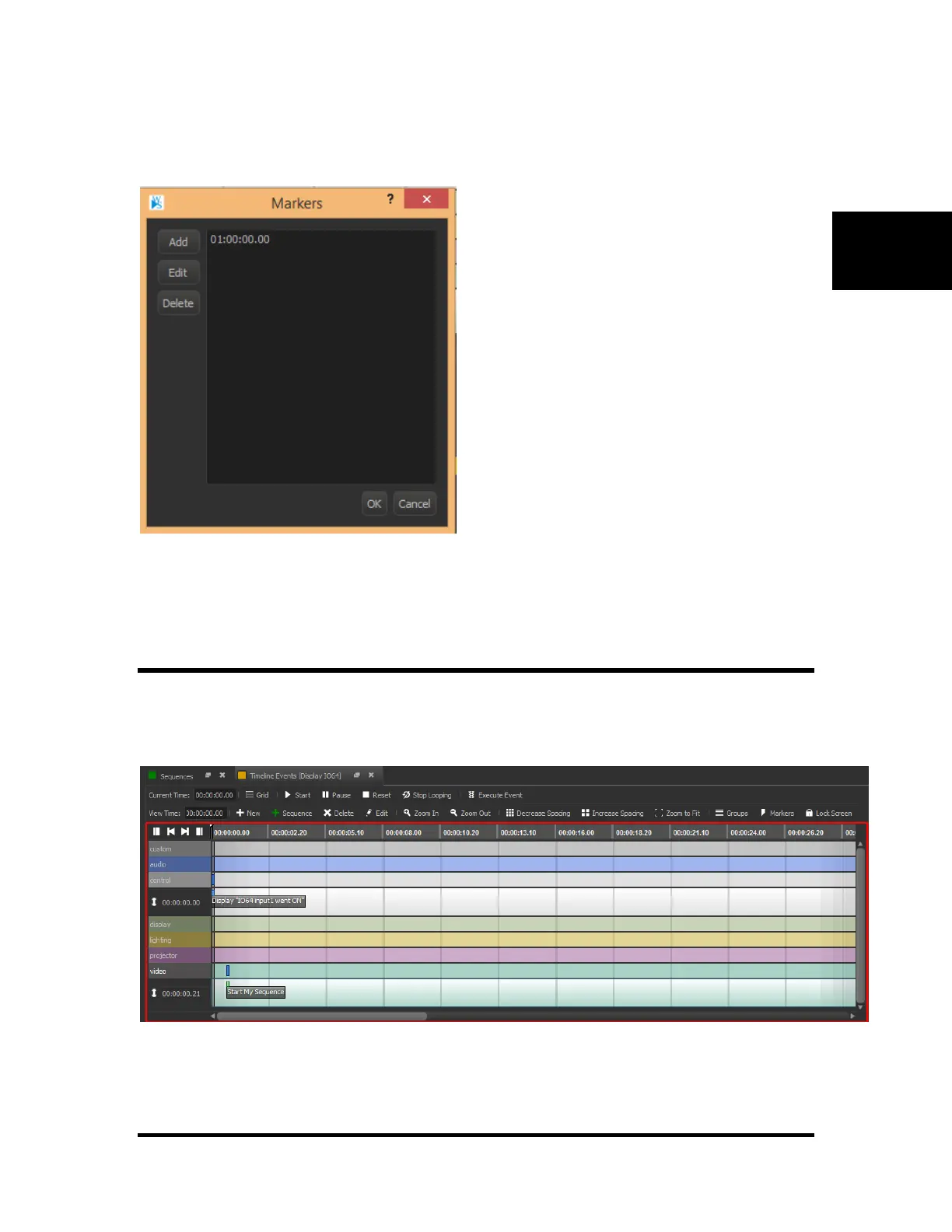
Markers allow you to easily place events next to them by automatically pulling the event next to it as you
drag it close to the marker. Alternatively, you can select both the event and the marker, then right click,
and select Snap to Selected Marker to accomplish the same as described before.
Add: Click this button to add a new marker. Once clicked, you can type the specific time in which to place
the marker.
Edit: This button allows you to edit the time for the selected marker.
Delete: This button deletes the selected marker.
Lock the Screen
When locked and in Live Mode, as the current time marker progresses through the sequence, the view will
automatically follow the marker. Clicking the lock button again, will allow you to scroll through the
sequence again. Clicking this button creates a red margin around the timeline.


 To Next Page