WinScript Live "Live Mode"
When operating in "Live Mode", all modifications to the script take immediate effect within the show
controller. In addition, resources such as “Watches”, "Live Log" and "Live Display" will provide additional
debugging and status information.
Connect to live mode using the button located on the toolbar. Scripts must be saved and
checked for errors before they can be sent to show controller.
After the connect button is clicked, the script's timestamp will be compared to the timestamp of the active
file in the show controller. If the timestamps match, live mode will connect immediately. If not, you will be
prompted to send your active script or upload the active script from the show controller.
For more details on the exact syntax of the Live Mode protocol, see Live Mode Protocol on page 174.
Sequence Status
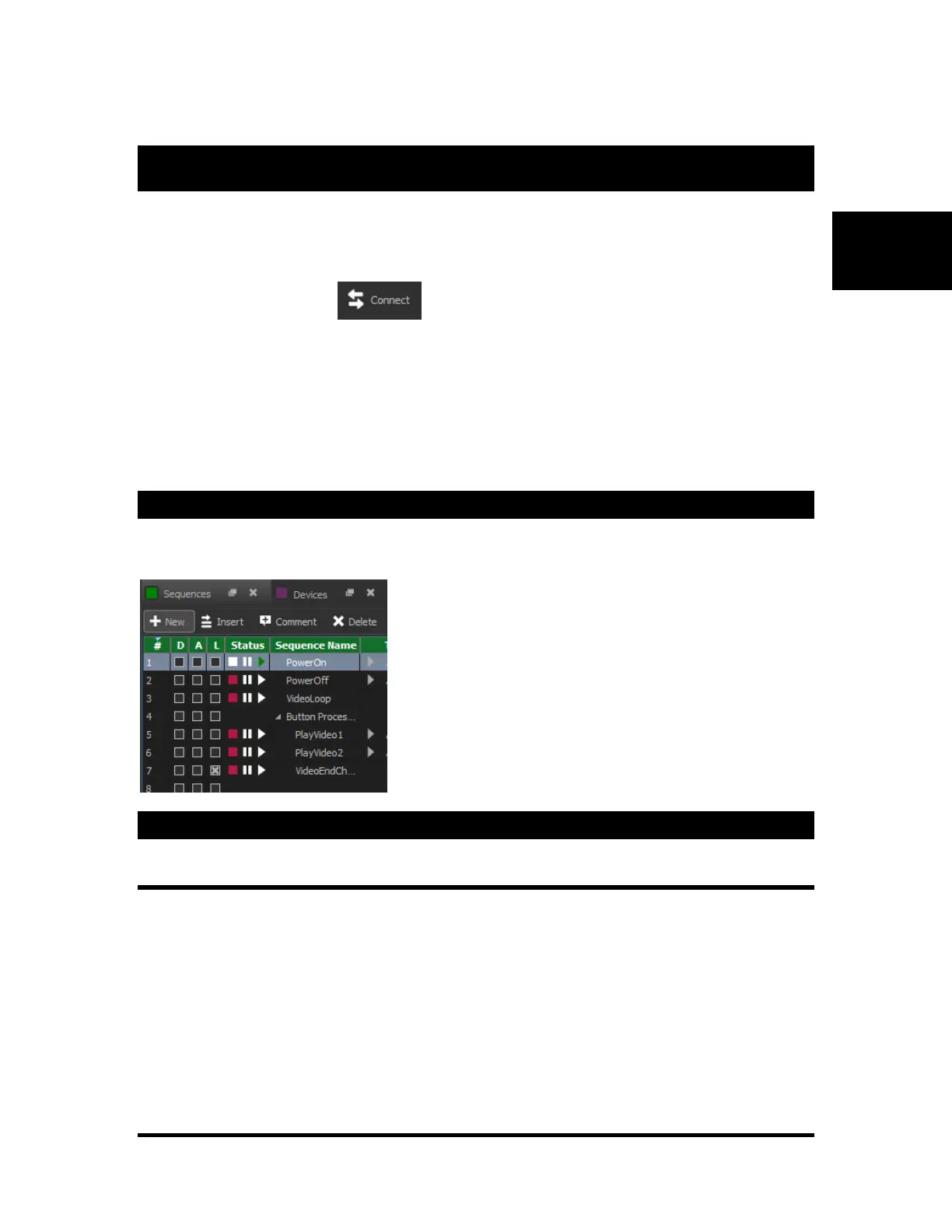
The status column in the sequence view will display the current status of the sequence when connected in
live mode. The buttons will “light up” to indicate the status.
Event Status
Highlighted Events
After connecting to “Live Mode,” events will appear in yellow after they have recently executed. If events
are within a few frames of each other, you may not see certain events become highlighted due to screen
refresh times.


 To Next Page