WinScript Live Resources Page 16
Events
Each sequence is made up of lines called "Events". An event is a single step that is taken to perform the
function of the sequence. Events interact with all the show control hardware and devices.
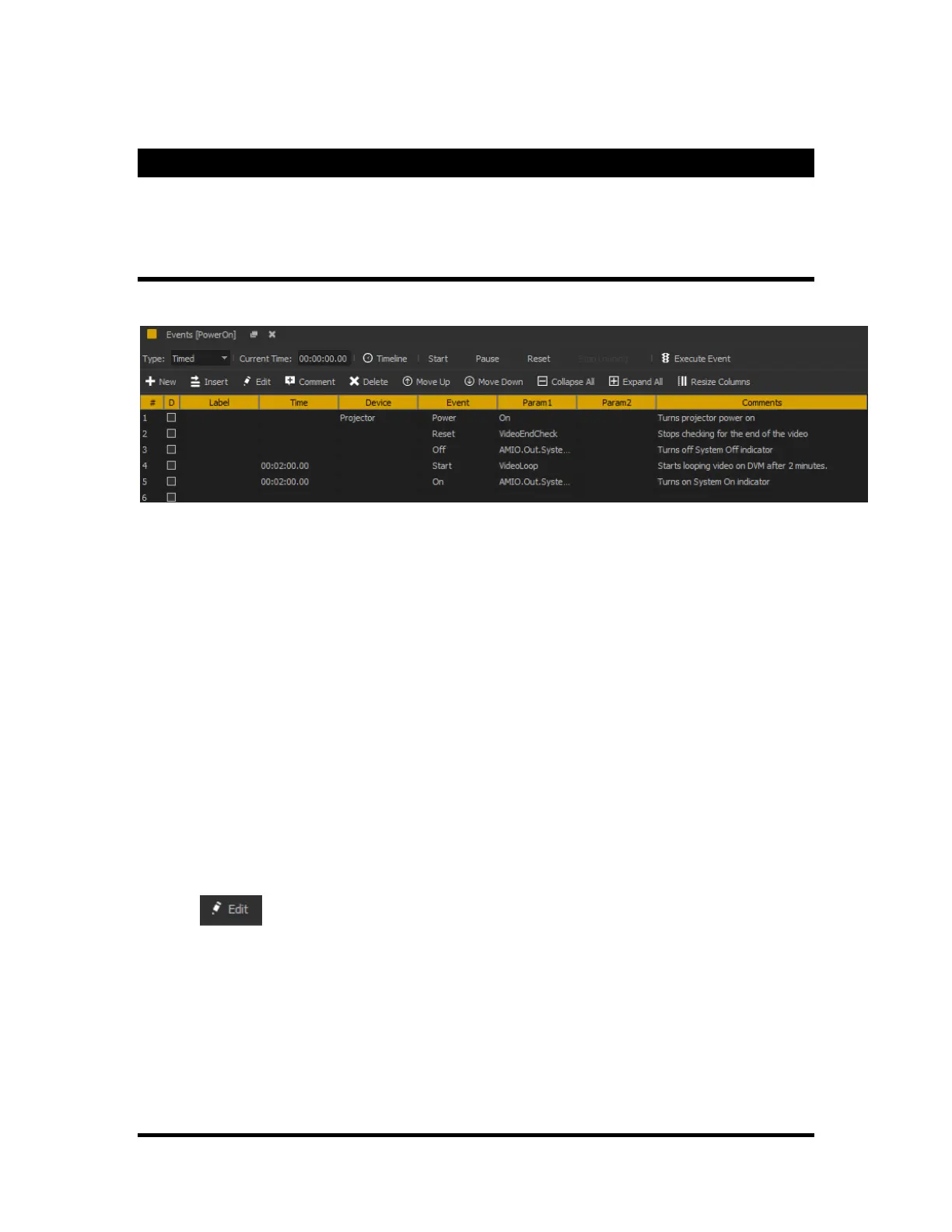
Event Grid View
A sequence can be viewed as either a Timeline or a Grid view. The Grid View is shown below.
Event Columns:
D is for Disable. Checking this box will cause the system to skip over the event and not execute it.
Label When working with events, sometimes it is necessary to skip over an event or even groups of events.
This is accomplished by using the "Goto" event that requires operator to give the event a place to go. So
you might want to "Goto There" where the label is "There"
The Time column gives the user the option to delay the start time of events to a specific time. It is
important to remember that putting a value in the Time column of an event will cause the series of events
that follow it to wait until the event is completed. All events that follow will be delayed even if the time
fields for those events are less that the time given in the previous event. All events that have start times
earlier than the previously executed event will be run sequentially as fast as possible after the executed
event.
The Device column identifies the device to be controlled by the event. A list is given for each event under
the Device column. A drop-down menu of available devices will open when the operator double-clicks in
the event line under the device column. Refer to the Devices section for adding additional devices.
Events are what actions the show controller can perform. Event commands in the drop down list are only
listed for the device selected in the previous column.
The Edit option will walk you through the selections available and the required data fields
required for the proper operation of the event.
Data1,2,3,4 fields are to hold the event options as an example the "Goto" event requires a label to go to,
this label is placed in "Data1" which will be "There".


 To Next Page