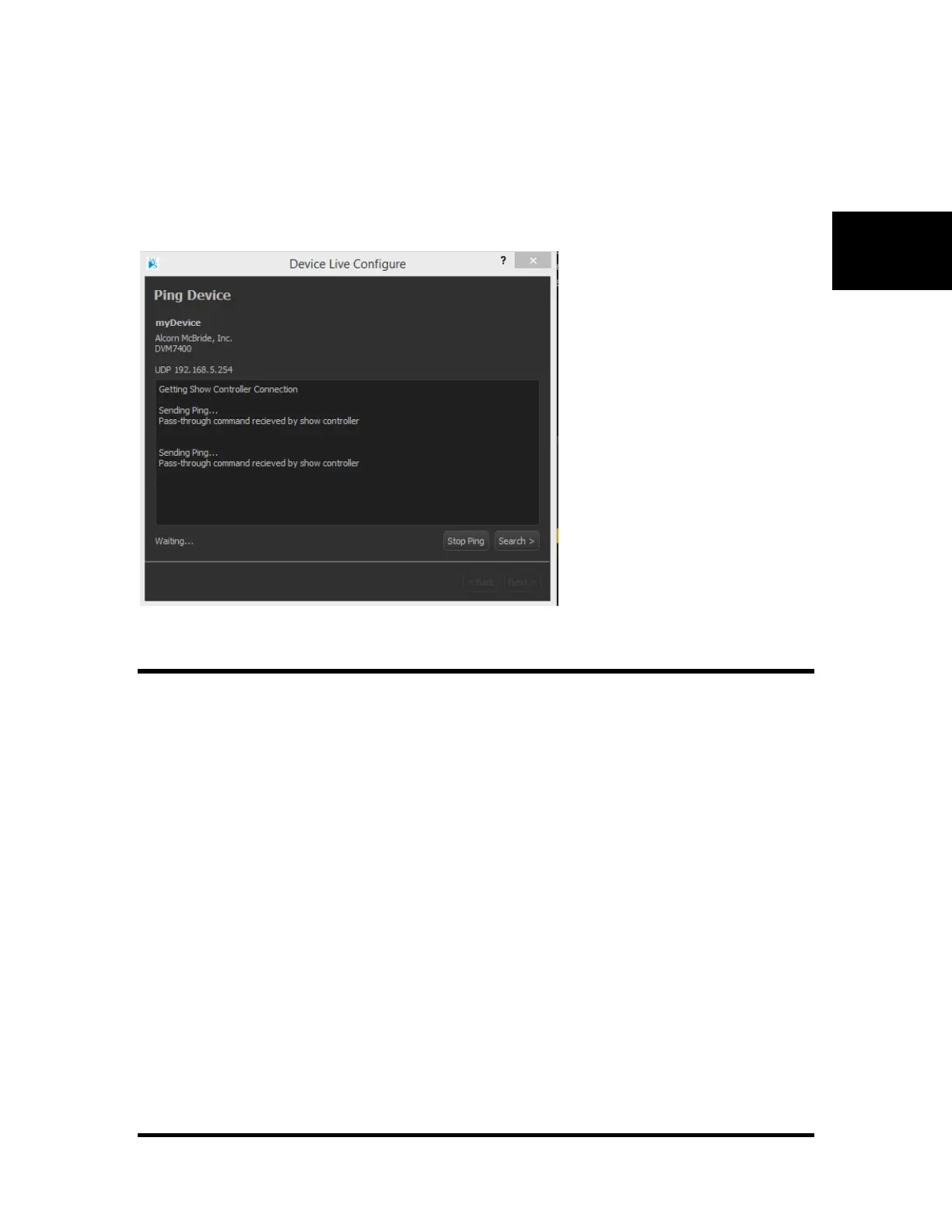
Once connected, it should bring up a “Ping Device” window. After clicking Send Ping the window should
send some pings and end with “Device Found” if the connection info for the respective device you are
pinging was properly configured, and the show controller is able to communicate with it.
If you were unable to successfully ping it, you may have put incorrect connection info for the device, and
should read the next section, “Finding Devices”.
Finding Devices
Assuming you were unable to successfully ping it, press “Search”. This will bring up the “Find Device”
dialog. Select the port range you want to search, the destination port you want to ping, and the ping
timeout time, and the show controller port you want to scan through. If the device is not found at all
regardless of the settings you use, it may be set to an invalid address and should be configured via the
device itself. The process for doing this for an AMI/O product is within the section titled “Resetting IP
Addresses – AMI/O”. Otherwise, select your device, click “Next”, and proceed to the “Setting Device
Addresses” section.


 To Next Page