Show Controller External Control Page 62
8. All sequence status is "shared" by default between master and slave. If certain variable status is
critical, you must allow those variables to be "Watched" by checking the "Redundant Watched"
checkbox in the variable's edit wizard.
Notes: Make sure the script is the same in both V16Pro units. You can still send a script to either
master or slave unit but you can only enter "Live Mode" while the unit is in "master" mode.
The front panel of the master will display the master/slave status and IP Address automatically on boot, but
this can be overridden with any "Display" command in WinScriptLive. The slave will always show "Slave"
on the front panel and will not take into account any WinScriptLive "Display" commands.
You can use the command "Set Slave" in WinScriptLive to try to force a particular box to become the slave
controller by default. (For example on boot or on other external input). However, if a master does not exist,
the slave will revert back to master after the timeout period. The timeout period can be adjusted in AMI-
Terminal.
Redundant Mode in Touch Panels
Touch Panels cannot connect to the Slave. This is by design. The V16Pro.RedundantStatus
variable will always show "Master" in Touch because otherwise it won't be connected. You can
still use this variable in your Script if needed; just remember that Touch can only connect to the
Master.
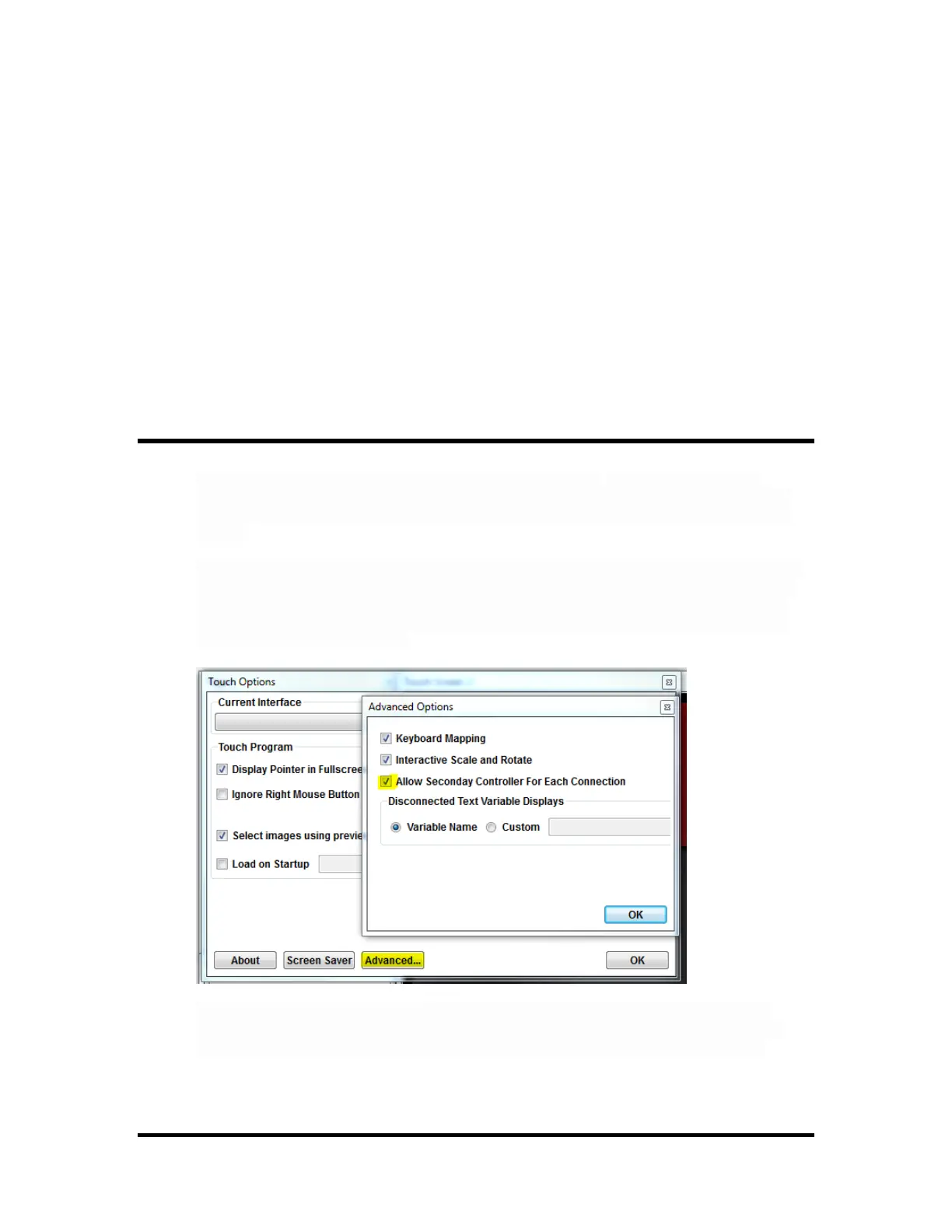
Before using Touch with Master/Slave show controllers, you must open the "Options" dialog and
select "Advanced..." then check the box for "Allow Secondary Controller for Each Connection".
You only need to do this one time and only on the computer you are using to create the Touch
file. This is just to prevent other customers from seeing the secondary controller option without
first understanding what it means.
To enable Touch to automatically attempt a connection to the secondary controller, open the
"Show Controller" dialog and select "Advanced..." for each Connection you create. Since each
Connection represents one Master/Slave pair, you will probably only have one Connection.


 To Next Page