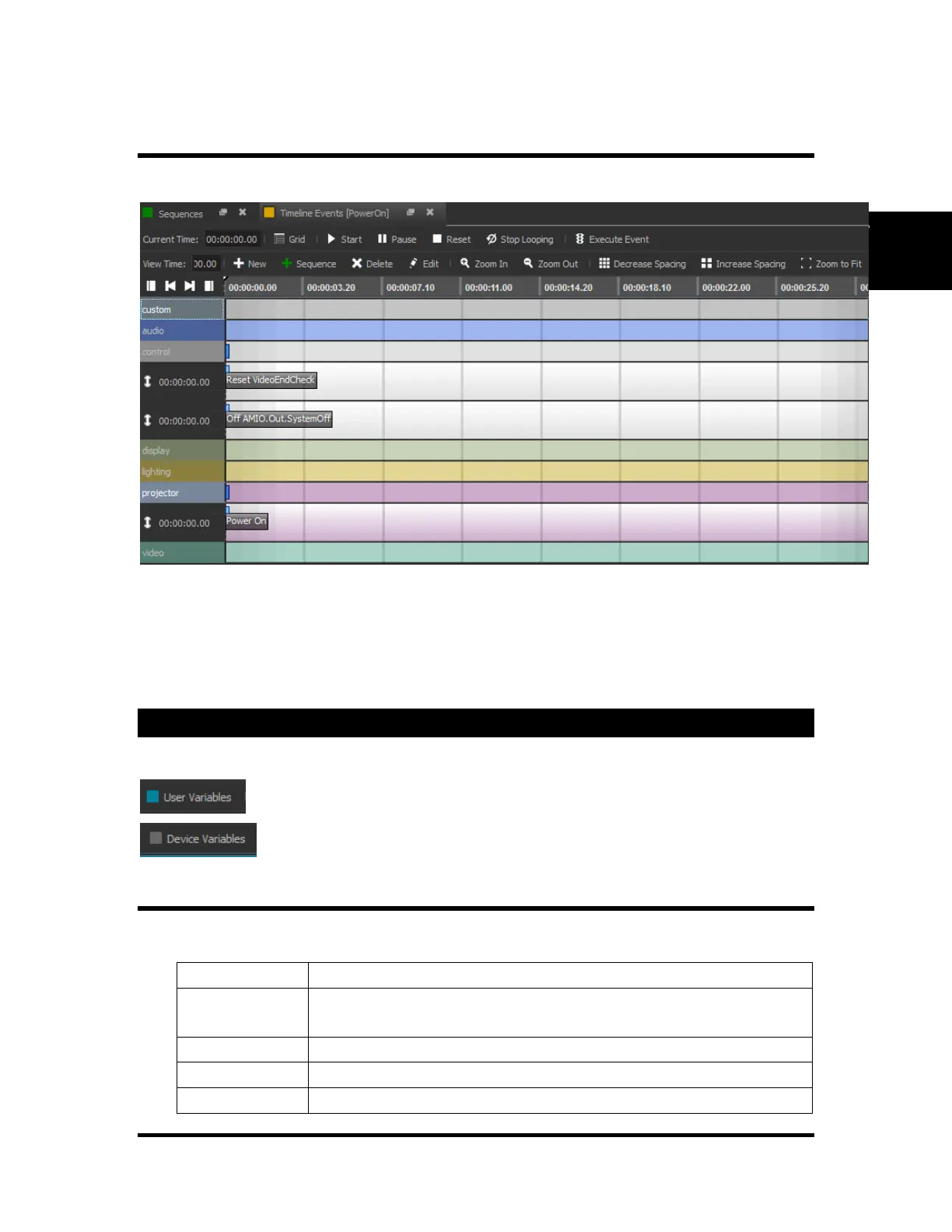
Event Timeline View
A sequence can be viewed as either a Timeline or a Grid view. The Timeline View is shown below.
Timeline allows you to view and edit events in a more intuitive manner. Events can be dragged from the
resources list on the left, and dropped on top of the timeline at the precise time the event needs to happen.
All the editing for a respective event can be done on the Properties window on the right side of the screen.
For a more detailed description on Timeline and all of its features, please refer to the Timeline section of
this manual.
Variables
Two types of variables are available for use in WinScriptLive.
User variables are created by the script writer for a custom purpose.
Device variables are created automatically after adding a device.
User Variables
Selecting a specific type of variable defines how it can be used in events, and how it is displayed.
possible states: On/Off, True/False, 1/0.
In previous versions of WinScript, these were referred to as flags.
An integer in the range of –2,147,483,647 to 2,147,483,647.


 To Next Page