MAX Operation & Service Manual 51MAX Operation & Service Manual Section4:UnderstandingTheTabletInterface51
Using the Brunswick Cloud to Import and Export Patterns
You can use the Brunswick Cloud to export patterns to your own “Private” pattern library. This gives
you a single storage location that you can modify at any time. You can use the Cloud to import patterns
for your spare tablet so both tablets have all the same patterns. Refer to Figure 4-15
Exporting Patterns to the Cloud
1. Go to the Pattern menu and select Library
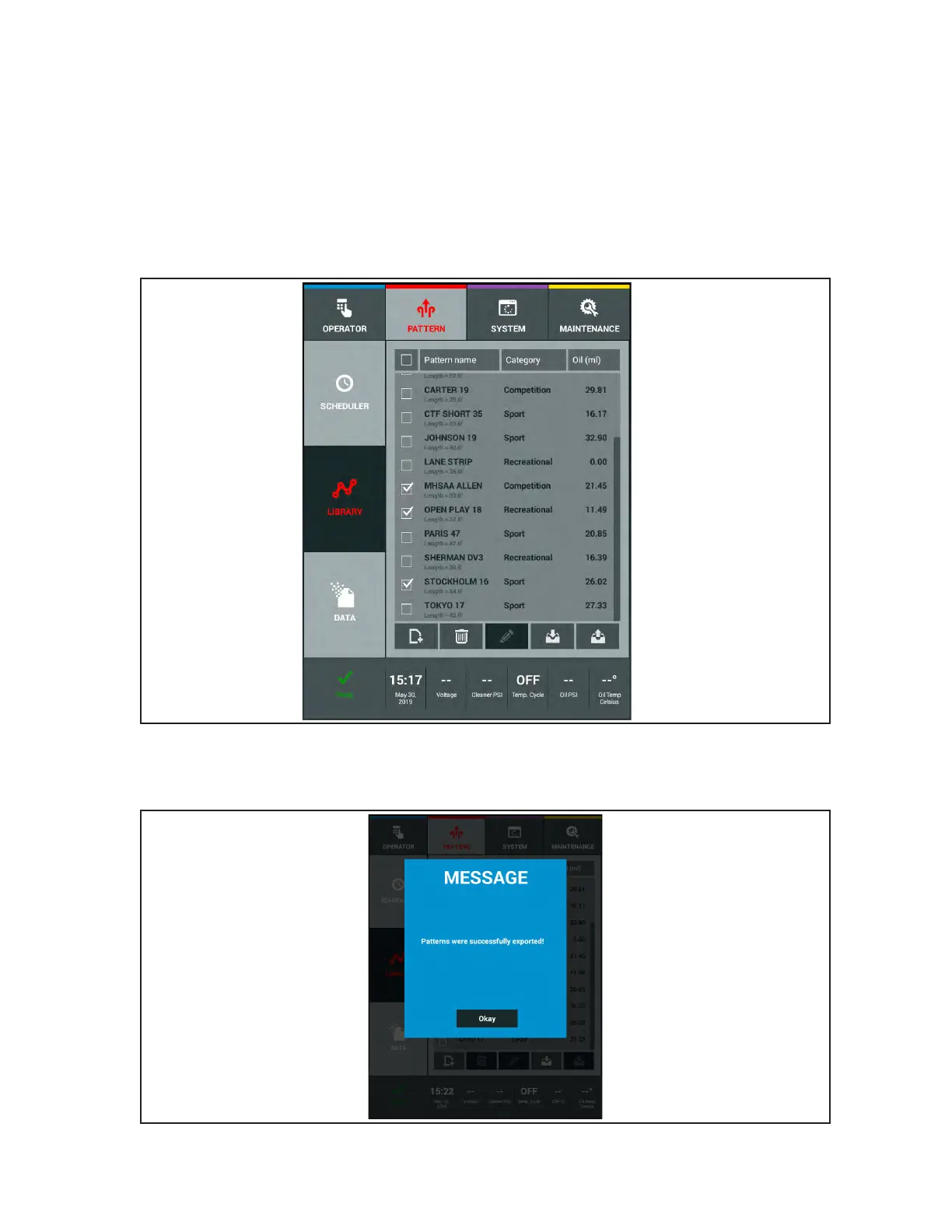
2. Select patterns to Export by touching the check box located to the left of the pattern name and
the “Export” icon will highlight. Refer toFigure4-21.
Figure4-21.ExportToCloud
3. Press the “Export” button.
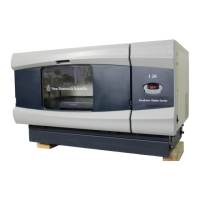
4. Patterns will transfer to your Private Library on the Cloud. Refer to Figure4-22.
Figure4-22.ExportToPrivateLibraryMessage


 To Next Page