MVX250i E, MVX200i E, MVX200 E
GENERAL DESCRIPTION OF PRODUCT
14
2-3-2 Direct Transfer
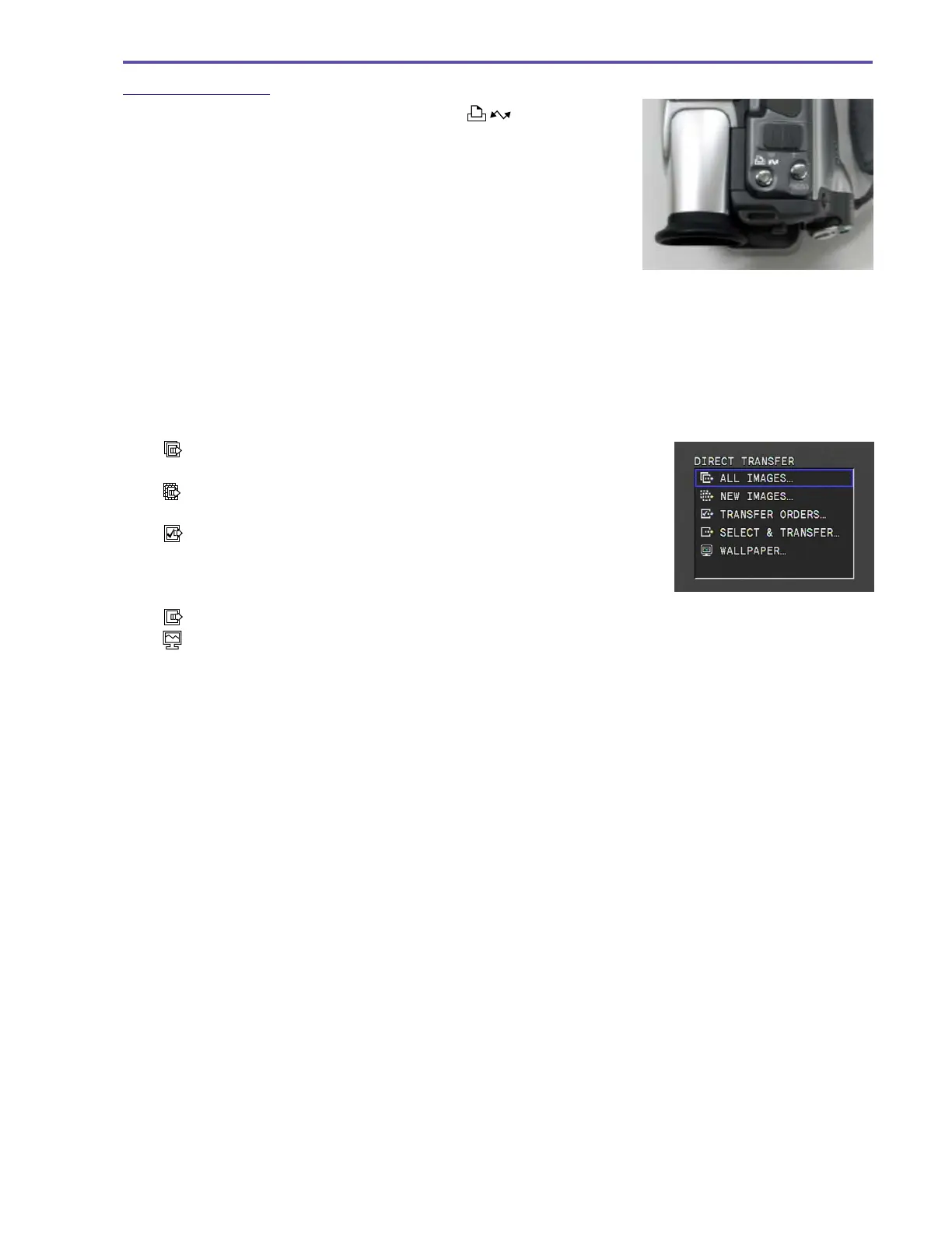
The Direct Transfer function uses the Easy Direct Button [ ] to easily transfer
images to a computer.
When the video camera is connected to a computer and set to Card Playback mode, the
Transfer menu is displayed on the video camera LCD screen. The user simply selects the
desired option from the menu and presses the Direct button to easily transfer the image to
the computer.
ZoomBrowser 4.6×, which supports Direct Transfer, must already be installed on the computer.
The supported OS are Windows XP, Windows 2000, Windows ME, and Windows 98 (Macintosh is not supported).
The transferred image is saved in a folder designated by ZoomBrowser.
The available files types for transfer are JPEG and Motion-JPEG (MPEG-4 is not supported).
(Note that only JPEG files can be transferred in the PC Wallpaper option.)
The Transfer menu has the following five options.
· ALL IMAGES... : This transfers all images recorded in the memory card
to the computer.
· NEW IMAGES... : This transfers images in the memory card that have
not been already transferred.
· TRANSFER ORDERS... : This uses the DPOF function to transfer only images
with a check mark. Note that the images need to be
designated for sending at the Send Designation Set-
ting screen beforehand.
· SELECT &TRANSFER... : The user checks the images one at a time before transferring.
·
WALLPAPER... : This enables the user to check the image one at a time before transferring and setting as the
computer’s wallpaper in realtime.


 To Next Page