MVX250i E, MVX200i E, MVX200 E
GENERAL DESCRIPTION OF PRODUCT
20
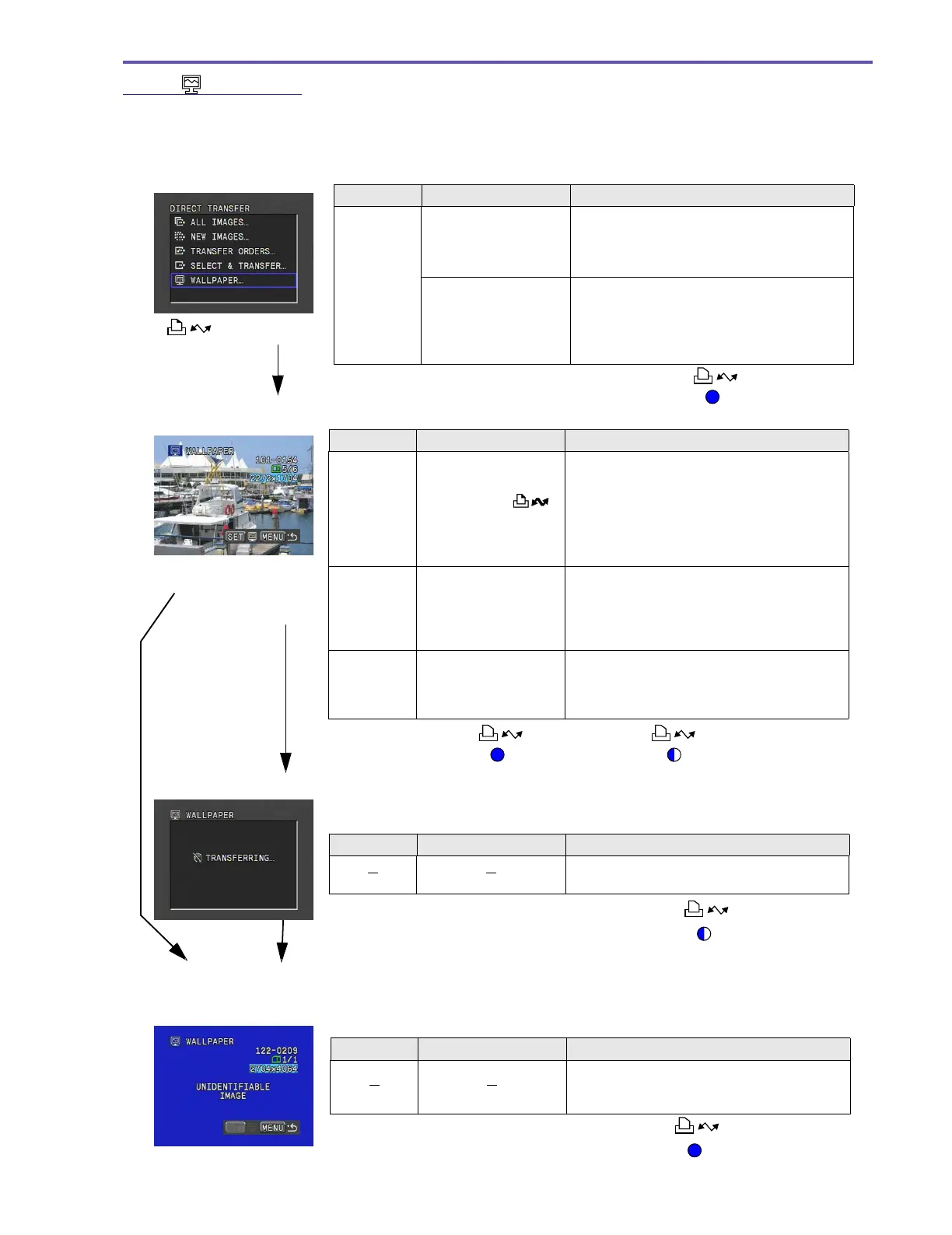
2-3-2-6 WALL PAPER
The user views the images one at a time and transfers and saves them to the computer.
The transferred image is displayed on the computer desktop
Function Operation Description
Set image as
computer
wallpaper
Move the [SET] button
up and down to select
images, and then press
down the [SET] button.
• This proceeds to the Confirm Transfer
screen.
Move the [SET] button
up and down to select
images, and then press
down the Easy Direct
button.
• The transfer confirmation is omitted, and
the Transfer in Progress screen is
displayed.
• The function executed last is recorded as
the selected function.
Menu screen
Select Image screen
Function Operation Description
Transfer
images
Press [SET] or
button
• This transfers the selected images.
• After inputting the transfer, the user can
immediately continue to select other images
and input transfer even while the transfer of
an image is in progress.
• A warning screen is displayed if the transfer
is made with a motion video file selected.
Menu display Press [MENU] button
• If an image is being transferred, this
proceeds to the Transfer in Progress
screen.
• This returns to the Menu screen if an image
is being transferred.
Change
image
Press [CARD +/
–]
buttons
• This moves the image selection forward/
backward.
• Changes can be made even if image
transfer is in progress.
or [SET] button
Function Operation Description
• When the transfer is completed, this returns
to the Menu screen.
Image Transfer in Progress screen (no progress bar)
Return to Menu screen
Warning screen
Function Operation Description
• The warning screen is displayed for about
one second, and then it returns to the
Select Image screen.
Button lights up
Button flashing
(Image transfer in progress)
Button flashing
Button lights up
[MENU] button while
image transfer is in
progress
[MENU] button
while image
transfer is not in
progress
Button lights up
[]


 To Next Page