Installing a Ceragon MHS Chapter 12
FA4800 User Manual Release 1.9.40 12-5
6. Connect the MHS cables at Sites A and B as shown in Figure 12-1 and Figure 12-
3 above.
7. Run the Configuration Wizard for Primary Link. Activate TDM services in the usual
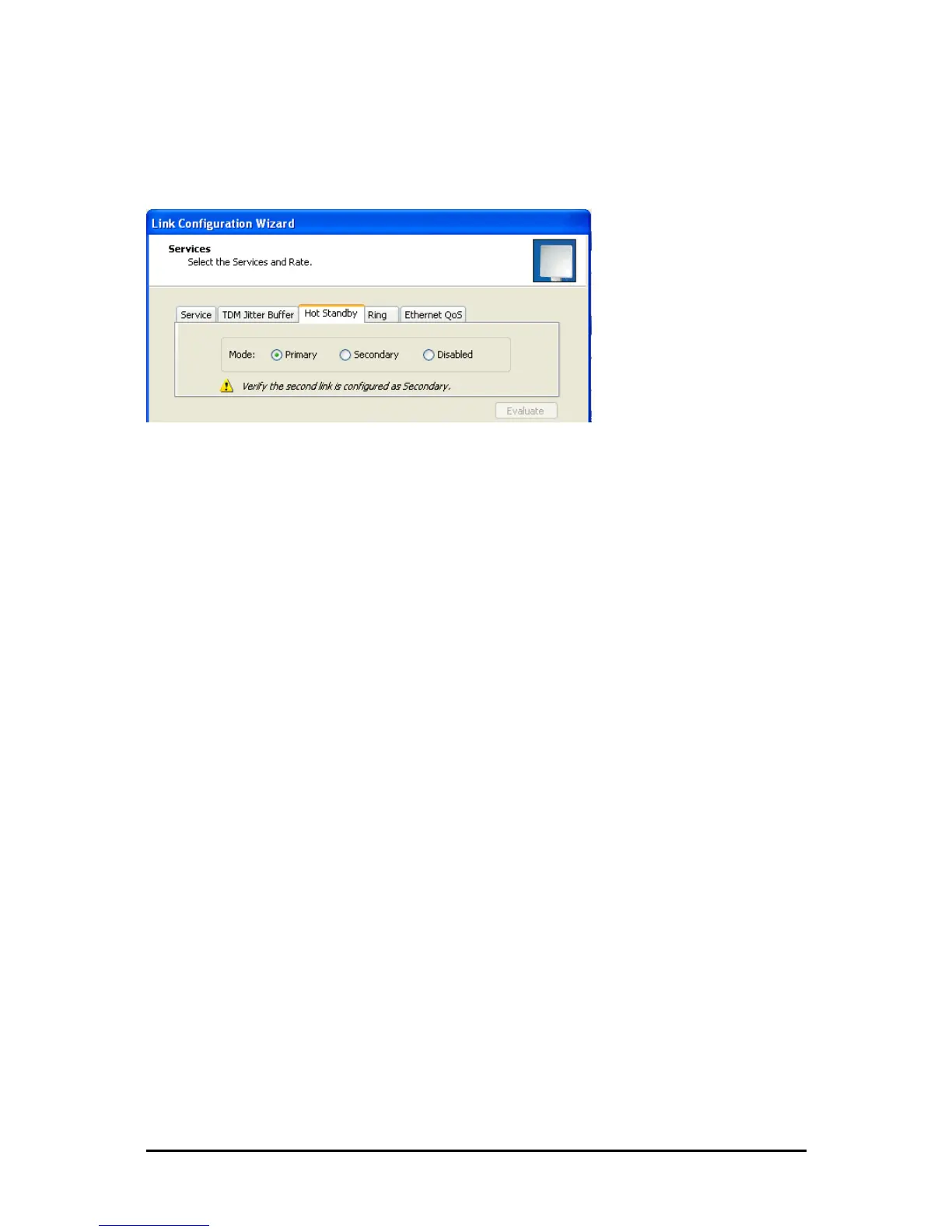
way. Navigate to the Hot Standby tab, in the Services Configuration panel:
Figure 12-4: Services Configuration Panel: Hot Standby mode selection
Check the Primary button to configure Primary Link as the primary link.
8. Complete the Wizard, and then move to Secondary Link.
9. Repeat step 7 for Secondary Link. For the Services Hot Standby tab, this time, check
the Secondary button.
10. Complete the Wizard.
11. At Site 1.2, reconnect the Hot Standby Patch panel to the external equipment.
From this point on, we will simply refer to primary and secondary link (no capitalized names).
At the end of the process, the FibeAir2000 Manager main windows should look like this:



 To Next Page