The procedure Chapter 19
FA4800 User Manual Release 1.9.40 19-5
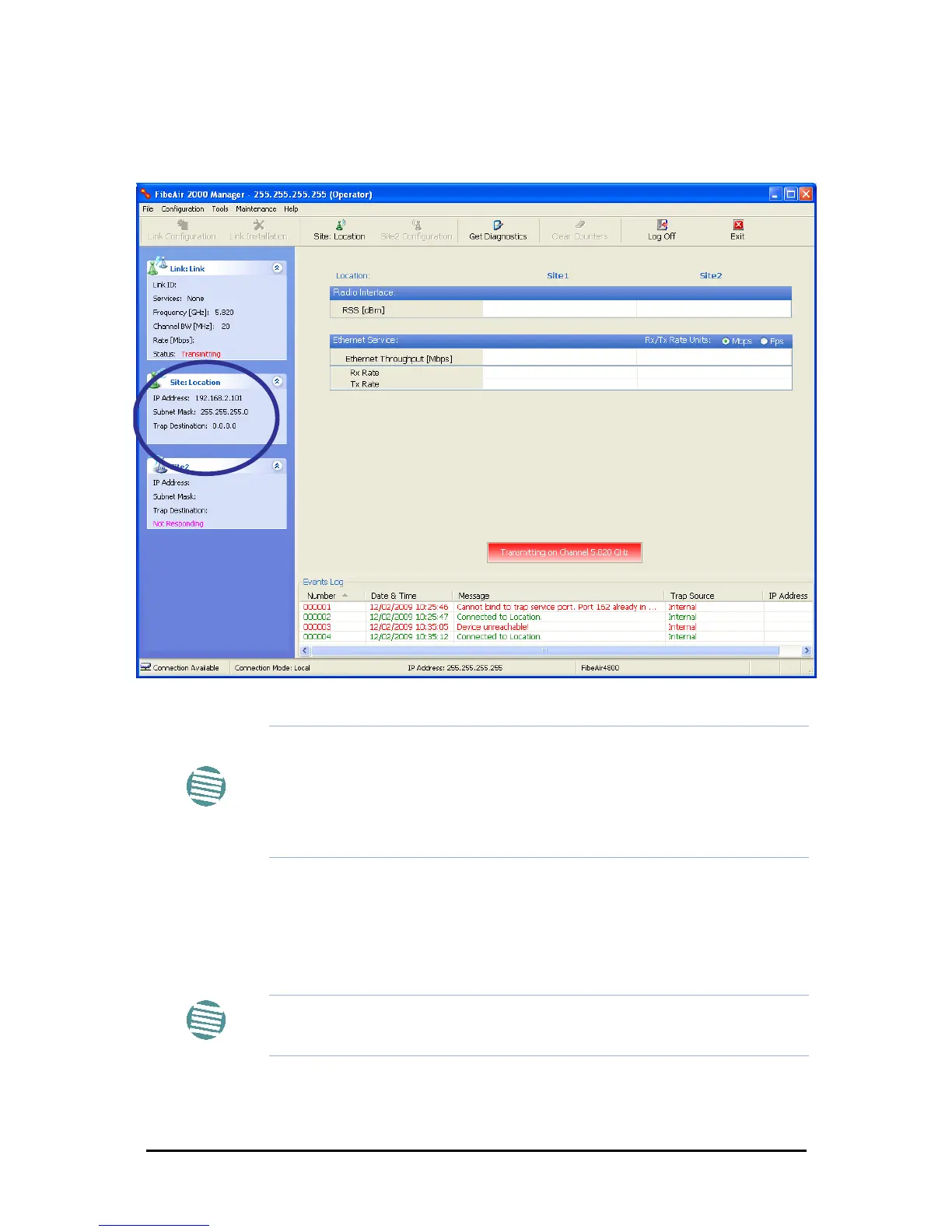
12. Click Yes to accept the change. After about half a minute the changes will be reg-
istered in the ODU. On the left hand panel of the main window, you will see the new
IP configuration for the ODU.
Figure 19-7: Main Window after IP Address change
13. Click Cancel to leave the open Management dialog. You may now exit the
FibeAir2000 Manager, or connect to another ODU. If you choose to connect to
another ODU, after about a minute, the main window of the FibeAir2000 Manager
will revert to that shown in Figure 19-2 above. In any event, power down the
changed ODU; your changes will take effect when you power it up again.
Note
Some additional things you may want to do now:
• Go to Site Installation | Air Interface. You can enter a Link ID
and change the Installation Frequency and Channel Bandwidth.
• If you log on as Installer, you can change the default band (Chapter
20).
Note
Don’t forget to remove the RF terminators from a connectorized ODU after
powering it down.



 To Next Page