Upgrading an Installed Link Chapter 15
FA4800 User Manual Release 1.9.40 15-3
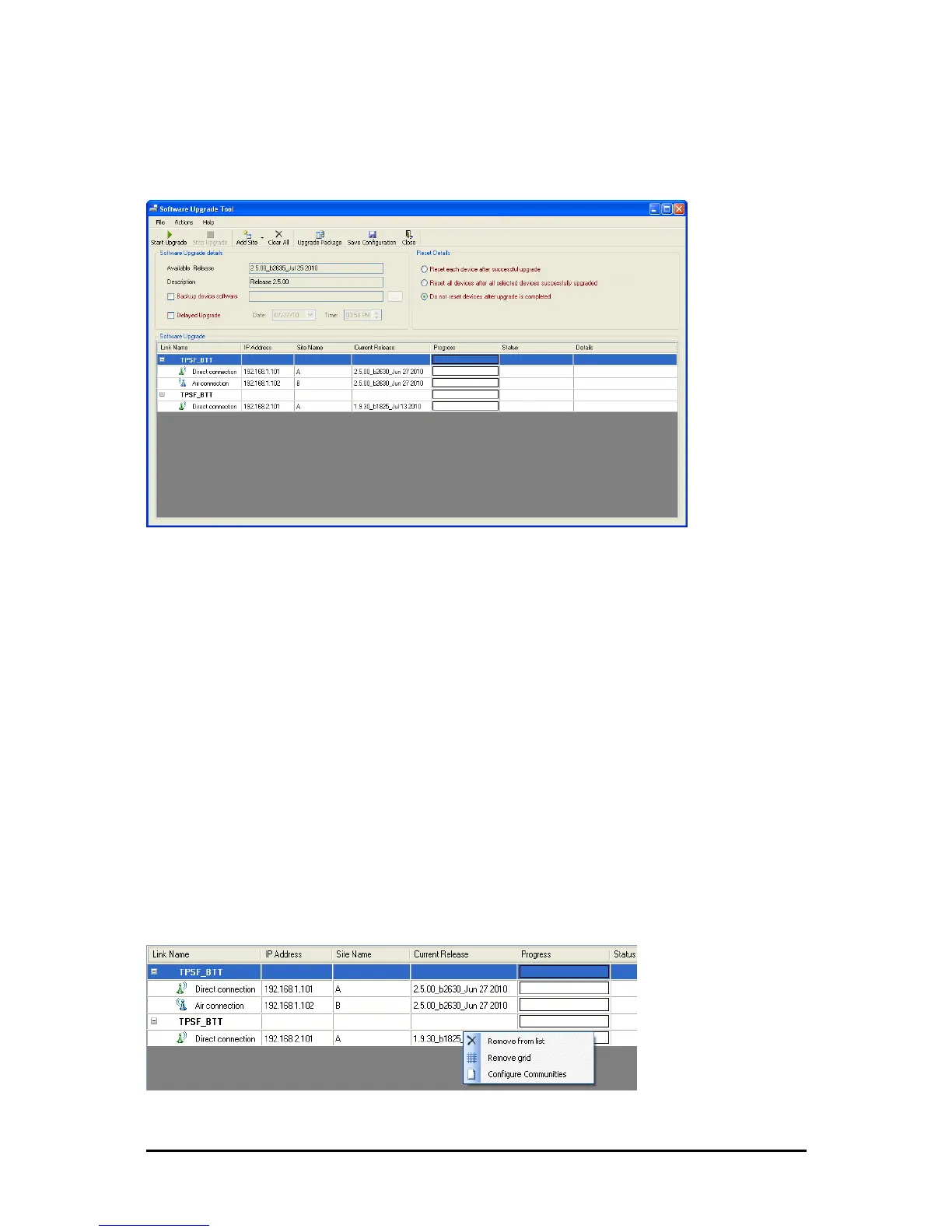
Enter the IP address of the site, the Community strings (Default: public and net-
man, respectively) and then click OK. The site will appear in the Software Upgrade
list box. For example if we add the site at IP address 192.168.2.101, the SWU main
window of Figure 15-1 looks like this:
Figure 15-4: Single site added for upgrade
The list can be cleared using the Clear All button.
As an alternative to adding sites one at a time, you can add sites from a prepared list
using the Add from File option in Figure 15-2. The list has the following format:
<IP address>,<Read-Only community>,<Read-Write community>
Here is an example:
192.168.1.101,public,netman
192.168.1.102,public,netman
192.168.2.101,public,netman
192.168.2.102,public,netman
3. Having created an update list, click Upgrade Package to chose the relevant files.
The default files are located in the SWU subdirectory in the FibeAir2000 Manager
installation area. They are currently named SWU_1k.swu and SWU_2k.swu. You
may have to find them elsewhere, depending on your system.
4. You make limited changes to the list by right-clicking any line:
Figure 15-5: Software Upgrade site options



 To Next Page