Navigation Menu and Settings
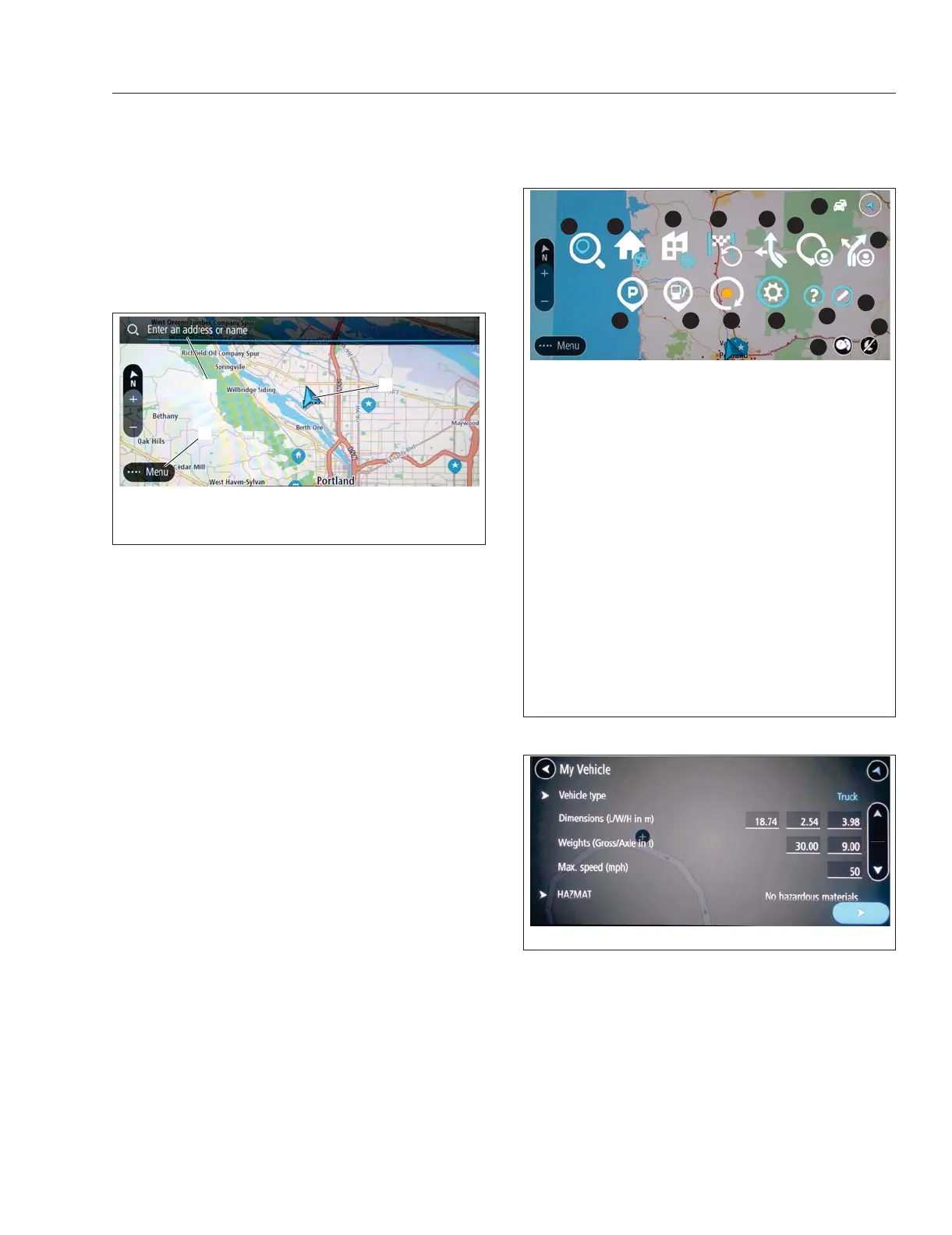
Open Navigation and Select ····Menu. See Fig. 7.1
for a map and see Fig. 7.2 for the navigation menu.
NOTE: The route view appears on the screen
as soon as the vehicle is moving.
The basic navigation map shows the current vehi-
cle’s location, presents a navigation address entry
bar, and a ····Menu button. A known destination ad-
dress may be entered here or the ····Menu button
selected.
The ····Menu button will bring up the first of three
screen of Navigation Menu Icons. Access the Set-
tings menu to create a vehicle profile.
Creating a Vehicle Profile
Whenever possible, the vehicle profile will be taken
into account during route calculation. When a chosen
destination is not reachable via a route that takes
your vehicle profile into account, the system will in-
form you that the route is calculated based on differ-
ent vehicle profile.
Depending on local conditions, the navigation system
may not always be able to include all selected set-
tings for route calculation, avoiding toll roads for ex-
ample.
1.
Select ····Menu.
2.
Select Settings.
3.
Select My Vehicle.
4.
Select Vehicle type. A list of possible types of
vehicle appears.
•
Select a vehicle type from the list then
press the back arrow in the upper left cor-
ner of the screen. The current settings of
the type of vehicle appears.
•
If needed, select the values and adjust
them to match the actual vehicle.
•
If you are transporting hazardous materi-
als, add these to your vehicle profile.
f61155908/02/2019
1
2
3
1. ····Menu
2. Address Input Line
3. Current Location
Fig. 7.1, Pre-Trip Planning Navigation Map - ICC5
f611560a08/14/2019
1
2
3 4 5
6
7
8
9
10
11121314
15
16
1. Search for Address or
POI
2. Drive Home
3. Drive to Work
4. Drive to Recent Destination
5. Change Current Route
6. Display Saved Locations
7. Live Traffic On
**
8. Display Saved Routes
9. Edit ····Menu
10. System Information
11. Settings
12. Record Current Route
13. Display Gas Stations
14. Display Parking Lots
15. Voice On/Off
16. Night Mode On/Off
**
An X appears on the bottom right of this icon when
the vehicle can’t connect to the traffic system.
Fig. 7.2, Navigation Menu Icons - ICC5
f61177207/30/2019
Fig. 7.3, My Vehicle Profile Screen - ICC5
Driver Assistance Features
7.2



 To Next Page