Driver Display Overview: ICC5
The ICC5 driver display (or A-panel display) is used
to communicate information about the current ve-
hicles status and environmental information. The bat-
tery voltage, outside ambient air temperature, current
time, and current compass direction are displayed
across the top of the screen. Information such as fuel
gauge, current speed, odometer reading, current
gear, and primary and secondary air pressure
gauges display on the bottom of the screen.
The driver display provides information in two differ-
ent modes: a base screen layout (see
Fig. 3.49) and
a pilot screen layout (see
Fig. 3.50). What screen
displays depends on safety features installed and if
the vehicle is in motion.
ICC5 Driver Display Screen
Each telltale has its screen location except for dy-
namic telltales which are displayed in positions 17-20
and sorted in priority order from right to left—
meaning position 20 has the highest priority. See
Fig. 3.53. If there are more that four dynamic tell-
tales active, only the four highest priority ones are
displayed.
For a full list of telltales and their meanings, see
Warnings, Indicators, and Messages in this
chapter.
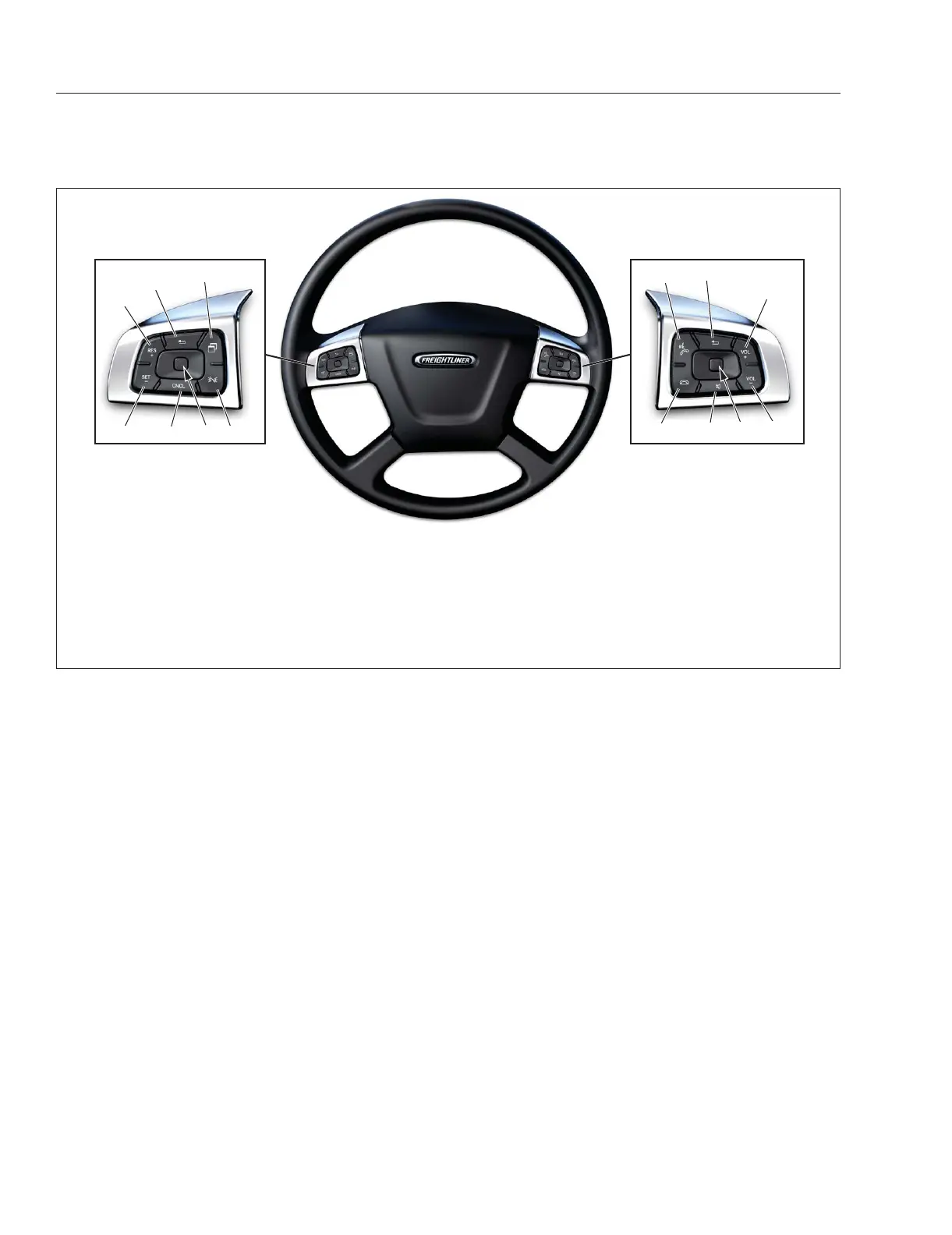
ICC5 Steering Wheel Buttons
To navigate features and screens, use the Optical
Finger Navigation Control (OFN) buttons on the
steering wheel.
The buttons in the left-hand pod control the driver
display features. See
Fig. 3.54. The buttons in the
right-hand pod provide access to infotainment fea-
tures and menus. See Fig. 3.55.
Basic ICC5 Functions
ICC5 Alert Messages
Alert messages appear on the driver display when
certain conditions occur. They include warnings, cau-
tions, and notices that require the driver’s attention.
f61153110/25/2018
1
2
3
4
5
6
7
8
9
10
11
12
A
A
A. Menu Buttons—The left Menu button accesses the driver display. The right Menu button accesses the infotainment
screen.
1. Cruise Accelerate/Resume
2. Back Button
3. Quick Access System Settings
4. Marker Interrupt
**
5. Cruise Cancel
6. Cruise Decelerate/Set
7. Phone Pick-Up
8. Back Button
9. Volume Increment Up
10. Volume Increment Down
11. Mute Button
12. Phone Hang-Up/Reject
**
Not available in all markets.
Fig. 3.52, Steering-Wheel-Mounted Optical Finger Navigation Control (OFN) buttons - ICC5
Instruments
3.29



 To Next Page