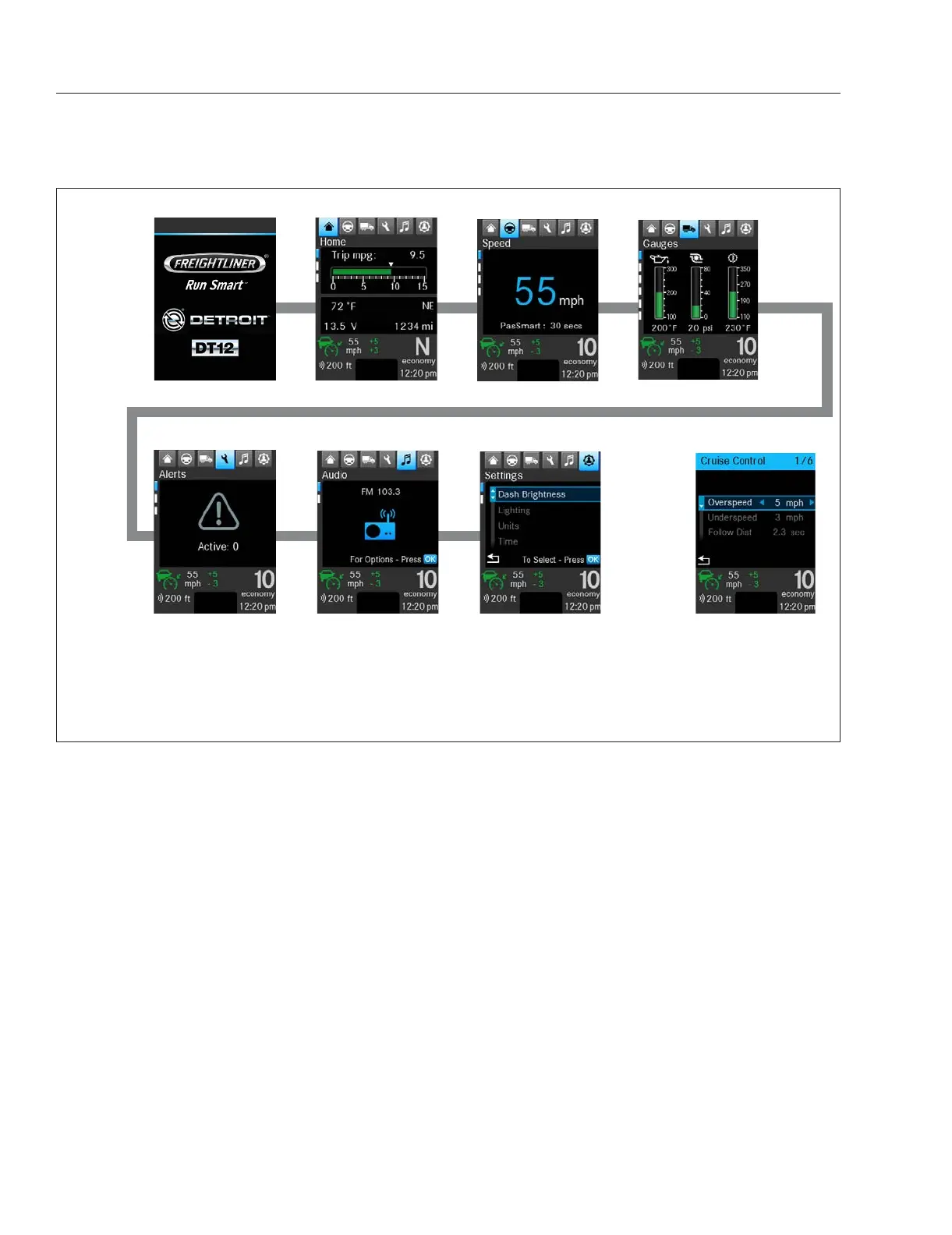
The Speed screen shows the current vehicle speed
as well as temperature, odometer and PasSmart in-
formation. See
Fig. 3.9
The Driving Assistance screens, depending on sys-
tems installed, show lane departure warnings, adap-
tive cruise control, active lane assist, traffic sign dis-
play, and/or side guard assist. See
Fig. 3.12.
The Eco Driver Feedback screens display bar graphs
measuring cruise control usage, smooth acceleration,
and gentle braking. For fuller explanation, see the
Digital Instruments: ICUC section.
Depending on systems installed, video is recorded
when active safety systems are engaged or unsafe
driving conditions are detected.
Vehicle Operations Screens
There are currently five top-level menu options under
Vehicle Operations:
•
Gauges
•
Diesel Particulate Filter
•
Tire Pressure Monitoring
•
Locks
•
Vehicle Settings
For information on gauge screens and Tire Pressure
Monitoring see "Instruments and Systems: ICUC" in
this chapter. Information on diesel particulate filter
monitoring is covered in chapter
Chapter 14 Emis-
sions and Fuel Efficiency. Information on Transmis-
sion Prognostics is covered in
Chapter 17 Auto-
mated and Automatic Transmissions. For information
on Locks see
Chapter 19 Drive Axles.
The Vehicle Settings screen provides access to ve-
hicle system settings such as cruise control, trans-
mission, attention assist, and idle adjust. See
Fig. 3.13
f61135506/29/2016
123
4
56
8
7
NOTE: Navigate the top-level menu by using the Menu right and Menu left buttons on the steering wheel. Navigate to
Quick Access Systems using the Quick Access Systems switch. When navigating the categories, the last-used menu
screen in each category is displayed, which is not necessarily the screen shown in this illustration.
1. Startup
2. Basic Information
3. Drive Time Systems
4. Vehicle Operations
5. Maintenance
6. Infotainment
7. User Settings
8. Quick Access Systems (if
available)
Fig. 3.9, ICUC Top-Level Menu Categories and Navigation
Instruments
3.7



 To Next Page