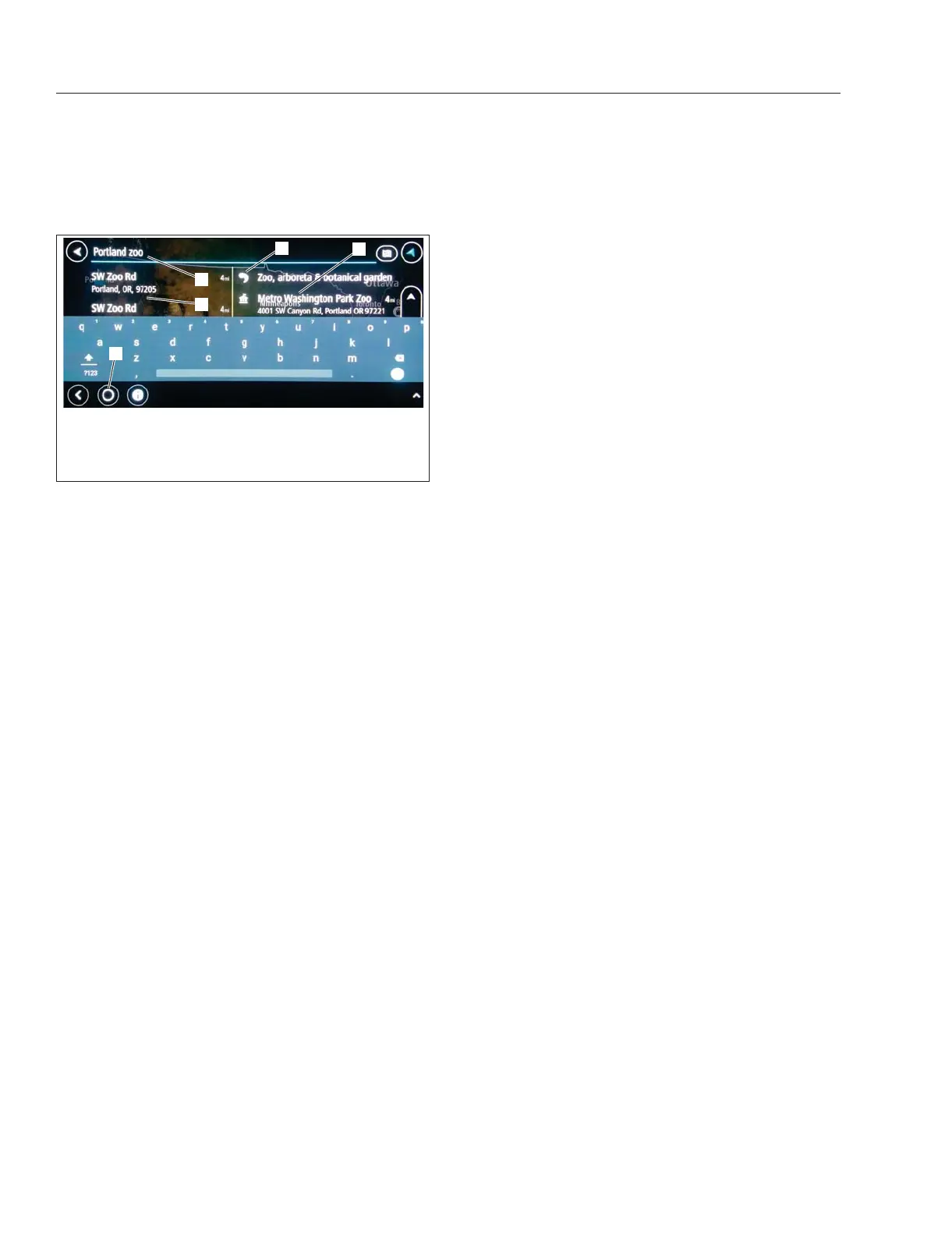
3.
Enter a saved POI such as Home or a type of
POI such as Gas Station or Zoo.
4.
Select POI or a POI type from the results list; the
destination appears.
5.
Select Drive.
6.
The My Vehicle type and configuration screen
appears; verify the information by selecting the
arrow at the bottom right. If necessary, update
the information and then select the arrow at the
bottom right to verify it.
7.
Select Let’s Go··· to start navigation guidance.
Selecting a Destination From the Recent
Destinations
1.
Select ····Menu.
2.
Select Recent Destinations to display a list of
previous destinations.
3.
Select a destination from the list.
4.
Select Drive.
5.
The My Vehicle type and configuration screen
appears; verify the information by selecting the
arrow at the bottom right. If necessary, update
the information and then select the arrow at the
bottom right to verify it.
6.
Select Let’s Go··· to start navigation guidance.
Selecting a Destination on the Map
1.
Open the navigation system.
2.
Search for a destination on the map by swiping
and zooming.
3.
Select the destination on the map by pressing
and holding. The address nearest to the selected
point appears.
4.
Select Drive.
5.
The My Vehicle type and configuration screen
appears; verify the information by selecting the
arrow at the bottom right. If necessary, update
the information and then select the arrow at the
bottom right to verify it.
6.
Select Let’s Go··· to start navigation guidance.
Selecting a Destination from Geo-
Coordinates
1.
Open the navigation system.
2.
Either select the search bar at the top of the map
or select the Search option under ····Menu.
3.
Select the button to the right of the search input
line to define the search area.
4.
Select Latitude Longitude. An input menu ap-
pears.
5.
Enter the geo-coordinates. The results appear in
the results list.
6.
Select a destination from the results list; a menu
appears.
7.
Select Drive.
8.
The My Vehicle type and configuration screen
appears; verify the information by selecting the
arrow at the bottom right. If necessary, update
the information and then select the arrow at the
bottom right to verify it.
9.
Select Let’s Go··· to start navigation guidance.
Selecting a Destination from a Map Code
1.
Open the navigation system.
2.
Select the search bar at the top of the map.
Make sure the correct search area is defined for
your map code.
3.
Enter a map code; the results are displayed in
the results list.
4.
Select a destination from the results list; a menu
appears.
5.
Select Drive.
6.
The My Vehicle type and configuration screen
appears; verify the information by selecting the
f61177508/05/2019
1
2
3
4
5
1. Map View
2. Address Results
3. Address Input Line
4. POI Category List
5. POI List
Fig. 7.5, POI Results Lists - ICC5
Driver Assistance Features
7.7



 To Next Page