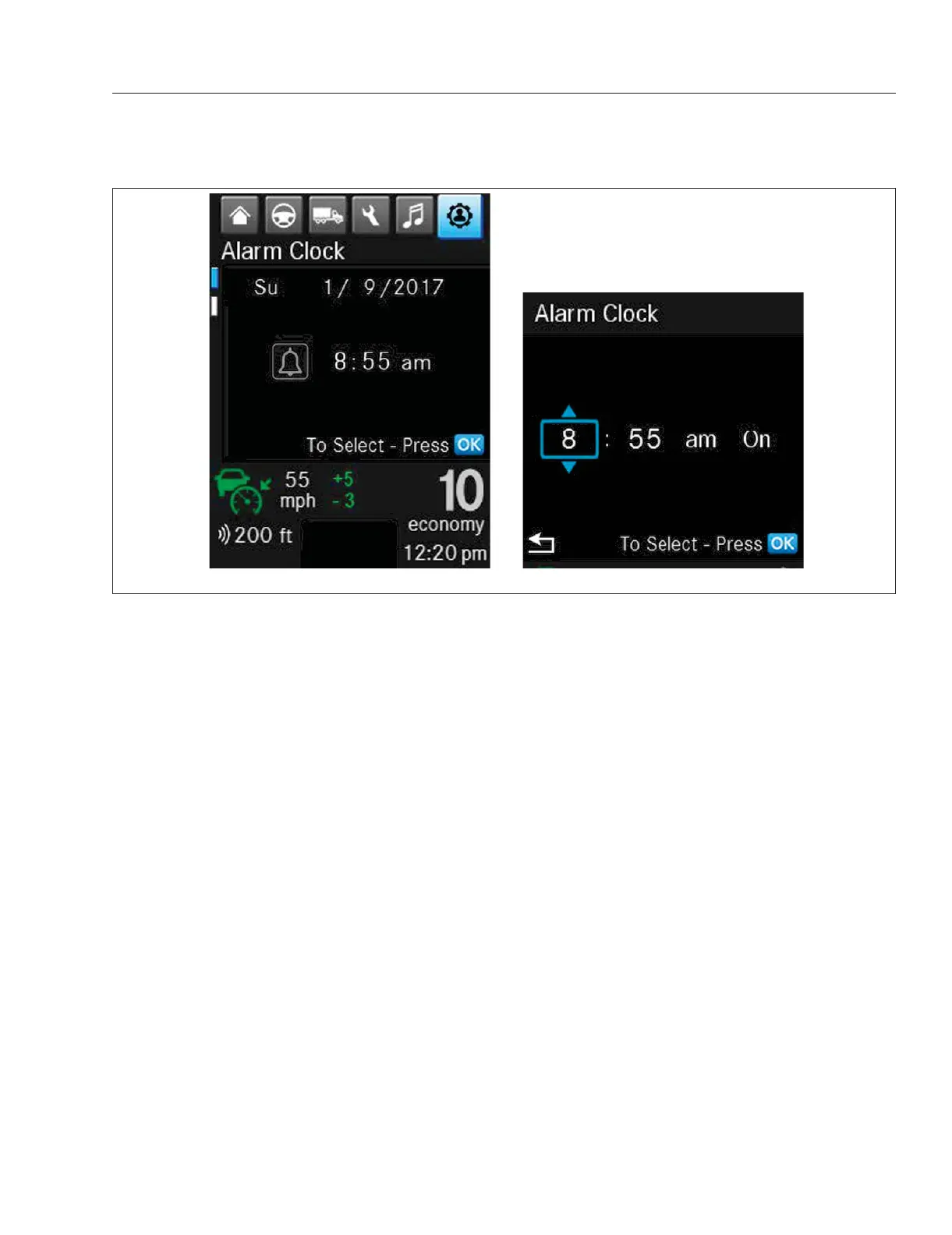
4.
Use the Up and Down arrow to choose hour,
minute, and am/pm and alarm status.
5.
Press OK to set the alarm.
ICUC Driver Display Screens
The six ICUC top-level menu categories are:
•
Basic Information
•
Drive Time Systems
•
Vehicle Operations
•
Maintenance
•
Infotainment
•
User Settings
Quick Access Systems are also available via the
right-hand steering wheel Quick Access System Set-
tings button (see
Fig. 3.4).
NOTE: Screens will vary depending on vehicle
options. Some screens are accessible only
when the vehicle is parked and the parking
brake is on.
Basic Information Screens
There are currently three top-level menu options
under Basic Information:
•
Home
•
Trip
•
Leg
The Home screen displays a fuel consumption bar
graph, the current outside temperature, the vehicle
charging system voltage, compass direction of travel,
and odometer. See
Fig. 3.9.
The Trip report screen displays calculations based on
the engine run time such as trip mpg. See
Fig. 3.10.
The trip Leg report screen which displays calcula-
tions based on engine run time such as length of trip
leg, average speed, hours. See
Fig. 3.11.
Drive Time Systems Screens
There are currently four menu options under Drive
Time Systems:
•
Speed
•
Driving Assistance
•
Eco Driver Feedback
•
Video
f61163604/25/2019
Fig. 3.8, ICUC Alarm Clock Screens
Instruments
3.6



 To Next Page