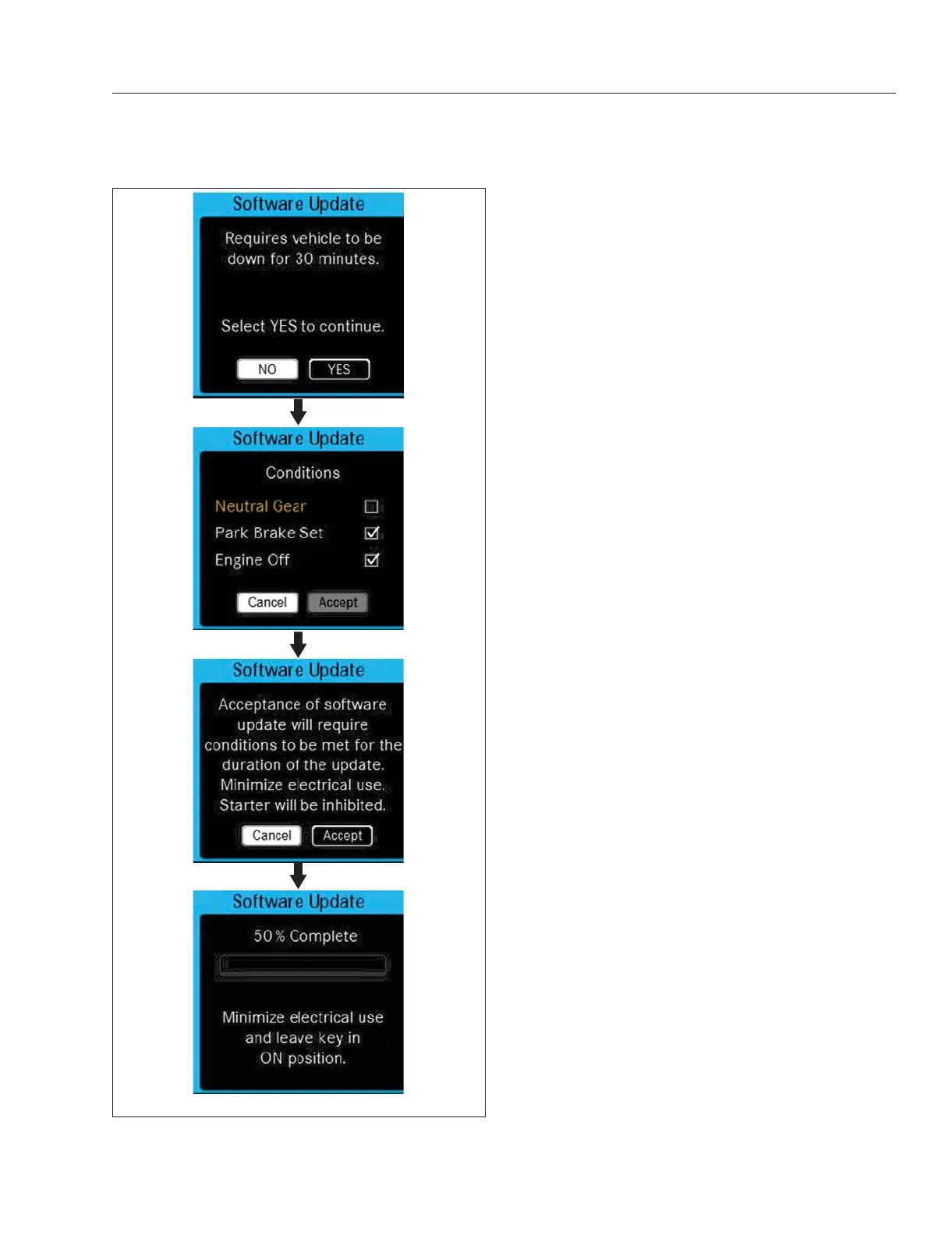
If a software update is interrupted, the system will
ask if you want to restart the process or inform you
that the vehicle cannot be driven until the update is
complete. If a software update fails, the system will
attempt to revert to the previous version. A notifica-
tion will appear when a software update has been
successfully installed.
Failure to install software updates may make data
less secure and/or mean vehicle systems are not
operating at their best.
NOTE: An estimation of installation time will be
given before the software update starts. Installa-
tion can take several minutes. During installation
individual functions and controls will not be
available or only available to a limited degree.
Driver Display Overview: ICUC
Below is an overview of ICUC driver display screens
and functions.
ICUC Alert Messages
Alert messages are displayed when certain condi-
tions occur. They include warnings, cautions, and
notices that require the driver’s attention. Not all alert
messages are critical to the operation of the vehicle.
More important messages take priority over less im-
portant messages. The header text and color indi-
cates the priority of the on-screen message, listed
from the highest to the lowest:
•
Warning (red)
•
Caution (amber)
•
Status/Informational (blue, green, white, and
grey)
Warnings alert the driver to situations or conditions
that may pose a threat to control of the vehicle. Fol-
low all instructions given in the message.
Cautions alert the driver to situations or conditions
that may result in damage to vehicle components, or
derating of engine power.
Status notices alert the driver to situations or condi-
tions that may improve fuel efficiency or improve ve-
hicle drivability.
See
Fig. 3.6 for typical alert messages.
ICUC Watch for Ice Popup
When ambient air temperature drops below 34°F
(1°C), a Watch For ICE popup message will appear.
f61164304/29/2019
Fig. 3.5, Example ICUC Software Update Screens
Instruments
3.4



 To Next Page