set anywhere from 1 minute to 3 hours and 59 min-
utes.
ICCC5 Temperature
NOTE: Pay attention to road conditions when air
temperatures are near freezing.
In the ICC5 the ambient air temperature displays at
the top and slightly to the right on the driver display
screen. See Fig. 3.49. The temperature can be set
to display in °F or °C in Settings.
When ambient air temperature drops below 34°F
(1°C), a snowflake icon will appear below the display
temperature. The snowflake icon will display until the
ambient air temperature rises to 37°F (3°C).
If the temperature drops below 34°F (1°C) after rising
above 37°F (3°C), the snowflake will reappear.
Digital Gauges and System
Monitors: ICC5
ICC5 Gauges
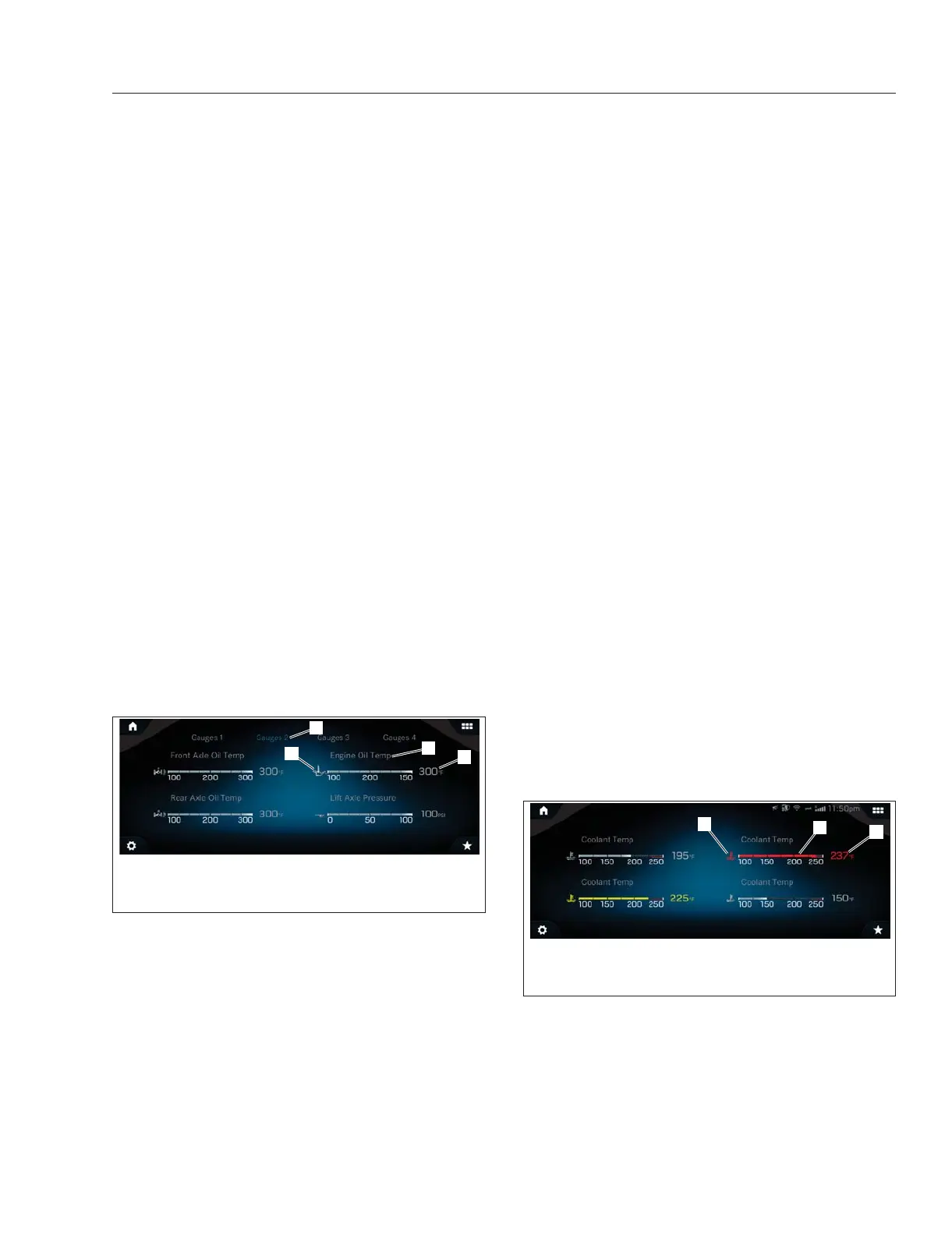
There are thirteen digital gauges under the Gauges
menu on the B-panel or infotainment display. See
Fig. 3.56 for an example screen overview. Twelve
are informational only; if active, Soot Level includes a
button to start a regeneration.
The default display order of gauges is as follows:
•
Coolant Temperature
•
Engine Oil Pressure
•
Engine Oil Temperature
•
Transmission Oil Temperature
•
Front Axle Oil Temperature
•
Rear Axle Oil Temperature
•
Lift Axle Pressure
•
Soot Level
•
Application Air Pressure
•
Suspension Air Pressure
•
Trailer Application Air Pressure
•
Trailer Suspension Air Pressure
•
Turbo Boost Pressure
The default can be changed. Pressing on an existing
gauge will cause a popup window to appear with the
option to either Remove or Replace the gauge.
Choosing Replace will bring up a radio button list of
all available gauges from which to choose; replacing
a gauge will move the first gauge into a different
screen placement. Removing a gauge removes the
gauge from the gauge screens. A removed gauge
can be added back by pressing the Add or plus sign
button. Doing so will cause a radio button list to ap-
pear listing the gauges available to be added.
Gauge units of measurements are controlled under
Settings which can be accessed under the Cab
menu or by pressing the star menu icon in the lower
left corner.
Moving between gauge screens can be accom-
plished by pressing the gauge screen name at the
top of the screen.
In the ICC5, if a value measured by a digital gauge
exceeds the normal range, the gauge icon, display
bar graph color, and gauge value will change color to
amber to indicate caution or red to indicate danger.
See
Fig. 3.57.
Gauge information can also be viewed on the driver
display. See
Fig. 3.60.
f61176308/07/2019
1
2
3
4
1. Gauge Screen Name
2. Gauge Icon
3. Gauge Name
4. Gauge Value
Fig. 3.56, Example Gauge Screen - ICC5
f61176408/07/2019
1
2
3
1. Red Gauge Icon
2. Red Gauge Bar Graph
3. Red Gauge Value
Fig. 3.57, Gauge Caution & Warning Indicator Display -
ICC5
Instruments
3.32



 To Next Page