arrow at the bottom right. If necessary, update
the information and then select the arrow at the
bottom right to verify it.
7.
Select Let’s Go··· to start navigation guidance.
The following are the examples of map code entries:
•
Edinburgh Castle, international map code -
WH6SL. TR10
•
Edinburgh Castle, country specific map code -
GBR 8MH.51
•
The Field Museum of Natural History, country
specific map code - T821.1BFF
•
The Field Museum of Natural History, state
specific map code - WM.GO (Must have Illinois
selected as search area for this code to re-
solve correctly.)
•
The Field Museum of Natural History, alterna-
tives - SY.FRQ or 9Q9.VOP
Selecting a Destination from Saved
Destinations
1.
Select ····Menu.
2.
Select My Places a list of saved destinations ap-
pears.
3.
Select a destination from the list; the destination
appears on the map.
4.
Select Drive.
5.
The My Vehicle type and configuration screen
appears; verify the information by selecting the
arrow at the bottom right. If necessary, update
the information and then select the arrow at the
bottom right to verify it.
6.
Select Let’s Go··· to start route guidance.
Selecting a Destination from Saved
Routes
1.
Select ····Menu.
2.
Select My Routes. If you have saved routes, a
list of saved routes appears.
3.
Select a route from the list.
4.
The My Vehicle type and configuration screen
appears; verify the information by selecting the
arrow at the bottom right. If necessary, update
the information and then select the arrow at the
bottom right to verify it.
5.
The route appears on the map. Select Drive to
calculate the route.
6.
Select Let’s Go··· to start navigation guidance.
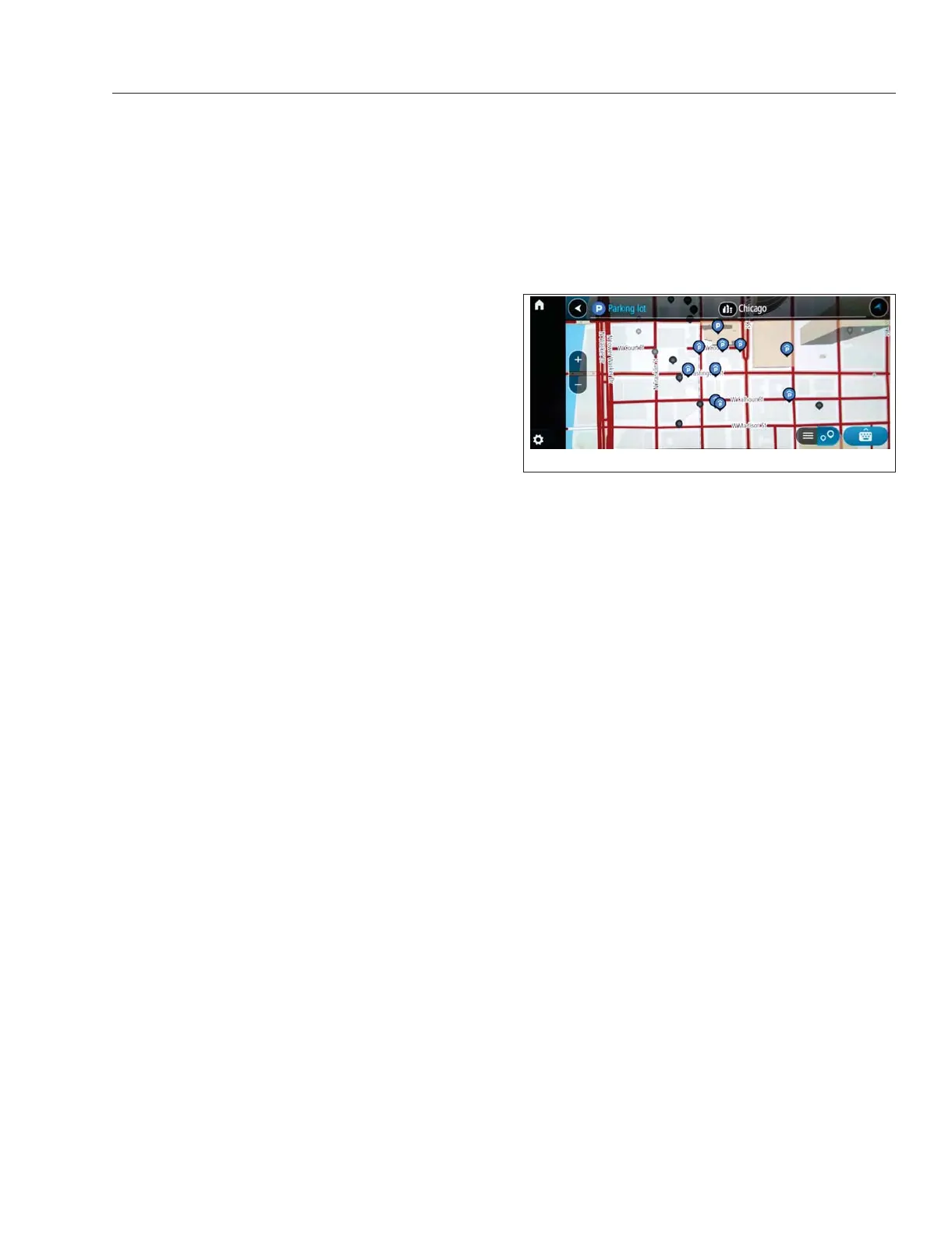
Searching for a Parking Lot Area
NOTE: Navigation shows gas stations, parking
lots, and other locations that may not be suit-
able for your vehicle’s size and weight. Use
caution when selecting locations and routes.
1.
Select ····Menu.
2.
Select Parking Lot.
2.1
If a route is active, the map appears with
parking lots near the destination.
2.2
If a route is not active, the map appears
with parking lots near the current vehicle
location.
3.
Select a parking lot area; the name of the park-
ing lot area appears on the map.
4.
Select Drive to recalculate the route to end at the
chosen parking lot; the route to the destination
appears.
5.
The My Vehicle type and configuration screen
appears; verify the information by selecting the
arrow at the bottom right. If necessary, update
the information and then select the arrow at the
bottom right to verify it.
6.
Select Let’s Go··· to start the navigation guid-
ance.
Searching for Gas Stations
NOTE: Navigation shows gas stations, parking
lots, and other locations that may not be suit-
able for your vehicle’s size and weight. Use
caution when selecting locations and routes.
f61177308/01/2019
Fig. 7.6, Parking Lots Displayed - ICC5
Driver Assistance Features
7.8



 To Next Page