Displaying Alternative Routes
1.
Create a route.
2.
Select ····. or ····Menu.
3.
Select Current Route.
4.
Select Find Alternative. A maximum of three al-
ternative routes appear on the map. The differ-
ence between the driving time or distance com-
pared to the original route is displayed for each
route.
5.
Select an alternative route by selecting the route
shown on the map or selecting the icon display-
ing the difference in driving time or distance.
6.
Select Let’s Go··· to start navigation guidance.
The route view appears.
Avoiding Closed Roads
1.
Create a route.
2.
Select ····. for ····Menu.
3.
Select Current Route.
4.
Select Avoid Blocked Road. If an alternative
route excluding the closed road is available, the
alternative route appears on the map. The differ-
ence between the driving time or distance com-
pared to the original route is displayed for the
route.
5.
To select the alternative route select the route
shown on the map or select the icon displaying
the difference in driving time or distance.
6.
Select Let’s Go··· to start route guidance. The
route view appears.
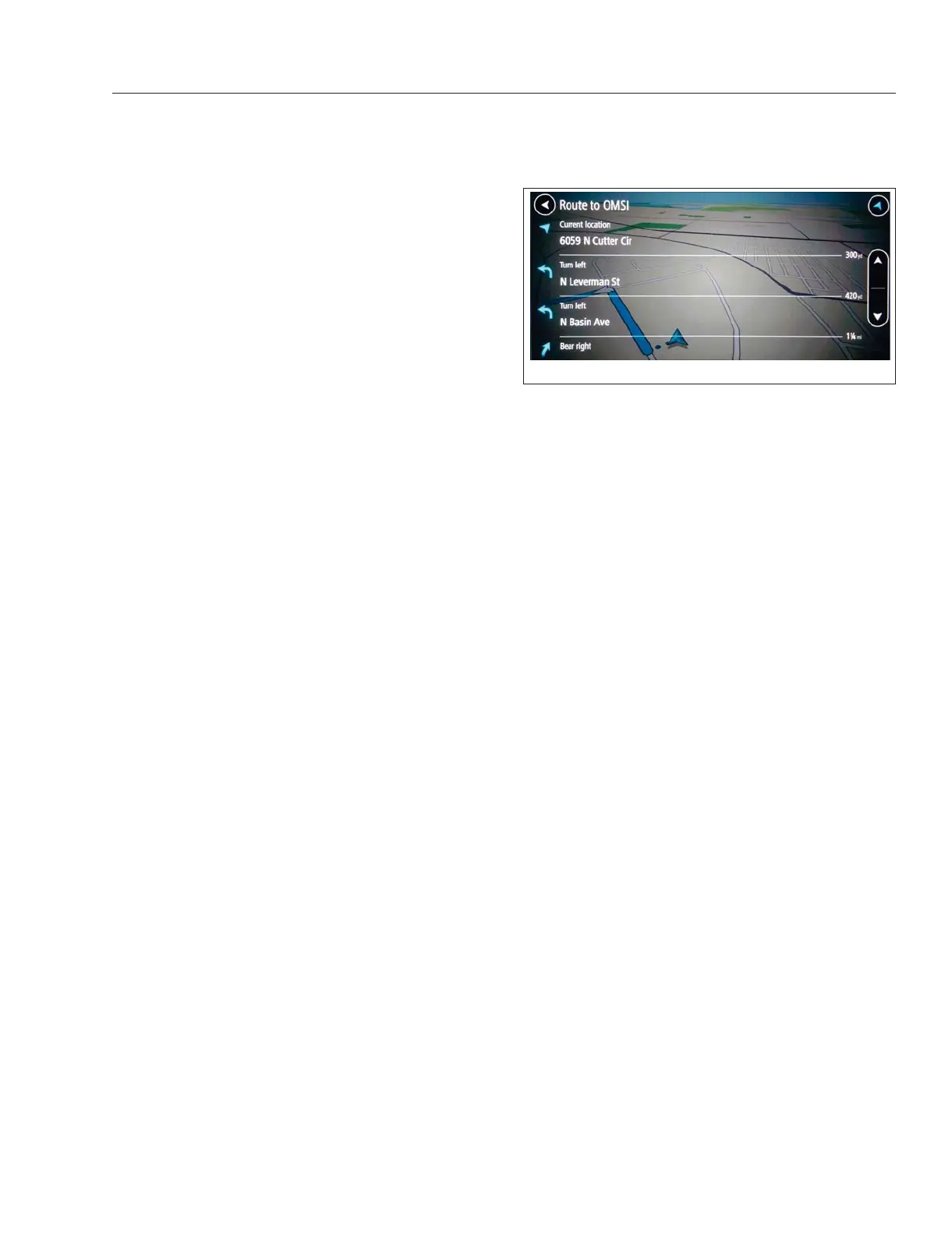
Displaying Navigation Instructions
1.
Create a route.
2.
Select ····. or ····Menu.
3.
Select Current Route.
4.
Select Show Instructions. A list of directions is
shown starting with the current location.
The current vehicle position is shown
with the following information:
•
The symbol for the current vehicle position is
displayed.
•
The name of the road you are currently driving
on is displayed.
•
The road number of the road you are currently
driving on is displayed.
Driving to the Starting Point of a Route
The driver can use this function to drive from the cur-
rent vehicle position to the starting point of a saved
route. The starting point is changed to an intermedi-
ate destination.
1.
Select ····. for ····Menu.
2.
Select Current Route.
3.
Select Drive to Route.
4.
Select Let’s Go··· Route navigation begins.
Current Route
Changing the Route Planning Type.
Route types consist of Fastest and Shortest.
1.
Create or open a route.
2.
Select ····. for ····Menu.
3.
Select Current Route.
4.
Select Change Route Type.
5.
Select a route type: fastest route or shortest
route. The route is recalculated with the selected
route type.
Avoiding Toll Roads and More Along the
Current Route
NOTE: If there are no toll roads or other fea-
tures (unpaved roads, carpool lanes) along the
calculated route, these options will not be avail-
able to be selected.
1.
Create or open a route.
2.
Select ····. for ····Menu.
f61177708/05/2019
Fig. 7.10, Navigation Instructions - ICC5
Driver Assistance Features
7.12



 To Next Page