•
Speedometer and tachometer complete a full
sweep of their dials
•
Warning and indicator lamps illuminate, then
are extinguished (if not active)
•
Audible alert sounds for any active faults
•
Active alerts are displayed on the ICUC
screen.
If the ICUC receives active fault codes, it displays
them one after the other until the ignition is turned
off. The alerts are displayed until they are acknowl-
edged. If there are no active faults, the ICUC dis-
plays the home screen after the self-check com-
pletes.
IMPORTANT: If any red or amber warning and
indicator lamps do not illuminate during the
ICUC self-check or do not go out (if not active)
after the self-check completes, take the vehicle
to an authorized Freightliner service facility as
soon as possible.
If active faults are present, take the action out-
lined in "Warnings, Indicators, and Messages"
tables in this chapter, then take the vehicle to
an authorized Freightliner service facility as
soon as possible.
ICUC Screen Navigation
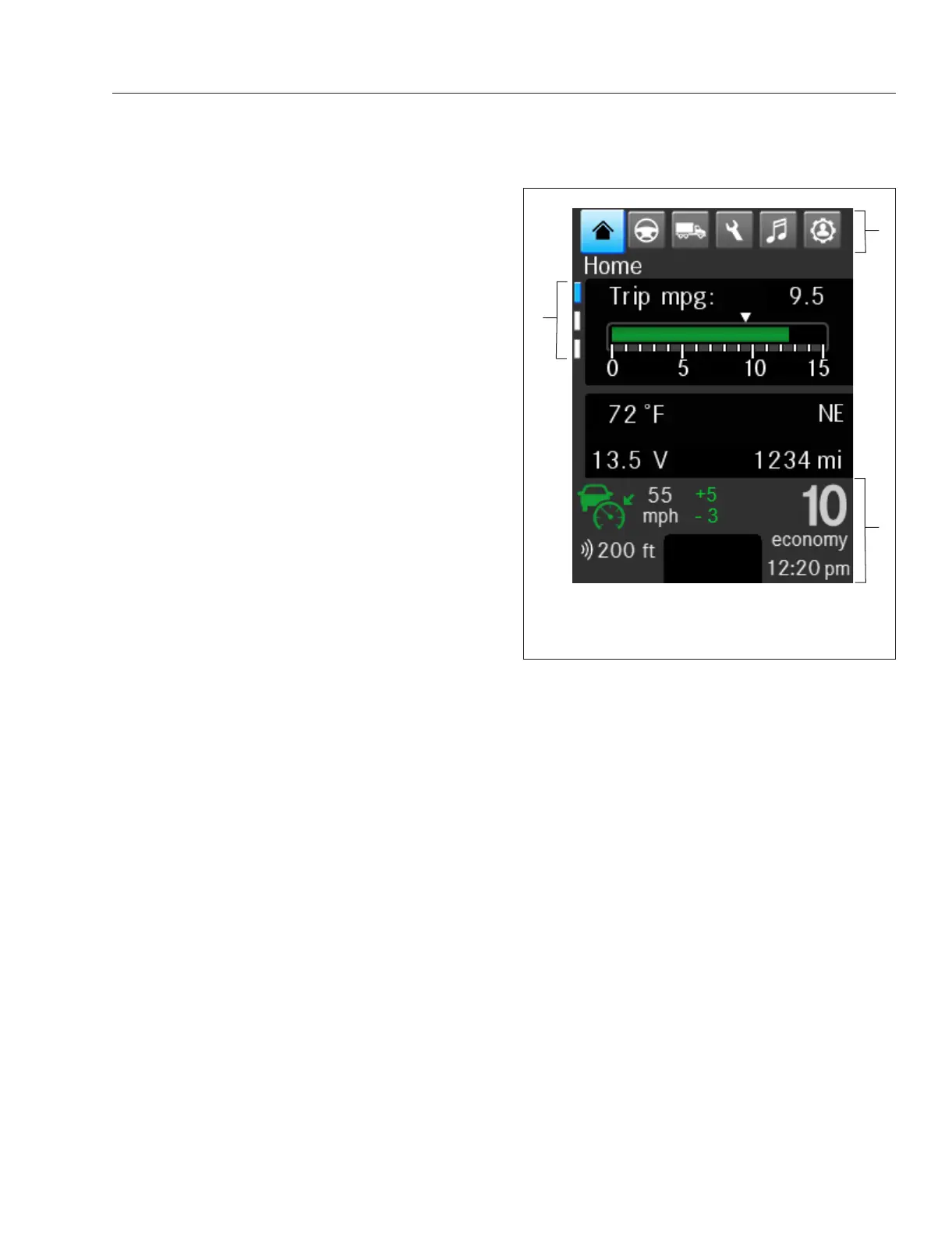
In the ICUC, the driver display screen is broken up
into three areas: a navigable menu at the top of the
screen, the display area (with a screen indicator if
there is more than one page), and a static display at
the bottom of the screen. See
Fig. 3.2.
NOTE: To adjust the brightness of ICUC screen
go to User Settings.
The ICUC top level menu categories allows a driver
to quickly carry out common actions. Top level menu
categories include Home, Drive Time Systems, Ve-
hicle Operations, Maintenance, Infotainment, and
User Settings. See
Fig. 3.1.
The static menu display shows vehicle speed, trans-
mission gear indicators, cruise control settings, and a
clock. Soft telltales are also displayed in this area.
See
Fig. 3.3.
NOTE: Some optional features have icons in the
static display area, for example, Optimized Idle
status and Descent Control Mode.
If present, the screen indicator dashes communicate
how many display screens are available in the cur-
rent menu category. See
Fig. 3.2.
To navigate the ICUC menus, use the Menu Right
and Menu Left switches on the steering wheel to
move between the top-level menus.
Use the Menu Up and Menu Down buttons to move
from screen to screen within the selected category.
See
Fig. 3.4 for an overview of steering wheel
mounted switches.
For Quick Access Systems menus press the Quick
Access System Settings button in the right-hand
switch pod. If Quick Access Systems menus are not
available, the button will bring up the home screen.
Time and Date
Time and date are set automatically when the
vehicle is equipped with a tachograph. When a
vehicle is equipped with a tachograph only the
time zone can be changed.
f61136304/21/2016
3
1
2
1. Top Level Menu Categories
2. Static Menu
3. Current Screen Indicator
Fig. 3.2, ICUC Driver Display
Instruments
3.2



 To Next Page