navigation systems screen, provides access to light-
ing and radio controls, and manages the integration
of phone, smart phone and media sources. Each cor-
ner of the ICC5 infotainment display is a quick ac-
cess icon for commonly used features. For an over-
view of menu category icons on the infotainment
screen as well as infotainment quick access icons,
see
Fig. 3.51.
NOTE: Screens may vary depending on vehicle
options. Some screens are accessible only
when the vehicle is parked.
ICC5 Steering Wheel Buttons
To navigate features and screens, use the Optical
Finger Navigation Control (OFN) buttons on the
steering wheel. See
Fig. 3.52.
The buttons in the left-hand pod control the driver
display features. The buttons in the right-hand pod
provide access to infotainment features and menus.
ICC5 Touch Screen Operation
IMPORTANT: All keyboard entries are locked
when the parking brake is disengaged. Other
touch screen options still function.
Tapping
Tap the touch screen to:
•
Select a menu item, icon, or entry
•
Enter characters with keyboard by tapping on a
character buttons.
Single-Finger Swipe
Use a single-finger swipe to:
•
Navigate in menus: swipe up, down, left or
right.
•
Scroll through screens.
•
Select a menu item, icon, or entry.
Touching, Holding and Moving
Touch, hold, and move the finger to:
•
Select the value on a slider control.
Time and Date
Time and date are set automatically when the
vehicle is equipped with a tachograph. When a
f61170405/08/2019
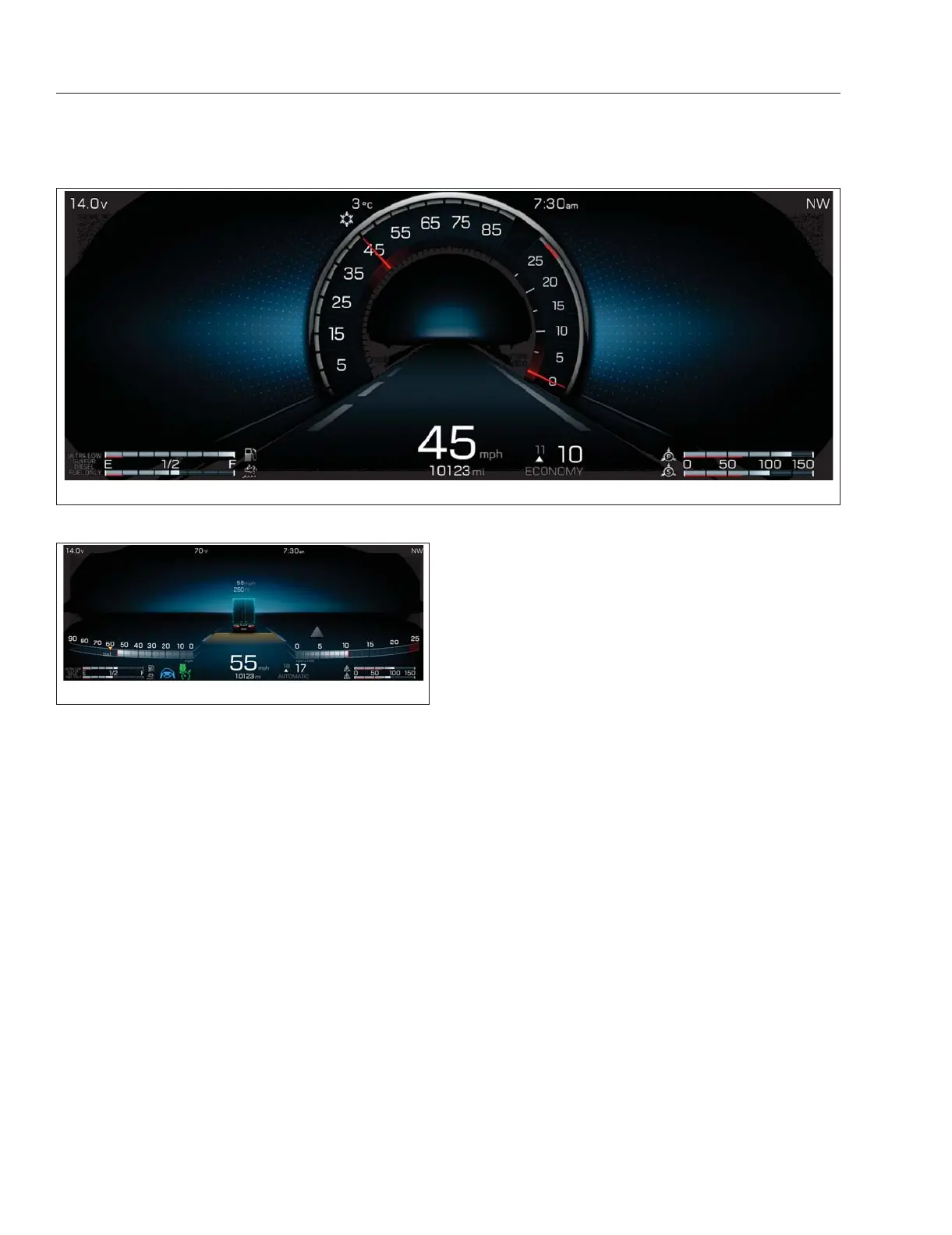
Fig. 3.49, Driver Display Base Screen - ICC5
f61170308/07/2019
Fig. 3.50, Driver Display Pilot Screen - ICC5
Instruments
3.27



 To Next Page