3.
Select Current Route.
4.
Select Avoid Toll Roads and More. The menu of
features to avoid opens.
5.
Select an option or options to avoid. Then select
OK. The main navigation screen willl load.
During Route Guidance
Route Restrictions
When the vehicle type is set to Bus or Truck in the
vehicle profile, route restrictions will be displayed in
the route view during the journey. Streets with re-
stricted access are marked in color on the route
view. Streets with restricted access on the route ap-
pear as a dotted line on the map.
NOTE: Observe all the traffic signs at all times.
Pay particular attention to signs with restrictions
that refer to the dimensions and weight of the
vehicle.
Route Overview
When a route has been calculated, the complete
route appears on the map.
Overview of the Complete Route and
Route Bar
When the vehicle is moving, the 3D display will show
the vehicle’s speed and the name of the road the
vehicle is currently on at the bottom of the screen.
Touching the vehicle icon will bring up a menu that
allows for reporting of a blocked road or a safety
camera.
The wide progress bar shows a simplified view of the
vehicle’s current location on the route.
The progress bar can also show intermediate desti-
nations and traffic messages on the route. Only the
next 31 miles (50 km) will be displayed. For stretches
longer than 31 miles (50 km), the progress bar can
be moved by swiping up or down.
The progress bar can be zoomed in on by selecting
any of the route features, e.g. gas stations, traffic
delays.
Overview of Lane Recommendations
If the digital map contains the corresponding data,
lane recommendations for upcoming changes of di-
rection can be displayed before freeway exits and in-
tersections.
Quick-Access
With quick access, you can mark the location, avoid
closed roads or display the current vehicle position
f61177808/05/2019
1 2
3
4
5
6
78
9
10
11
12
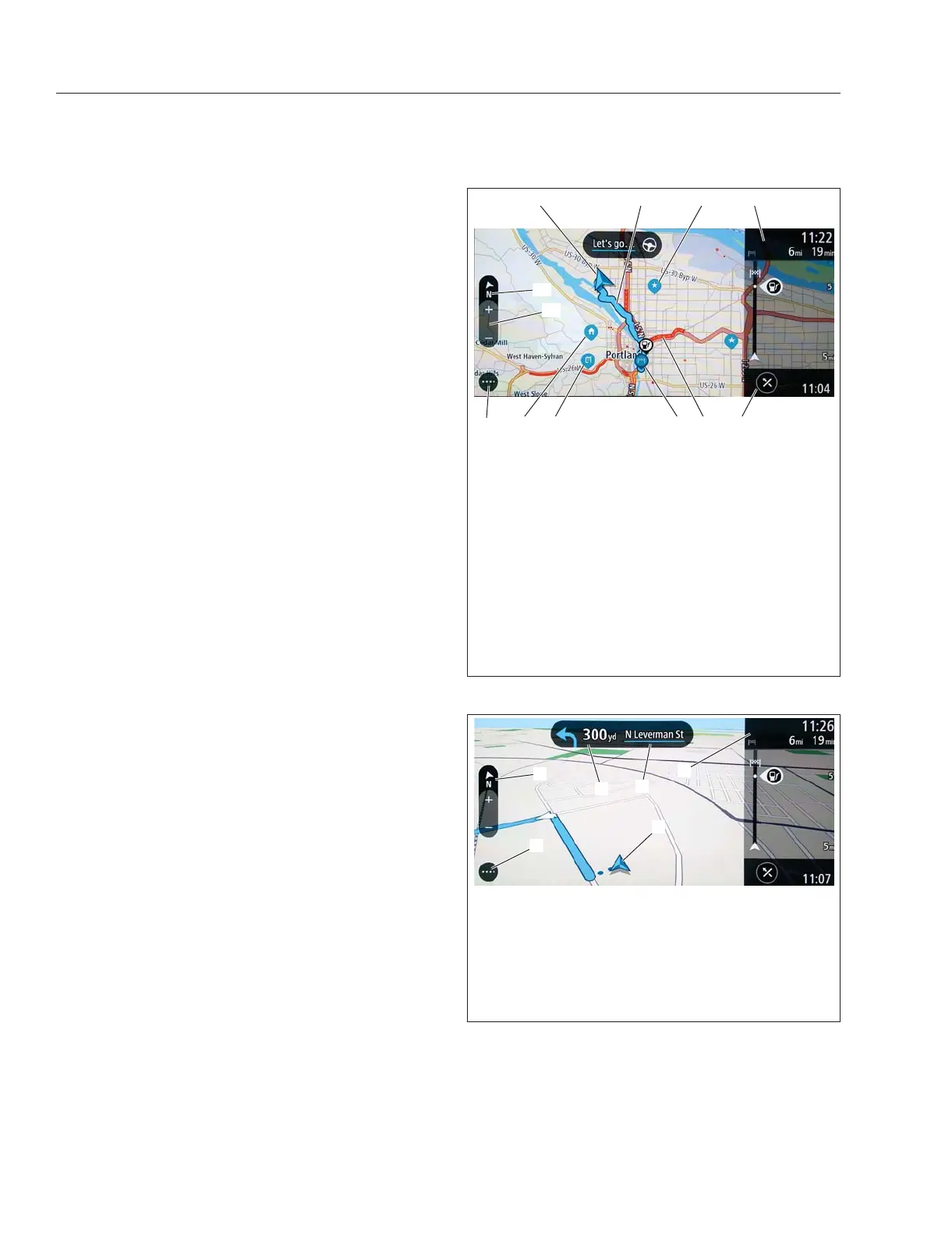
1. Vehicle
2. Planned Route
3. Saved Location
4. Route Bar
5. Cancel Route
6. Slow Traffic
7. Destination
8. Work
9. Home
10. ....Menu
11. Map Zoom
12. 2D to 3D Switch
Fig. 7.11, Route Overview - ICC5
f61156408/06/2019
1
2
3
4
5
6
1. 2D to 3D View Switch
2. Distance to Change of Direction
3. Next Road Name
4. Route Overview
5. Current Vehicle Position
6. ....Menu
Fig. 7.12, Overview of 3D Display- ICC5
Driver Assistance Features
7.13



 To Next Page