3025EMC Master Control Switching & Channel Branding
Page 64 Revision 3.0.3
This allows the user to configure the mixing and ducking channels for each voiceover.
For the previous example Figure 4-20, VO1 has been configured so that when VO1 is applied channels
A1 to A8 of the PGM/PST audio will be ducked (to the level specified in the PGM/PST ratio setting in the
Audio Input Defaults/Stores configuration tab). Only channels A1 to A8 of the VO1 bus will be mixed in
with the PGM/PST audio and these will be mixed in with the VO1 ratio specified in the Audio Inputs
Defaults/Stores configuration tab.
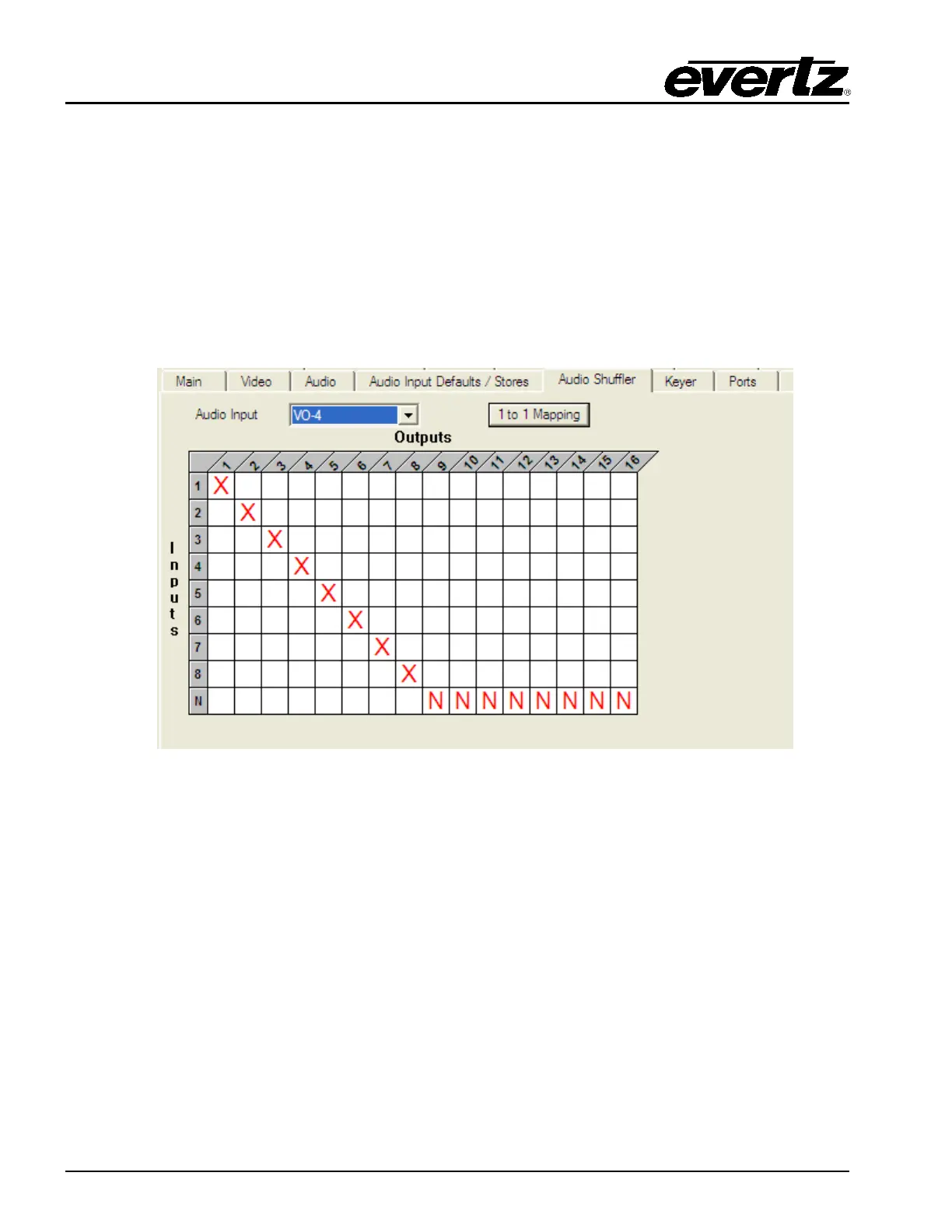
If voiceover 4 is configured to take its audio input from Audio Clip then this is special case which is
different to any other mixing and ducking scenario. If voiceover 4 is configured this way then the shuffler
mapping would look like the following.
Figure 4-21: VO4 Audio Clip Duck & Mix
When Audio Clips are used the VO4 channels that are mixed and the PGM/PST channels that are
ducked is determined automatically by the number of channels that are present in the audio wav file.
In the above example, if the wav file is 8 channels then all 8 channels PGM/PST channels A1 to A8 will
be ducked and VO4 channels A1 to A8 will be mixed.
Any VO4 channel that is configured for “N” specifies that that audio channel will not be mixed and the
corresponding PGM/PST audio channel will not be ducked.
The mixing and ducking options for VO4 (when configured for Audio Clips) will follow the input channel.
For example, if I had shuffled VO4 channels A1/A2 to output channels A9/A10 then the audio from inputs
A1/A2 will be shuffled to A9/A10 and so will the ducking and mixing.



 To Next Page