Cockpit Reference Guide for the Cirrus SR2x with Perspective Touch+ by Garmin
190-02954-01 Rev. A 113
Hazard Avoidance
Flight
Instruments EIS
Nav/Com/
XPDR/Audio
Flight
Management
Hazard
Avoidance AFCS
Additional
Features Annun/Alerts Appendix Index
Flight
Instruments EAS
Audio and
CNS
Flight
Management
Hazard
Avoidance AFCS
Additional
Features
Abnormal
Operation Annun/Alerts Appendix Index
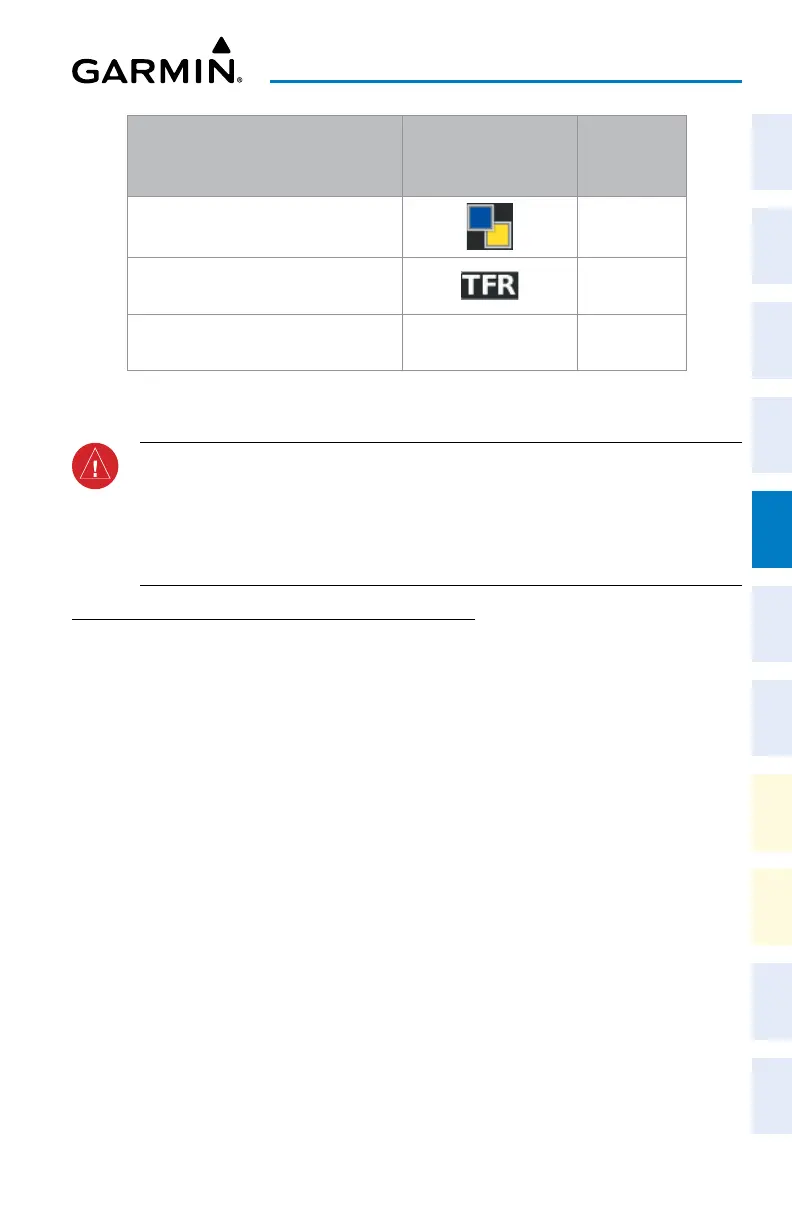
Garmin Connext Weather
Product
Product Symbol
Expiration
Time
(Minutes)
Pilot Weather Reports
(PIREPs)
90
Temporary Flight Restrictions
(TFRs)
60
Terminal Aerodrome Reports
(TAFs)
no product image 60
Garmin Connext Weather Product Symbols and Data Timing
WARNING:
Do not use the indicated data link weather product age to ascertain the
age of the weather information shown by the data link weather product. Due to time
delays inherent in gathering and processing weather data for data link transmission,
the weather information shown by the data link weather product may be older than
the indicated weather product age.
DISPLAYING DATA LINK WEATHER PRODUCTS
Weather Data Link Pane
Viewing the Weather Data Link Pane and changing the data link weather source, if
applicable:
1) From MFW Home, touch the Weather Button. Button is highlighted and becomes
Weather Selection Button. Selected display pane shows a weather pane. If a weather
pane other than ‘Data Link Weather’ is shown (such as ‘Weather Radar’ in the pane
title), continue with the procedure to view the desired Weather Pane. (SiriusXM, FIS-B, or
Connext).
2) Touch the Weather Selection Button. The ‘Weather Selection’ Screen appears.
3) Touch either SiriusXM Weather, Connext Weather or FIS-B Weather Button. Touched
button is highlighted and becomes the settings Button. For example, if the SiriusXM
Weather Button is touched it becomes the SiriusXM Settings Button.
4) If not selected, touch either the SiriusXM, Connext, or FIS-B Settings Button to access
controls for the selected weather pane.
Selecting a Data Link Weather Source for Navigation Map Panes:
1) From MFW Home, touch Map > Map Selection > Map Settings.
2) If not selected, touch the Sensor Tab.












 To Next Page