4-8
Chapter 4 Example of Use
Contents General Description
Checks and Preparation
Settings and Measurement
Example of Use Specification
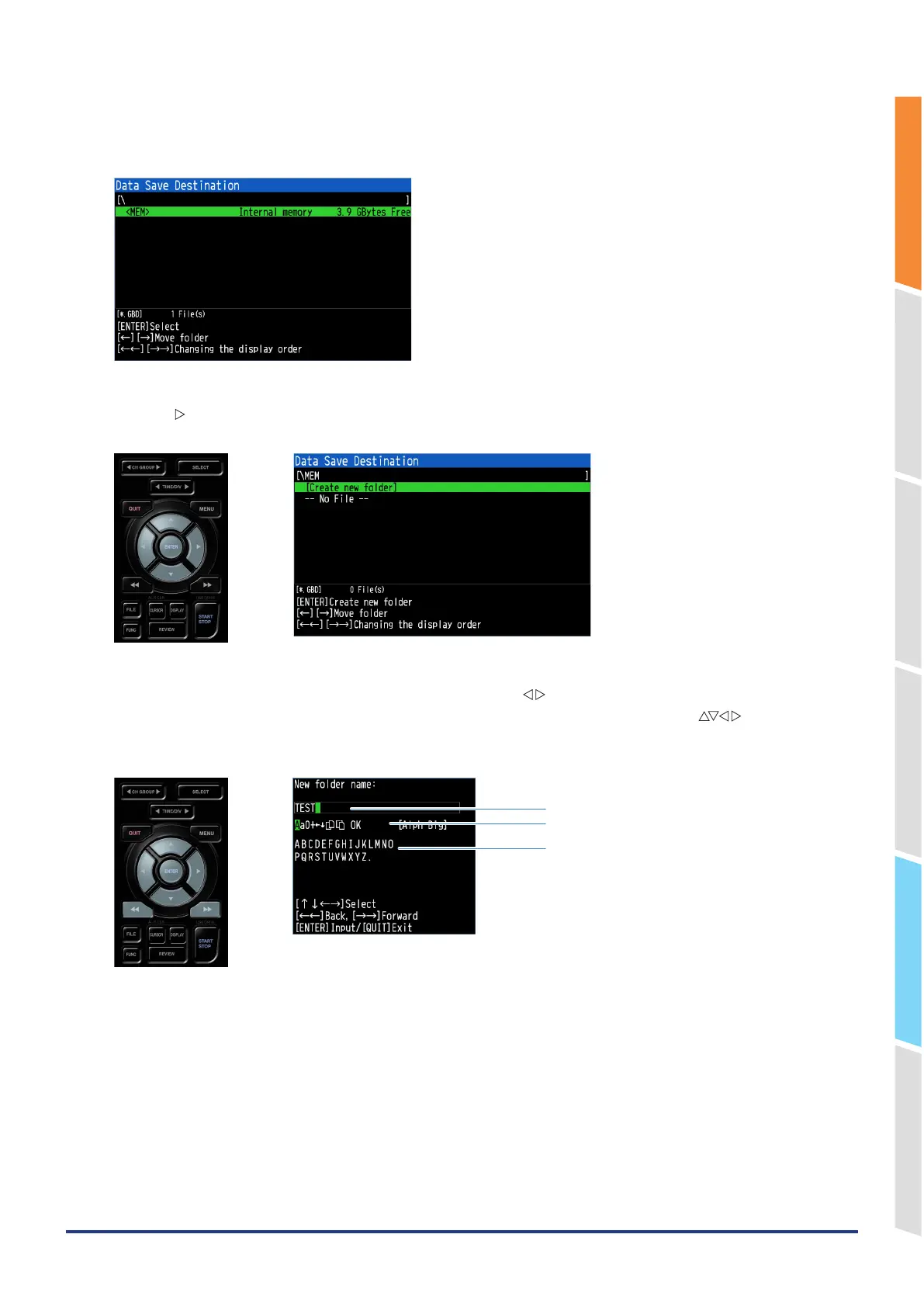
5. The Data saving destination specification dialog opens.
In the Data saving destination specification dialog, set the capturing destination of the internal memory (MEM).
* In the Data saving destination specification dialog, the folder name is enclosed in < >.
6. Press the " " key to move into the <MEM> folder.
Move the cursor to "Create new folder" and press the "ENTER" key to display the new folder name input dialog.
7. Create a "TEST" folder in the internal memory (MEM) and set it so that data is saved in the "\MEM\TEST" folder.
•
Move the cursor to "A" in the character type selection using the " " keys.
•
Since characters that can be entered are displayed in the character selection field, use the " " keys to move
the cursor to the character to be entered (in the order of "T", "E", "S" and "T") and press the "ENTER" key.
•
Move the cursor to "OK" in the character type selection area and press the "ENTER" key to confirm.
Character string input field
Character type selection
Character selection







 To Next Page