HT2800T_en_c.doc Page 40 of 275
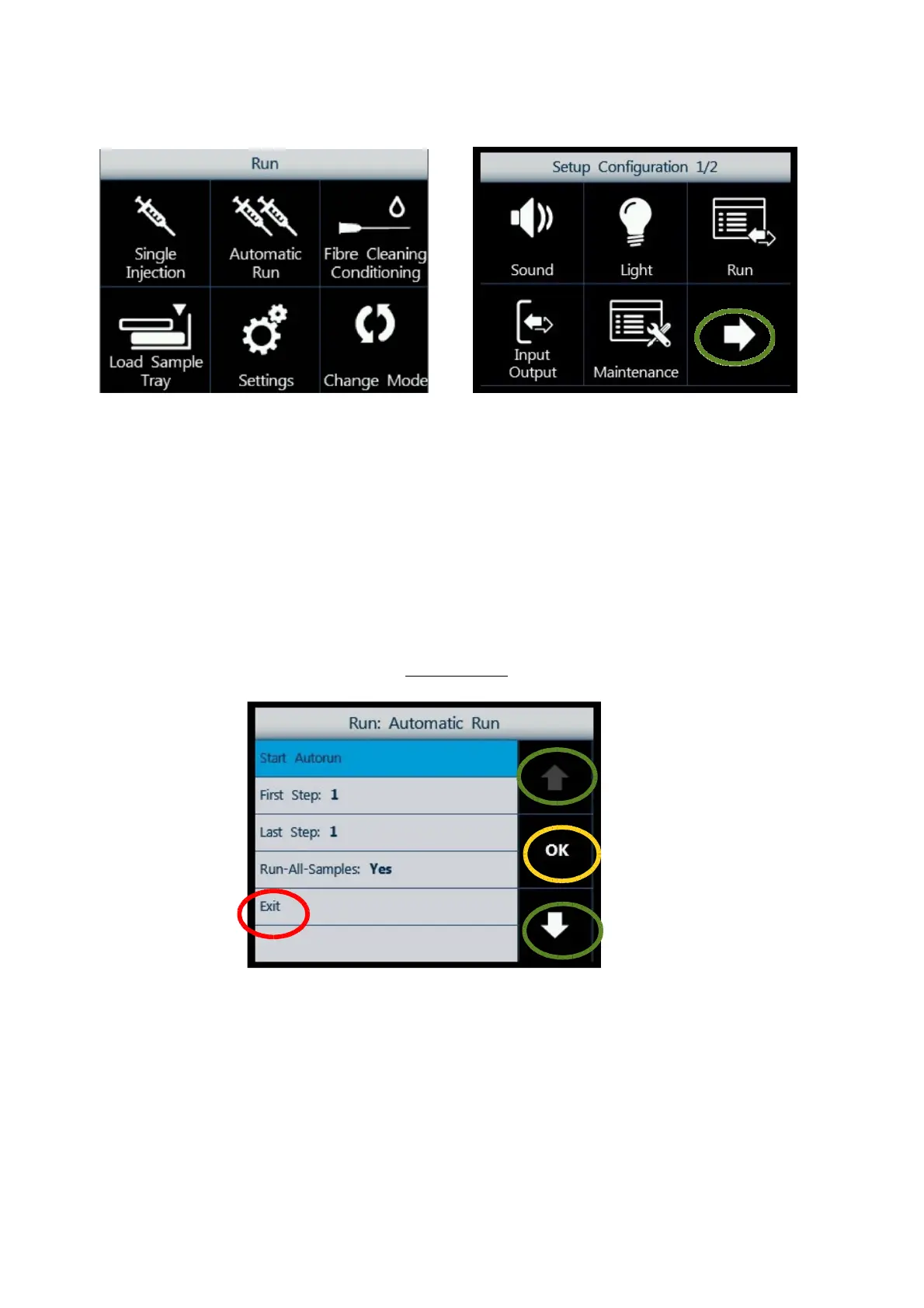
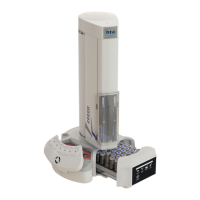
Figure 35: Screen type 1_example A Figure 36: Screen type 1_example B
In this menu, there are up to 6 buttons available. Tap one of the buttons to enter the respective
menu/sub menu/function.
Special icons:
•
ARROW (see example B, green circle). If more than 6 buttons are available, an ARROW
icon is displayed, press this to access the additional buttons..
•
EXIT: exits from the current menu.
2.4.1.3 Screen type 3: Parameter display and selection
Screen type 3:
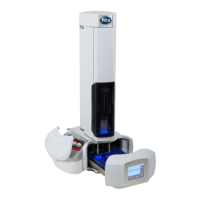
Figure 37: Screen type 3_example A
Use the arrows on the right (green circles) to move between the different option/parameters.
Tap “OK” (yellow circle) to access the selected option/parameter for editing. The selected
parameter/option is highlighted with a blue background.


 To Next Page