Page: 46
JFS-A1 INSTALLATION, OPERATION, AND INSTRUCTION MANUAL
Document #: DOC230
Issued: August 27, 2012
Revised: N/A
4. Enter IP address or panel name in the “Transfer Via IP” eld.
Notes:
• To capture your panel’s unique IP address, disconnect the Ethernet cable from panel. e message “Ethernet
Lost” displays indicating connectivity is lost. Be prepared to write down the address, and reconnect cable.
• If you are connecting via a modem, please refer to “Appendix B: Modem Connectivity Setup”.
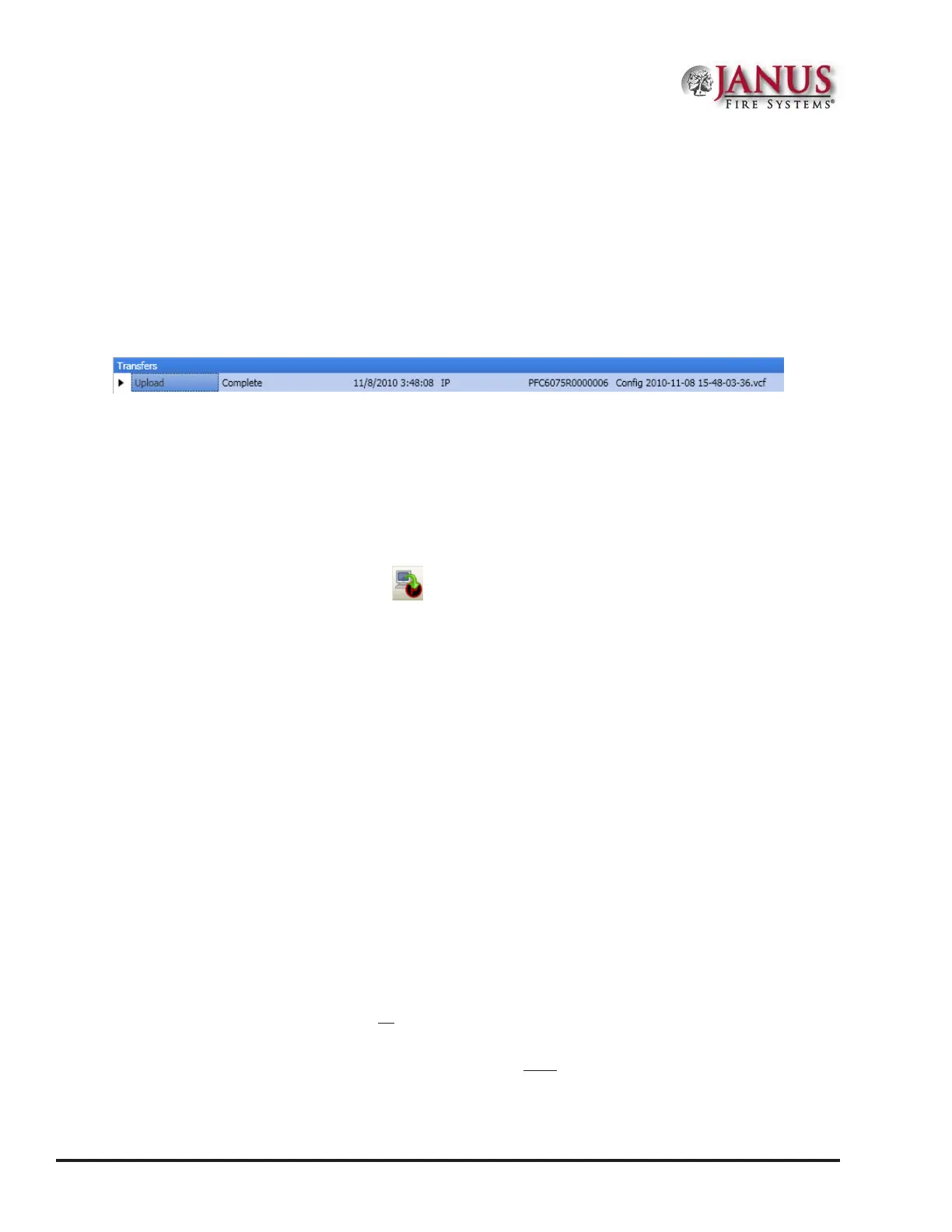
5. Click OK. e Transfers region displays the uploaded le.
Figure 47. Example of Transfers Download Results
• Double-click on the transfer le to display results.
• All points detected during the LEARN process have been uploaded to the panel conguration software.
Note: Details on viewing and conguring points are addressed in detail later in the “System Programming –
Conguring Points” topic.
DownloadingCongurationFiletoPanel
e Download Conguration File to Panel icon allows you to copy all programming changes to the panel.
Notes:
• Be sure to "Enable Remote Access" at the panel before choosing this option. If your PC is directly connected
to the panel versus a network, this step is not necessary.
• Verify that the Remote User Name and Password match the panel’s user name and password. You will
receive an error message when attempting to download data to the panel if they do not match.
Enable Remote Access
To enable remote access:
1. At control panel, press ENTER to display the Main Menu.
2. Press 7 to select Data Transfer.
3. e “ENTER CODE” prompt displays. Enter the user code to continue.
4. e Select Data option displays. Press 1 to select Remote Access.
5. Press ESC to return to Main Menu.
Note: Once enabled, the remote access will “time out” after thirty (30) minutes if contact is not established.
File New
e File New menu option is used to complete all programming from scratch on the computer. You must select the
correct panel model prior to programming.
Note: It is imperative that you choose the correct panel model prior to programming or completing any data
transfers, otherwise, you cannot complete a successful download to the panel. If this occurs, you will have to
reprogram the entire panel.


 To Next Page