Page: 61
JFS-A1 INSTALLATION, OPERATION, AND INSTRUCTION MANUAL
Document # : DOC230
Issued: August 27, 2012
Revised: N/A
E-mail Report Programming
To setup History and Detector Status reports schedule:
1. Click on the E-mail Reporting option. e E-mail Reporting window displays.
2. Click in the days of the week’s selection box to choose the days that the History and Detector Status report(s) will be sent.
3. Adjust time, if necessary.
4. Select a day of the month, if you wish reports to be sent on a specic day of each month.
Note: Be sure to select each report type in the next E-mail section for each recipient you wish to send these reports.
To setup addresses and select events and/or reports:
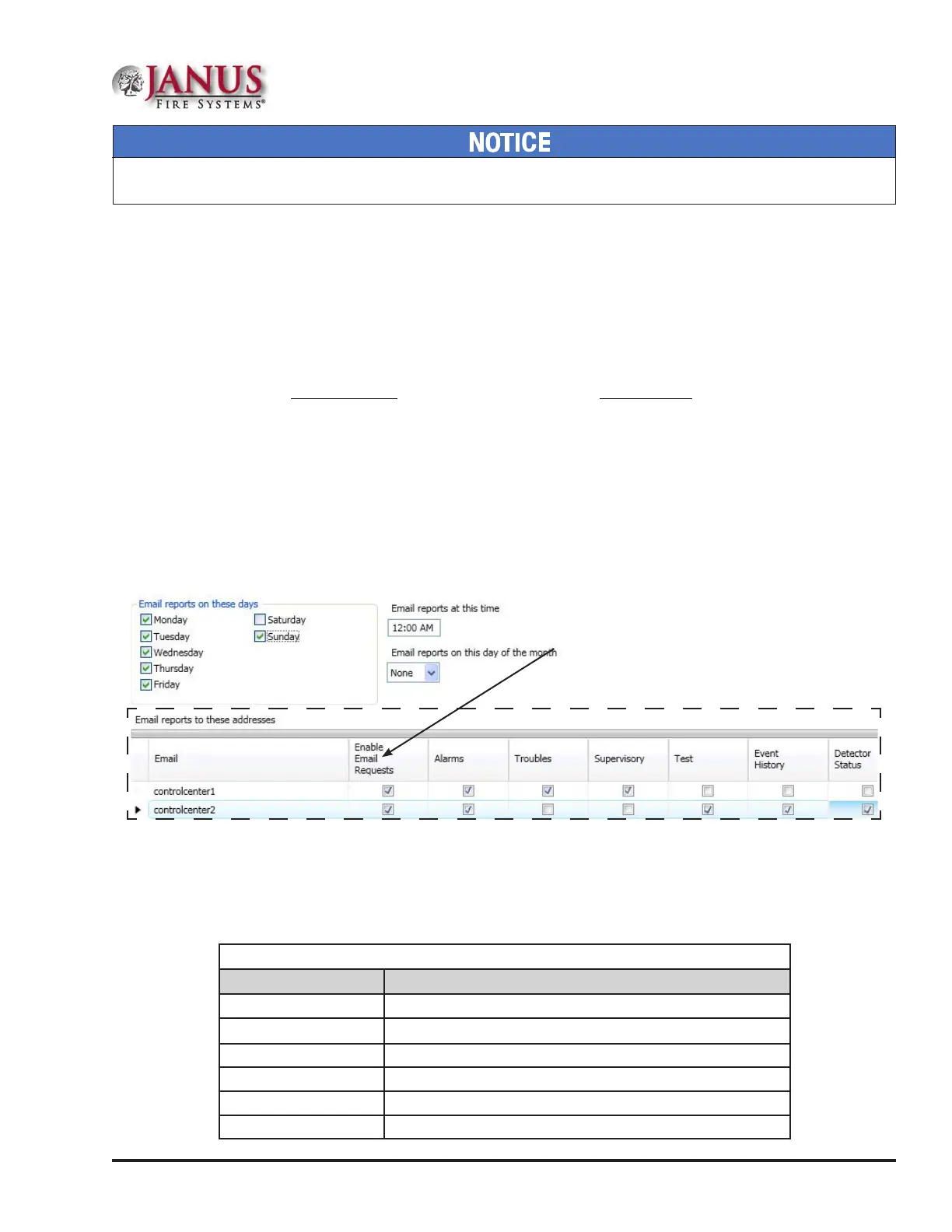
1. In the E-mail address section, as shown below, enter up to twenty (20) e-mail addresses, if needed.
2. Select the "Enable E-mail Requests" option if the e-mail addressee may request reports from the panel.
Note: If "Enable E-mail Requests" is not selected, the panel will ignore an e-mail request for an on-demand report.
3. Select each type of event(s) and/or report(s) you wish to send to the applicable e-mail address.
4. An “” displays in each selected report type.
Figure 71. E-mail Reporting showing Enable E-mail Request
E-mail Sent from Panel
To send a report from the panel:
1. Select the Data Transfer (Menu Option 7) on the panel menu.
2. Select one of the transfer options as described below:
Table 14: Data Transfer Options
Option Description
1=Remote Access Used to enable remote access
2=E-mail Det Stat Allows user to e-mail a detector status le
3=E-mail History Allows user to e-mail a history le
4=E-mail Cong Allows user to e-mail a panel conguration le (.fpcf)
5=E-mail Test Allows user to send a test e-mail
6=Server Status Allows e-mail server status to be veried
Important Note: The "Enable
E-mail Requests" option must
be selected in order for the
panel to respond to an e-mail
addressee requesting an on-
demand report.
System e-mail communications and functions are intended for informational reporting purposes only. ey are intended to be used
as a convenience function. E-mail communications should NOT be used as a primary means of reporting emergency information.


 To Next Page