Page: 51
JFS-A1 INSTALLATION, OPERATION, AND INSTRUCTION MANUAL
Document # : DOC230
Issued: August 27, 2012
Revised: N/A
Printing Reports
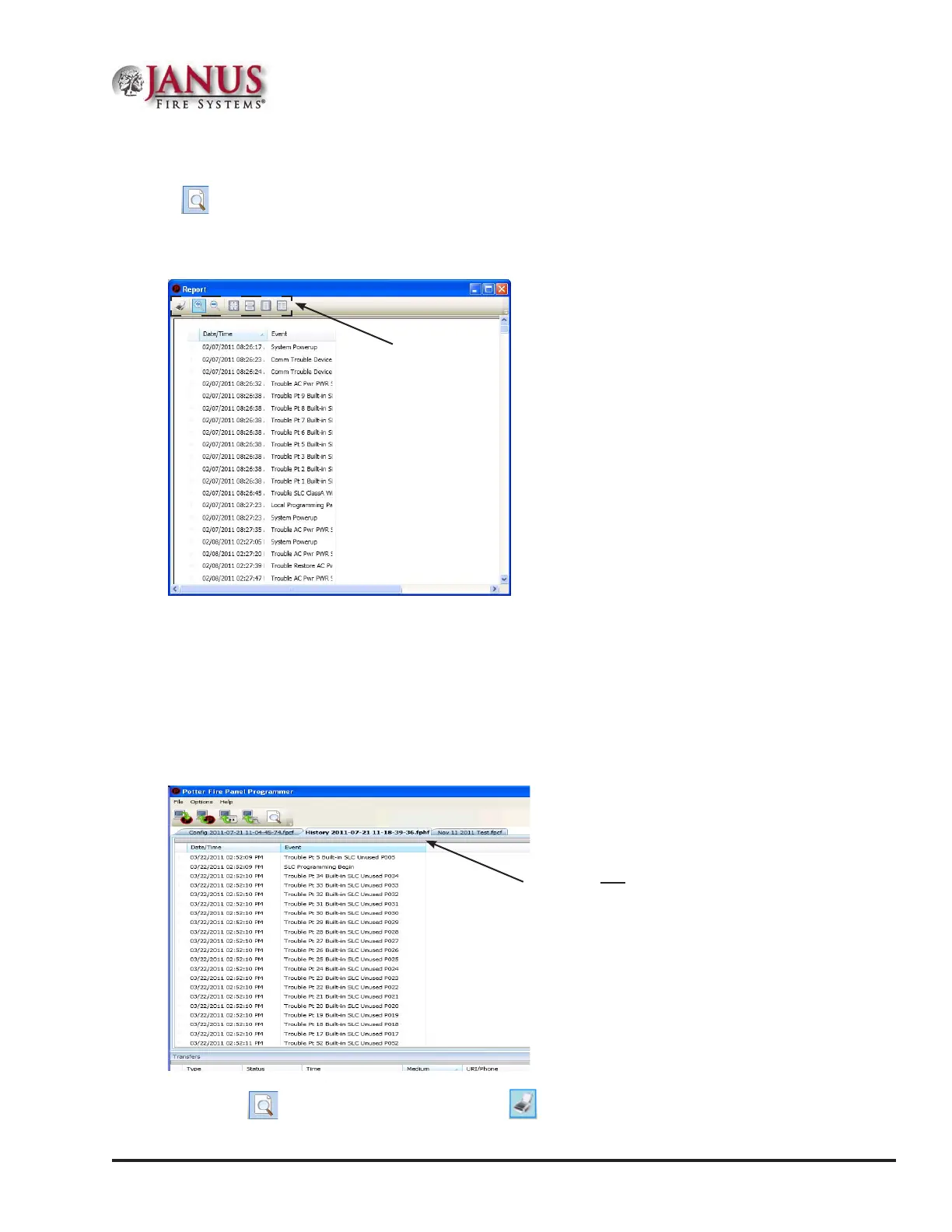
e Print icon allows you to print History and Detector Status reports. Double-click the History or Status le
listed in the Transfer window prior to clicking the Print icon. An example of the Report window, which displays a
History report, is shown below:
Figure 58. Example of the History Report (Print) Window
To print a History or Detector Status Report:
1. Double-click the History or Status report listed in the Transfers window to display the report.
2. Adjust the width of the "Event" column to display the entire descriptions otherwise the "Event" information will
be truncated on the printed report.
Tip: Double-click on the Event column's border to automatically expand the width to accommodate the longest
description. Refer to the example below:
Figure 59. Example of the History Report
3. Click the Print icon, then click the Report Print icon or CTRL P to open the print dialog box.
4. Click the Print button.
Move the mouse across the Print
icons to display their descriptions.
Double-click here to adjust the column width
based on the longest event description.


 To Next Page