Page: 86
JFS-A1 INSTALLATION, OPERATION, AND INSTRUCTION MANUAL
Document #: DOC230
Issued: August 27, 2012
Revised: N/A
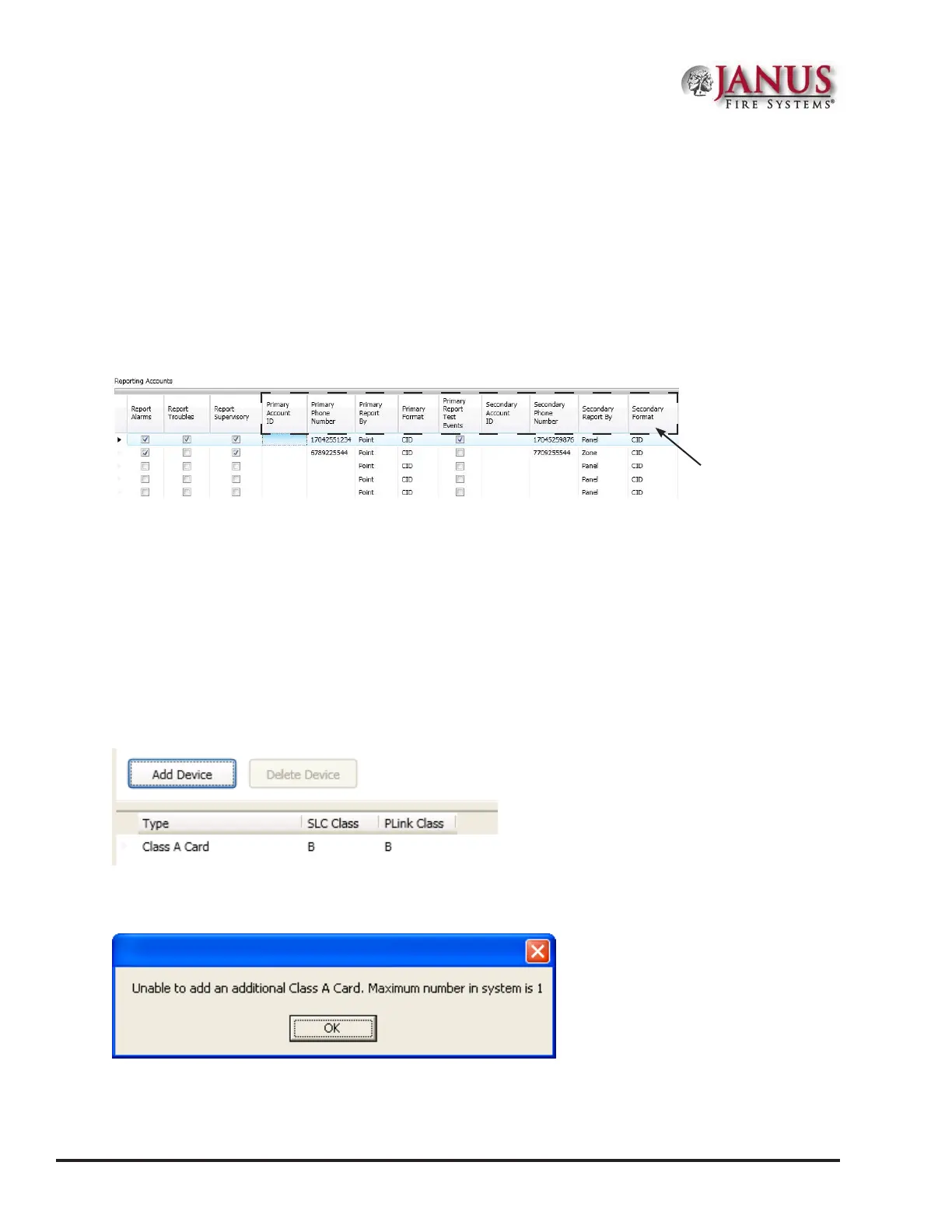
4. In the “Reporting Accounts” section, make the necessary selections for the primary and secondary reporting
accounts:
Select the Report type(s): Alarms, Troubles, Supervisory
Enter the Accounts IDs and Phone Numbers
Select the Primary Report By option: Panel, Zone or Point
Choose the Primary Format option: CID / SIA
Note: Both SIA-DCS and Ademco Contact ID protocols are supported.
Figure 112. Example of Report Accounts Setup
CA-6075 Class A Converter Module
e JFS-A1 supports one (1) Class A Expander card.
To add and congure a Class A module:
1. Select the Class A Card function from the system panel.
2. Click the Add Device button. e “Add Device” window displays.
Figure 113. CA-6075 Class A – Add Device Window
Note: If you attempt to add more than one (1) Class A card, an error dialog box displays, as shown below:
Figure 114. Unable to Add Dialog Box
3. Double-click in the “SLC Class” eld to select class type (A or B).
4. Double-click in the “P-Link Class” eld to select class type (A or B).
The "Primary" account setting
elds are displayed here.


 To Next Page