Page: 44
JFS-A1 INSTALLATION, OPERATION, AND INSTRUCTION MANUAL
Document #: DOC230
Issued: August 27, 2012
Revised: N/A
Transferring Data
is section provides step-by-step instructions for completing uploading and downloading data transfers. e
"Transfer" icons are located at the top of the Programmer window and are briey described below.
Table 10: Transfer Functions
Icons Description
Downloads conguration le from computer to panel.
Uploads conguration le from panel to computer.
Uploads history events le from panel to computer.
Uploads detector "sensitivity" status le from panel to computer.
Prints selected le.
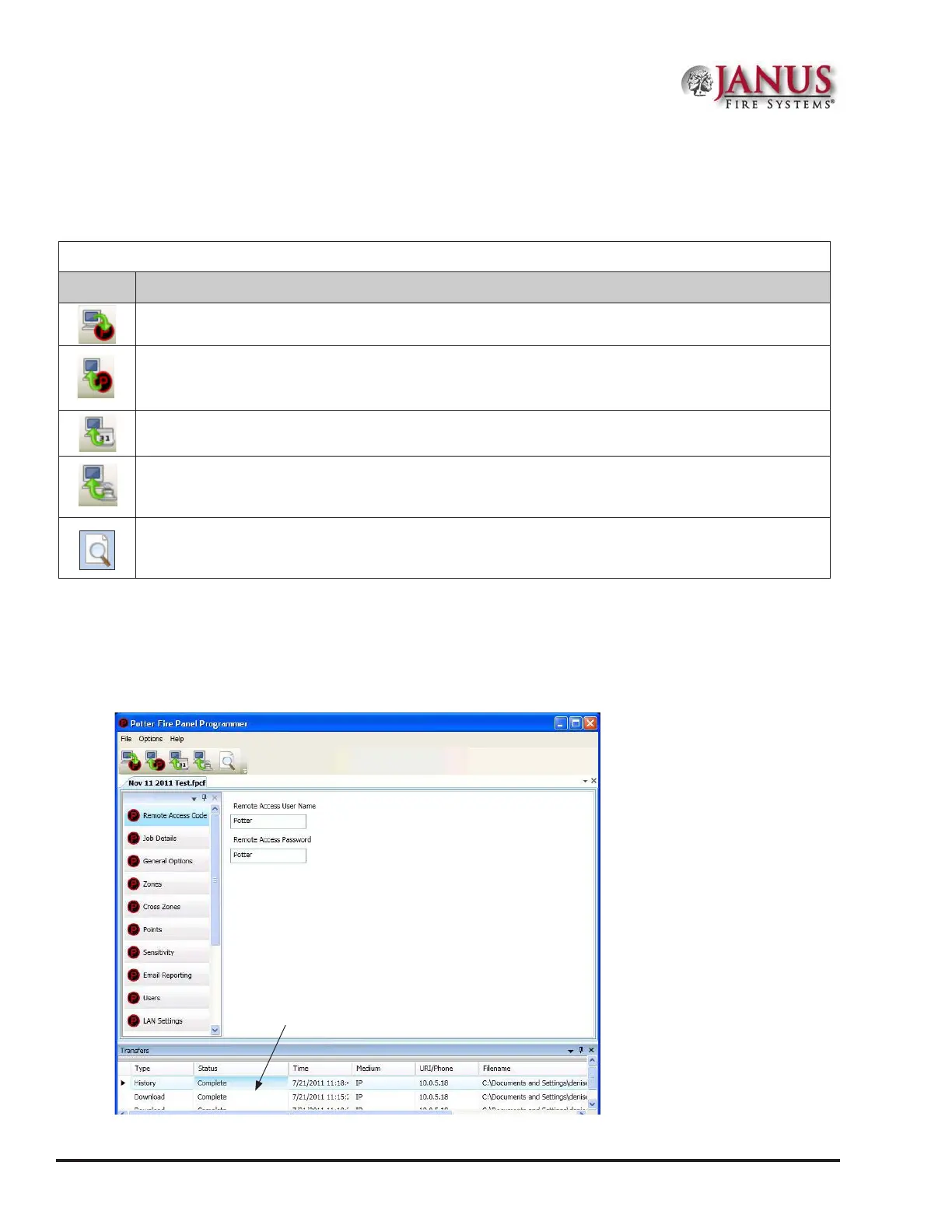
e Transfers region is located at the bottom of the Programmer window and lists all completed transfers. is area
displays transfer details, including their date and time. You may also access the “Transfer” shortcut menu from this
location to select any of the transfer functions.
Figure 43. Example of Programming Window Showing Transfer Icons and Transfer Section
The "Transfer" window displays all
completed transfers.
Note: Double-click anywhere on the transfer record to view details.


 To Next Page