Page: 49
JFS-A1 INSTALLATION, OPERATION, AND INSTRUCTION MANUAL
Document # : DOC230
Issued: August 27, 2012
Revised: N/A
UploadingHistoryEvents&Detector(Sensitivity)StatusReports
e Upload History File to Computer and Upload Detector (Sensitivity) Status to Computer icons allow you
to view valuable information that can be essential when analyzing system operations. You may choose to print
the History and Detector Status reports by using the Print icon. ese reports may also be scheduled to be sent
automatically to authorized e-mail addresses. Refer to the "System E-mail Functions" topic located later in this section
for details on programming these e-mail reporting options.
History Reports
e “Event History” transfer option creates a report of all events held in the panel’s buer. Up to 1,000 events are
held in the buer at one time. is information may be used to troubleshoot errors or to assess ways to improve the
system conguration.
To transfer event history information:
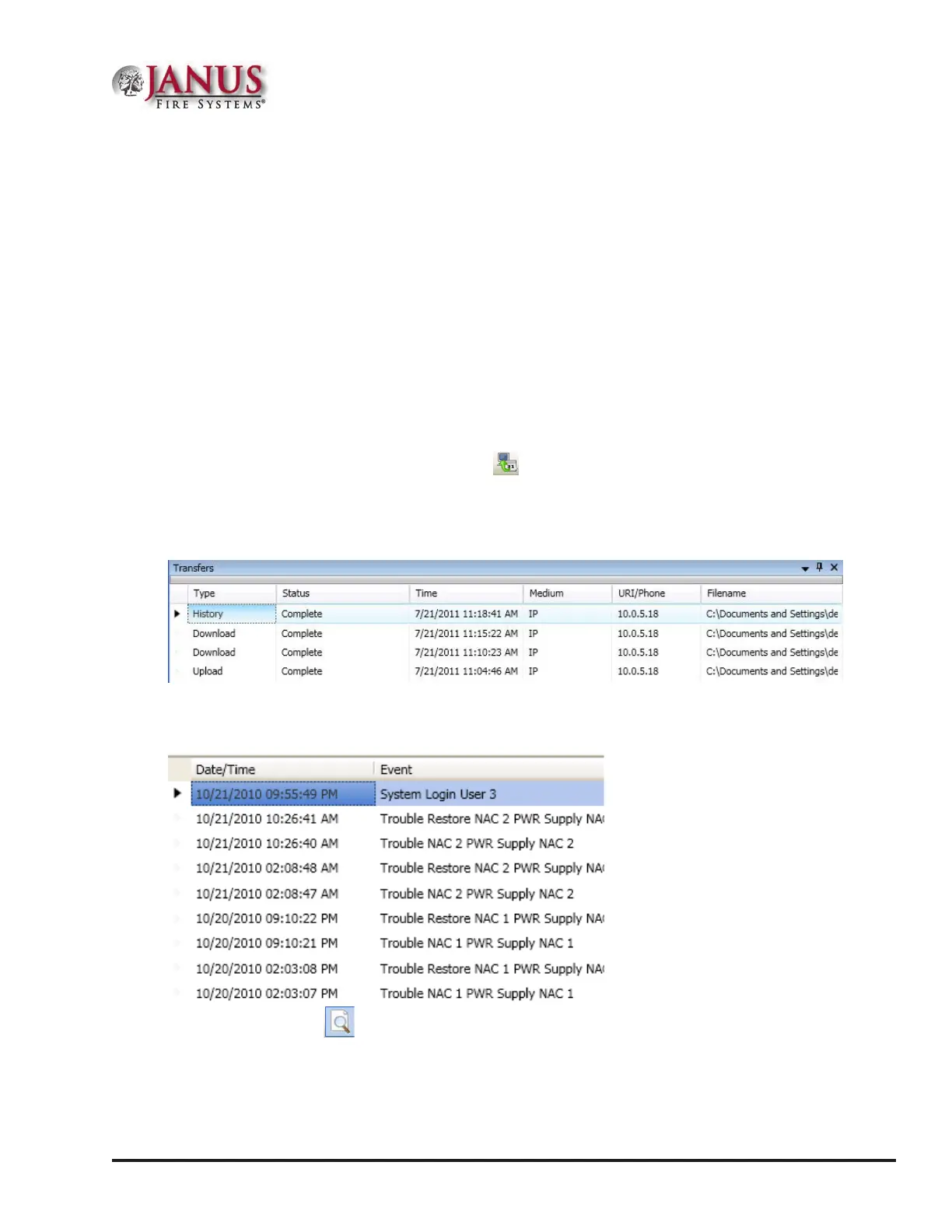
1. Click the Upload History File to Computer icon or right click from “Transfers” area, and click "Add".
e Transfer dialog box displays.
2. Verify that History is selected in the “Transfer Type” eld, and click OK to display results.
Figure 54. Transfer Window Results
3. Double-click le to view results.
Figure 55. Example of Transfer Results Window
Note: Click the Print icon to print a copy of the report. Refer to "Printing Reports" located in this
section for more details.
4. Click the close button to close report.
Note: Refer to "System E-mail Functions - Receiving E-mail Status Reports" located in this section for a sample of a
History Events Report sent via e-mail.


 To Next Page