Page: 63
JFS-A1 INSTALLATION, OPERATION, AND INSTRUCTION MANUAL
Document # : DOC230
Issued: August 27, 2012
Revised: N/A
3. In the “Subject” eld, enter one or more of the following keywords:
• History to send a current event history report back to sender.
• Status to send a current detector (sensitivity) status report back to sender.
• Conguration to send a current conguration le back to sender.
• Unsubscribe to stop the current e-mail settings for the sender until panel is reset or that e-mail address sends a
“Subscribe” to the panel.
• Subscribe to activate e-mail settings for the sender.
Note: Keywords are NOT case sensitive and more than one can be entered in the subject line of the e-mail.
4. ere are no restrictions on contents entered into the body of the e-mail.
Important Reminders!
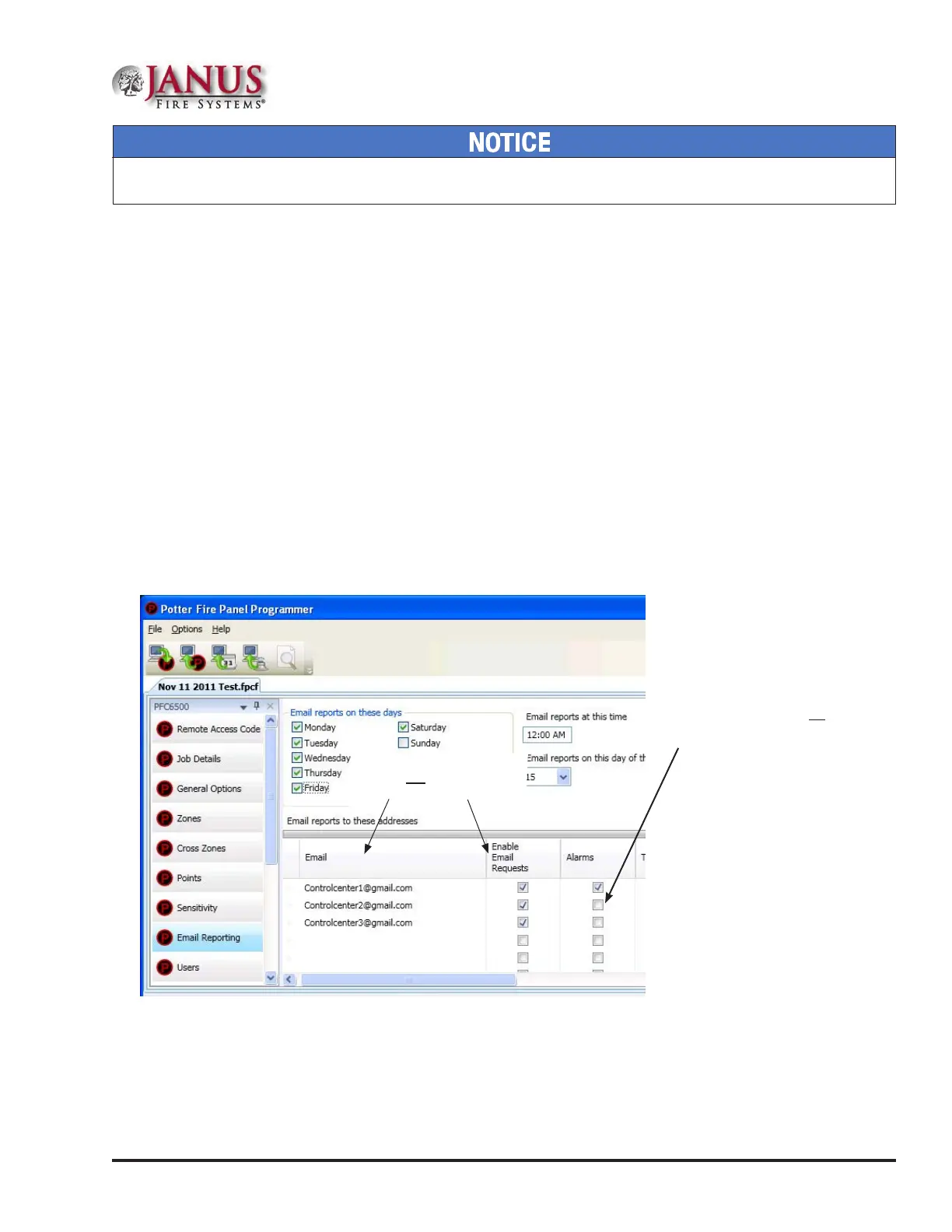
• e person sending the e-mail must be added to the e-mail list in the “E-mail Reporting” section of the
software as shown below. If the sender is not in the list, the panel will not respond.
• e “Enable E-mail Requests” option must also be checked for the sender to receive e-mails when requested
from the panel or a remote PC.
Figure 74. E-mail Reporting Window
Sender's e-mail must be in the
e-mail list and the Enable E-mail
Requests box must be checked.
Note: You may choose not to select
specic event types or reports for
e-mail addressees.
If so, choose Browse List from the
Data Transfer panel menu option.
Then scroll through e-mail addresses
and select one or more recipients.
System e-mail communications and functions are intended for informational reporting purposes only. ey are intended to be used
as a convenience function. E-mail communications should NOT be used as a primary means of reporting emergency information.


 To Next Page