CONNECT WITH TIGHT VNC
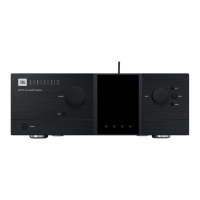
First of all, use the SDP-75’s front panel
display to find out the IP address of its VNC
Server (see the detailed explanation above).
To connect with your VNC client to the SDP-
75:
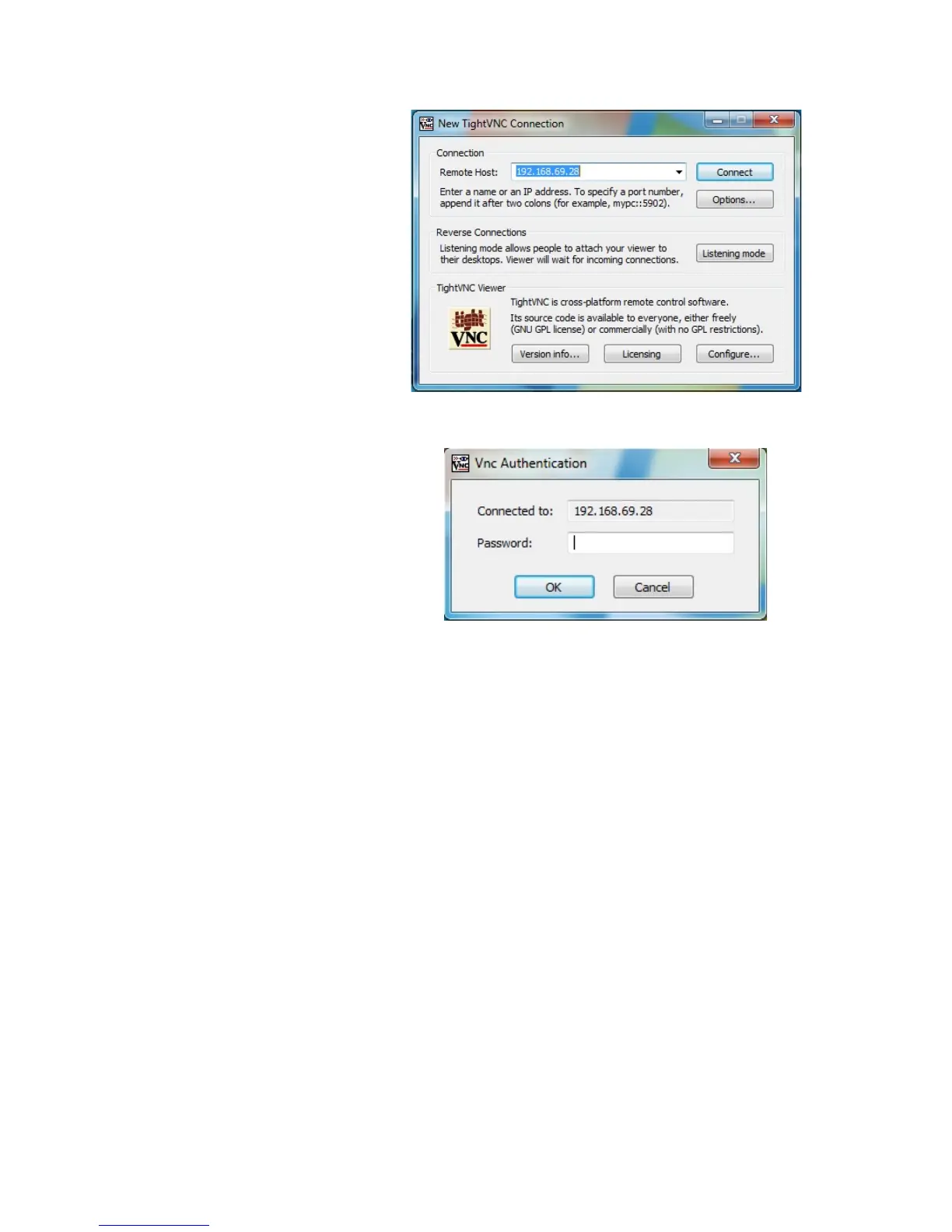
1. Open the Tight VNC software in your
Windows computer.
2. In the VNC client’s connection window,
enter the IP address of the SDP-75’s
VNC Server (see the detailed
explanation above),
3. Click on the Connect button. This will
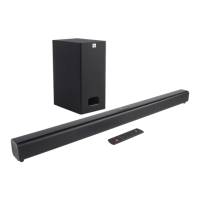
open the VNC Authentication window:
4. In the VNC Authentication window,
enter the password, which is the six-
digit serial number of your SDP-75,
printed on the back panel.
a. The password is 00000X, if
the number of your SDP-75’s
VNC Server has a single digit;
b. The password is 0000XX if
the number of your SDP-75’s
VNC Server has 2 digits;
c. The password is 000XXX if
the number of your SDP-75’s
VNC Server has 3 digits;
d. Etc…
5. Once you’ve entered the correct
password, the SDP-75’s graphical user
interface will be displayed.


 To Next Page