LABORIE Goby Owner’s Manual GOBY-UM02 110
PRINT STUDY OPTIONS
Click File Menu > Open > Print Test to access the Print Test window. Refer to the table below for an overview of the
options available in in Goby UDS120 Software
:
Preferences: Uroflow Report
1-page voiding study report.
Multi page complex study report.
Graph pages of UDS report.
Preferences: Report Pages
Prints all information pertaining to study.
Uroflow Summary information.
Event Summary information.
CHESS Nomogram information.
ICS Nomogram information.
Bladder Work Function information.
Shafer’s Nomogram information.
Patient Diagnosis information.
Patient History information.
Pediatric Nomograms
(optional)
This option is only available if the patient is between 3 – 16 years of age. Both the Voiding Summary
screen and the Pediatric Nomogram option must also have been opened to enable this feature.
Liverpool Nomogram (optional)
Optional feature for Uroflow procedures.
Siroky Nomogram (optional)
Optional feature for Uroflow procedures.
This feature will frame the graph with a simple line border.
The default number of copies to print is one.
Click on the combo box arrows to change the number of copies to be printed.
Small grid squares on graph.
Large grid squares on graph.
Test from beginning to end.
Print Range: UPP Sections
Print Range: Default and UPP
Click this button to set up a default configuration when printing each test.
Graph Scaling: 1-Page Graph
Graph page is condensed into one page.
Standard Graph pages printed out with no compression or expansion applied.
Selectable number of minutes per graph page. Use the scroll bar to adjust the desired number of
minutes per page view.
Manually select up to 8 segments or sections of the graph to be printed as opposed to printing
out the entire graph.
Displays a sample of the graph printout.
Opens a window that allows you to set the font for each section of the report. Double-click the
name of the feature to change its font. Select the size and style and click
Table 18: Report Options Descriptions
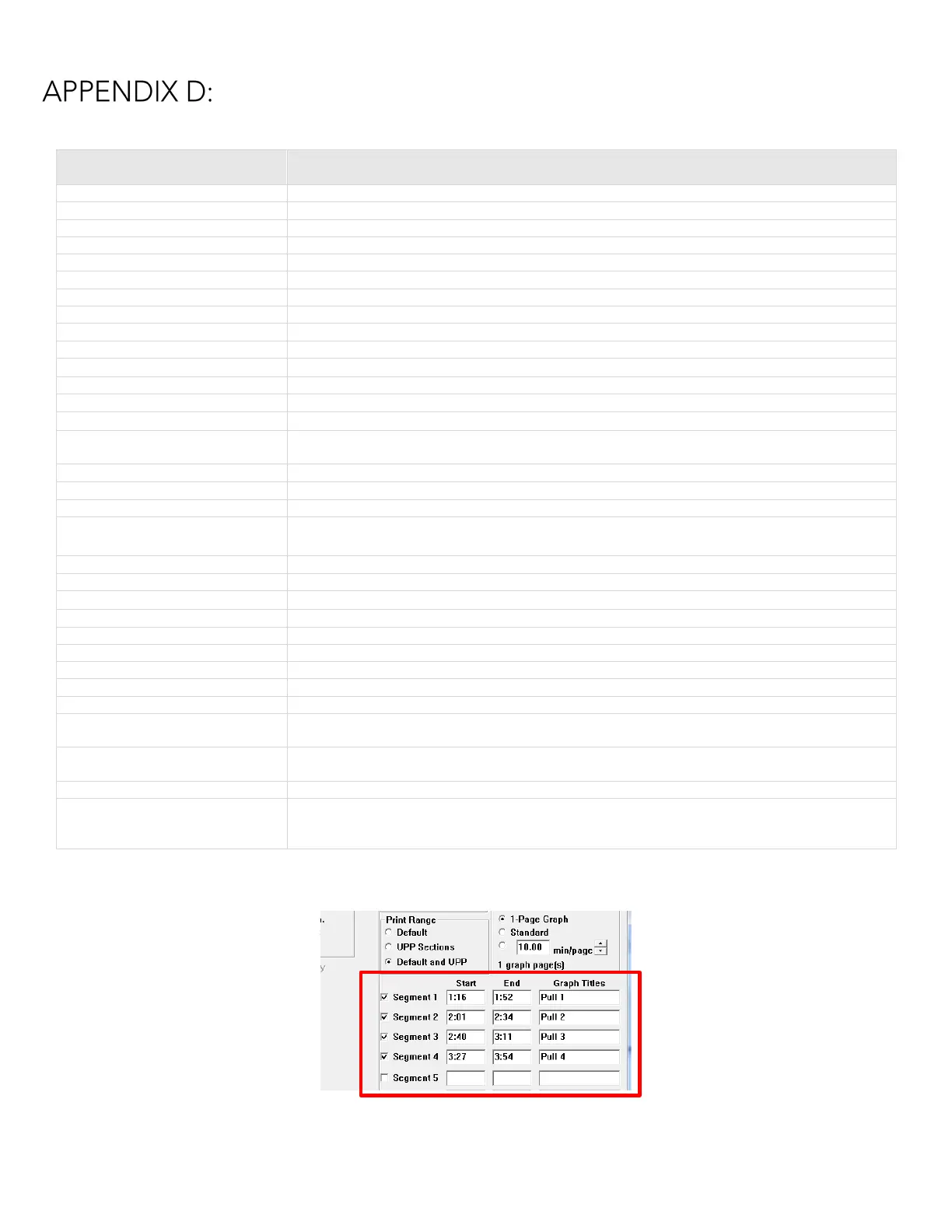
NOTE: UPP Segments will appear when changing "Print Range" from "Default" to "Default and UPP" as shown below:
Figure 122: Print Range – UPP Segments



 To Next Page