LABORIE Goby Owner’s Manual GOBY-UM02 78
5.8.10 Auto Mark Peaks
The Mark Peaks feature automatically marks peak events for each channel once the test is complete.
• Click Options > Auto Mark Peaks to enable or disable the feature.
5.8.11 Auto Infusion Event
An Auto Infusion Event may be used in the filling phase of CMG or pressure-flow tests. It marks an event after every 100 ml
of liquid is infused into the patient’s body.
Click Options from the menu bar and select Auto Infusion Event to enable or disable the event. The Auto Infusion Event
can be configured prior to beginning testing or while a test is running.
If events are displayed on the curve, the auto infusion event appears as a “VH” at the top of the curve. The Event Annotation
in the Event Summary will read “VH2O = XXX ml”.
To cancel the Auto Infusion Event option, click Options > Auto Infusion Event. For more information on displaying events,
refer to Event Summary on page
55.
5.8.12 Graph Clipping
The Graph Clipping option “clips” the top and bottom of a curve if it exceeds the display scales of a channel’s display area.
By default, this option is disabled and the curves can exceed the display area of a channel.
NOTE: The channel scale range determines the height of the curve.
To enable the Graph Clipping option:
1. Click Options from the menu bar.
2. Select Graph Clipping. The curves will appear flat if they exceeds the channel scale range.
Click Options > Graph Clipping to cancel the Graph Clipping option.
It is recommended to zero all transducers before performing a test.
To Set Zeroes before performing a test:
• Select
from the Menu Bar in the Goby Software window (Figure 25
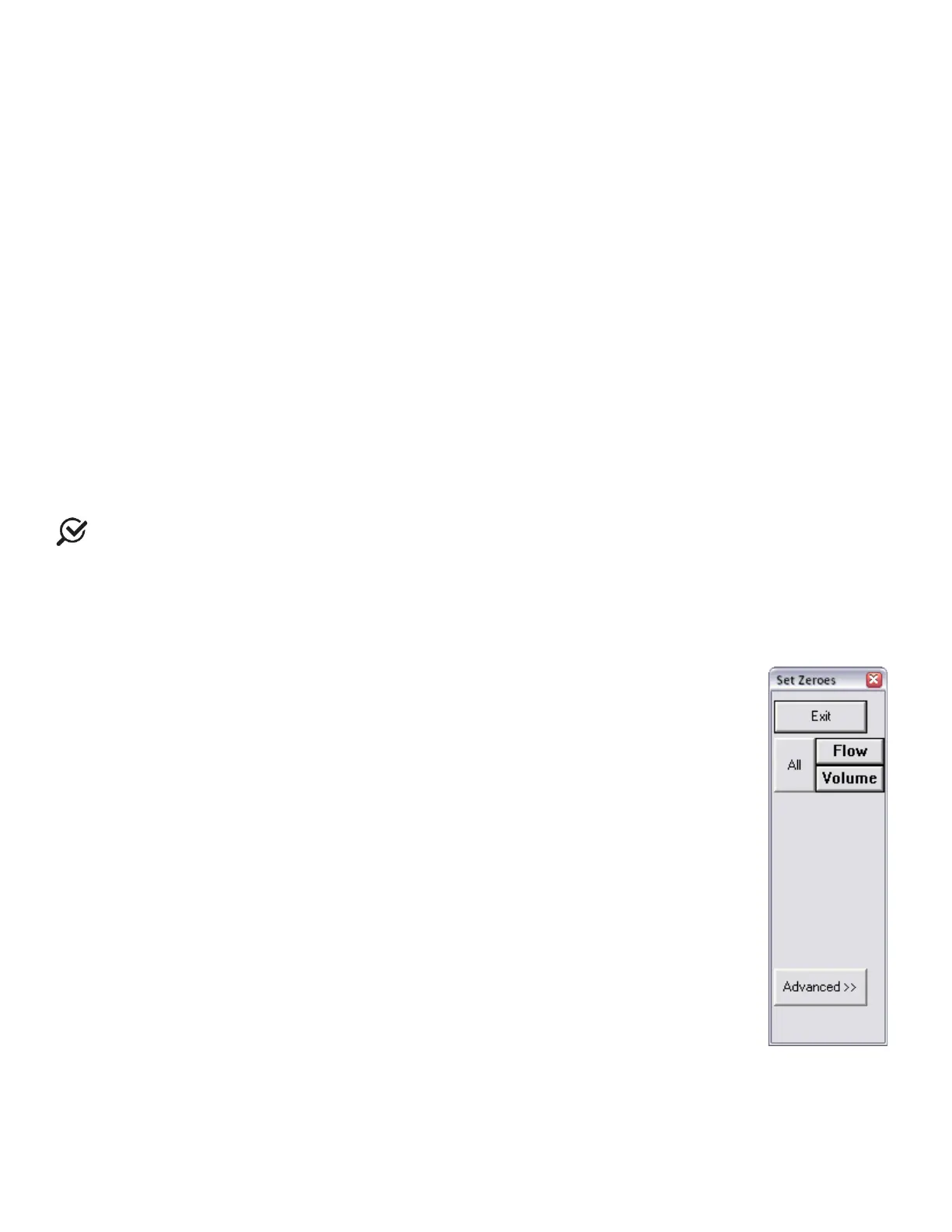
The Set Zeroes window will launch (Figure 93).
o To set all transducers to zero, click
.
o To zero a single transducer, click the button labeled with the
transducer/channel name.
o To set transducers to a specific value, click the
button in the Set
Zeroes menu. Then click the option next to the transducer requiring the
change. Use the keypad at the bottom of the window to set the specific
value and click
.
NOTE: the Advanced button is only available while a test is running.
Figure 93: Set
Zeroes Window
The
feature clears the settings of a previous zeroing operation.
To Undo the
action for a test, click
from the File menu and select
.
The previous Set Zeros operation will be reversed.



 To Next Page