LABORIE Goby Owner’s Manual GOBY-UM02 24
3.4.4 Change the Connection Type
After you have installed the HP printer software and connected the printer to your computer or to a network, you can use
the software to change the connection type (for example, from a USB connection to a wireless connection).
To change from a USB connection to a wireless network (Windows)
1. Open the HP printer software.
2. Click Tools.
3. Click Device Setup & Software.
4. Select Convert a USB connected device to wireless. Follow the onscreen instructions.
To change from a wireless connection to a USB connection (Windows)
Connect the printer and the computer with a USB cable. This USB port is at the rear of the printer.
NOTE: A USB connection between the computer and printer can only be used if these two devices are isolated from the
patient environment to reduce the risk of electric shock to the patient. LABORIE recommends that a wireless connection is
used between the computer and printer at all times.
3.5 CONNECT GOBY™ DEVICES
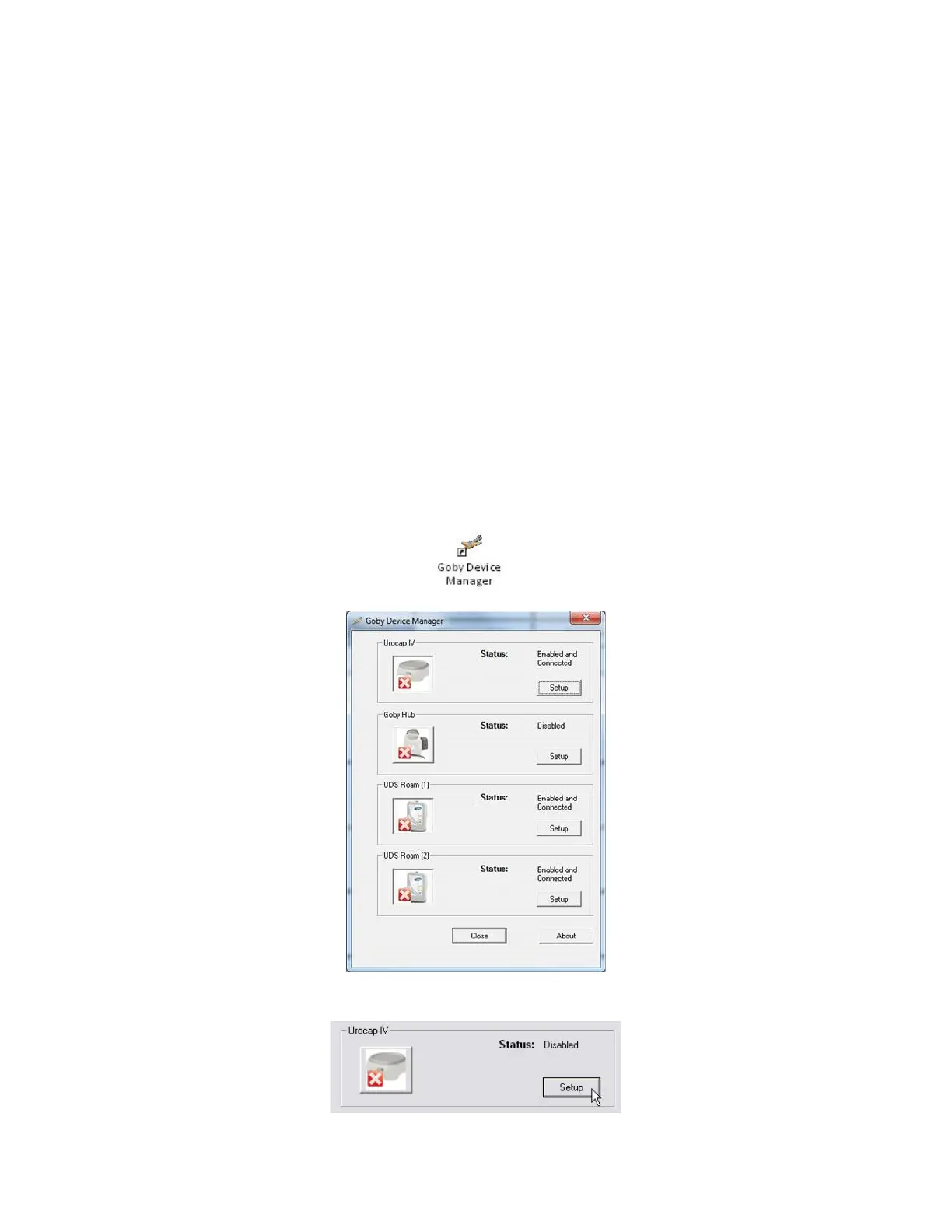
The Goby™ Device Manager window allows you to connect the Goby™ system components to the software. Once the
connections are established in this window, the equipment will automatically connect each time the computer and/or
equipment is powered on.
1. Ensure that the Bluetooth dongle is plugged in to the computer.
2. Double-click the Goby™ Device Manager icon on the computer desktop.
3. The Goby™ Device Manager window will display the status of the Goby™ equipment (Figure 16).
Figure 16: Goby Device Manager – Components Disconnected
4. Click Setup to connect the equipment (Figure 17).
Figure 17: Launching Setup window



 To Next Page