LABORIE Goby Owner’s Manual GOBY-UM02 36
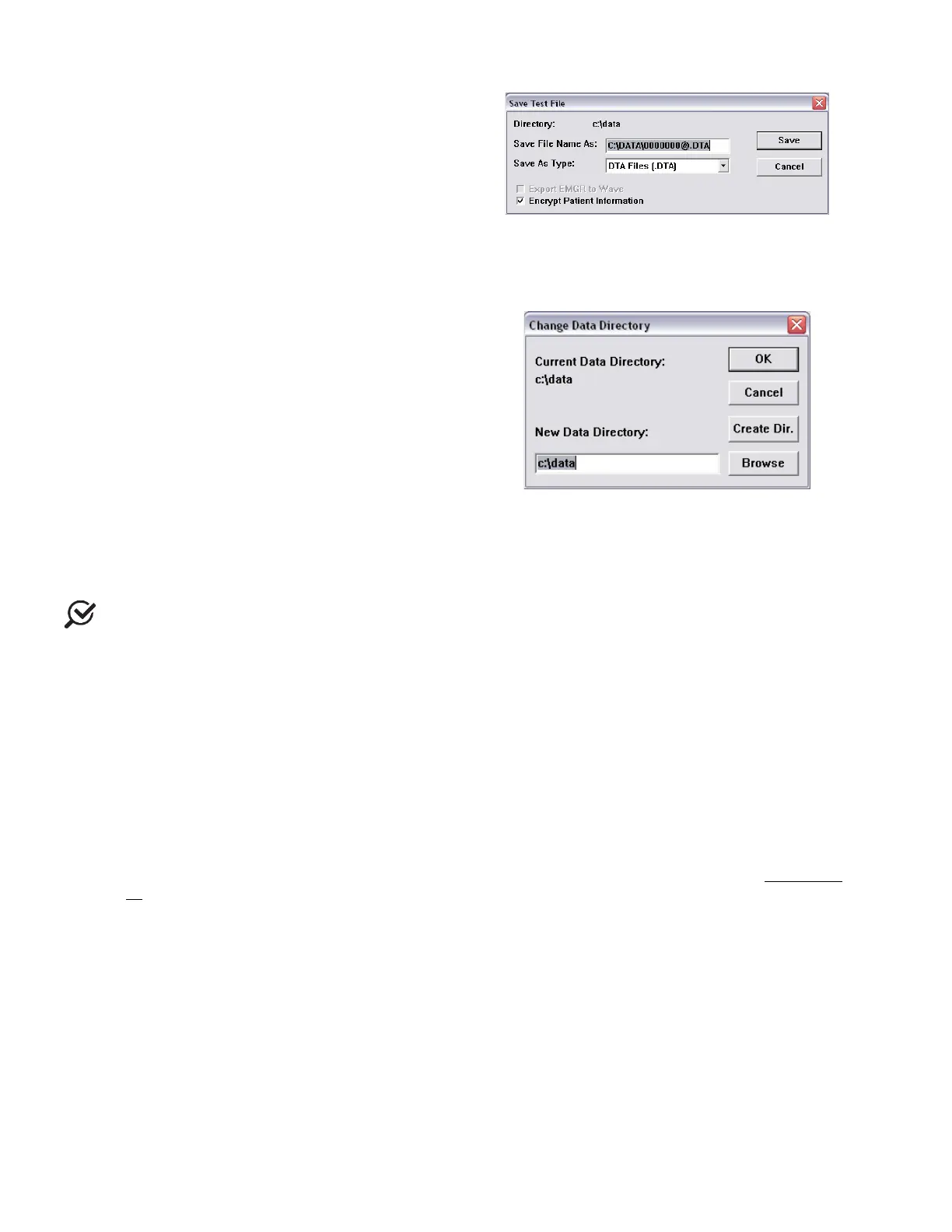
Select
>
to:
• Save a test for the first time.
• Resave a test using a different filename.
• Set up Patient File Security features by selecting
the Encrypt Patient Information box.
Refer to Figure 35
. This window can also be
launched by clicking the
button on the control
panel.
Figure 35: Save Test File Window
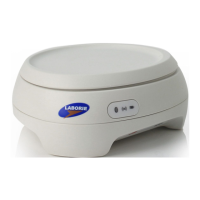
The File Saving Directory option allows the user to
select the storage directory/folder for saving the
UDS data files. Select
>
to access the window.
• To change the directory:
i. Click
and select a new directory.
ii. Click
.
iii. Click the
button to set the new
directory.
iv. Click
. The software will remember the
Data Directory chosen for saving data files
for the next save.
Figure 36: Change Data Directory Window
File Saving Directory can also be selected from
>
. To avoid loss of data during
a test, the Goby software automatically backs up test data every 1 minute.
Use this window to select the information to include in printed reports. This window will allow the printing of saved UDS
Data files.
The first time you print a report for a specific test configuration, click
>
and select your preferred print
options in the print menu and click the
button. Each time you perform a test with this configuration, the report will
automatically print when the
button is clicked. The print menu will no longer appear, and it will print with your
preferred settings each time.
More information on the options available in this window can be found on page 110 of the Appendix.
Report preview is not available in UDS software. To Print and Preview reports using iLIST refer to the Print a Test
section
Batch Print (optional feature)
Batch Printing allows the printing of multiple procedure reports at once (for example, during a particular day or at different
time periods). Select
>
to open the window.
• To batch print tests performed on the same day
click
and then click
• To batch print files that have been run on previous days select the files to be printed by double-clicking on each file
or clicking on a file and clicking the
button.
• The
option is only needed when a file is corrupt (A corrupt file means that the file is damaged. If the file is
corrupt, a message box will tell you to use the Re-Index option). This option generates the index file that contains
the patient’s name, comments, file date, and the procedure date for quick look up. The Index file can be re-
generated by re-indexing.


 To Next Page