LABORIE Goby Owner’s Manual GOBY-UM02 68
5.6.9 Bladder Compliance (Optional)
Bladder Compliance is commonly calculated using events from the filling stage of a study. The Bladder Compliance
feature is available once a CMG or Micturition test has been performed. The feature enables the selection of study segments
for analysis using the Bladder Compliance Calculation. The user can select marked events from any stage of the study.
NOTE: Bladder Compliance calculation/configuration can only be performed with English language software. The
calculation results are expressed in ml/cm H2O.
Bladder compliance is calculated as:
ΔVH20 change in bladder volume
Δ Pdet change in Detrusor pressure
Segment selection for calculation of Bladder Compliance can be completed manually or automatically. Manual selection
must be completed through the Info menu. Automatic
Bladder Compliance settings are available in the Configuration
window which can be accessed through the Info Menu or the Config Menu. Refer to the
Set up/Modify section on page 38
for more information on the Configuration window. Refer to subsections below for instructions on selecting segments for
Bladder Compliance Calculation.
5.6.9.1 Manual Bladder Compliance
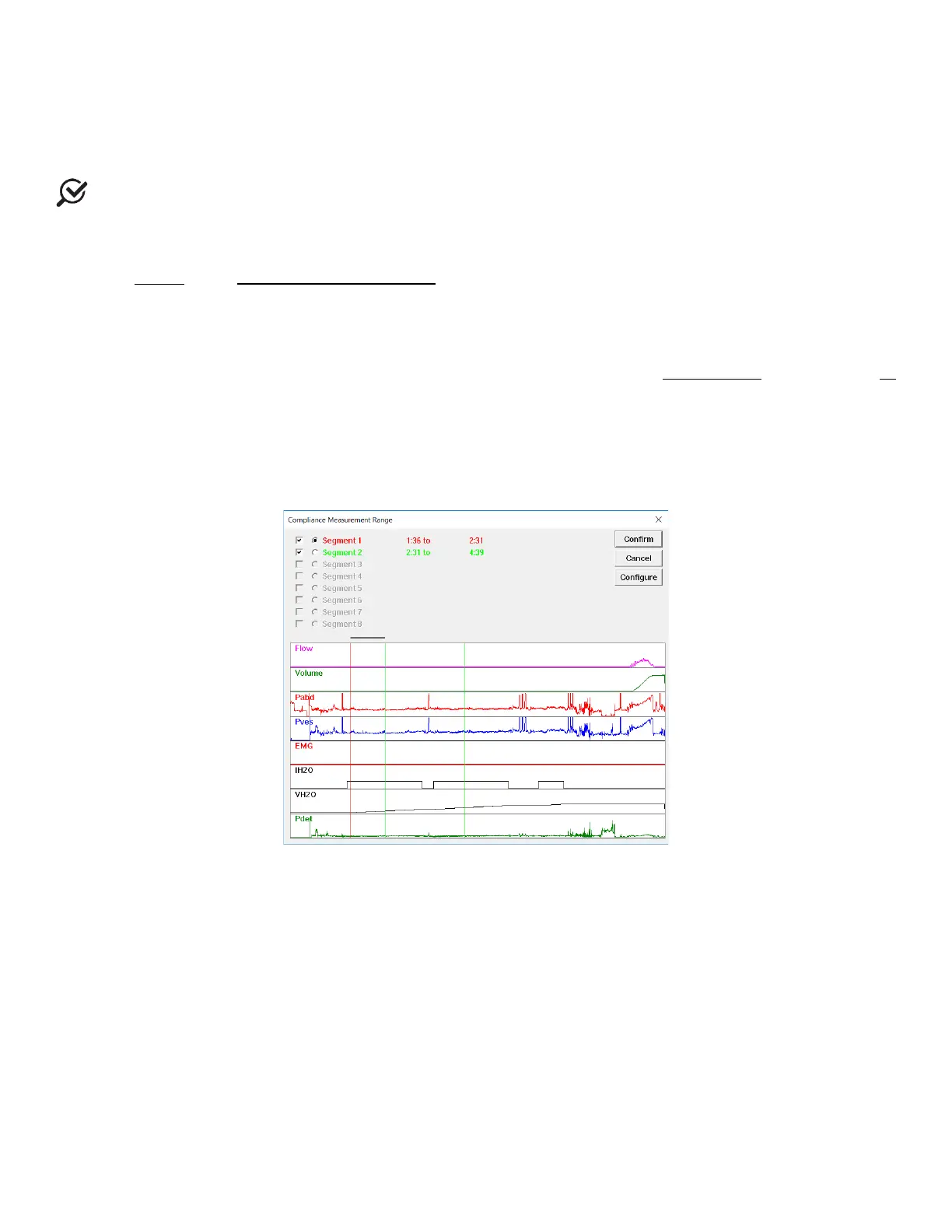
Click the Info Menu and select Bladder Compliance. The Compliance Measurement Range window will appear. Each
compliance measurement is defined by a start and end segment. The segments are differentiated by color.
Figure 81: Compliance Measurement Range Window
To Manually Select a Segment for Analysis:
1. The
C
ompliance Measurement Range window facilitates the manual selection of segments for Bladder
Compliance calculation. Select a name assignment by checking one of the checkboxes from the segment list (ex.
Segment 1).
2. Click and drag the pointer across the graph window from start to end of the desired segment. A bold black line
will run across the top of the box, indicating the selection.
3. Release the mouse button. The "end" of the segment will be selected. The time of the selection appears.
4. To modify the selected segment, reselect range.
5. To keep the selection and return to the test click Confirm. The Compliance Calculation will be displayed as an
event in the Event Summary
6. To undo changes, deselect any segments and click Cancel. All changes are discarded, and the Compliance
Measurement Range window will close.
7. To add additional segments for Bladder Compliance calculation, select a new segment name (ex. Segment 2)
and repeat the procedure.



 To Next Page