LABORIE Goby Owner’s Manual GOBY-UM02 43
5.5.3.8 iList™ Events Linking Tab
Events that are not in the
ILIST™ Events Linking
may not appear in the printed reports. Use the iList Events Linking tab
to view available events.
Follow the instructions below to review event availability in the Event Summary:
1. In the Goby software click Config > Set up/Modify.
2. Click the
ILIST™ Events Linking
tab.
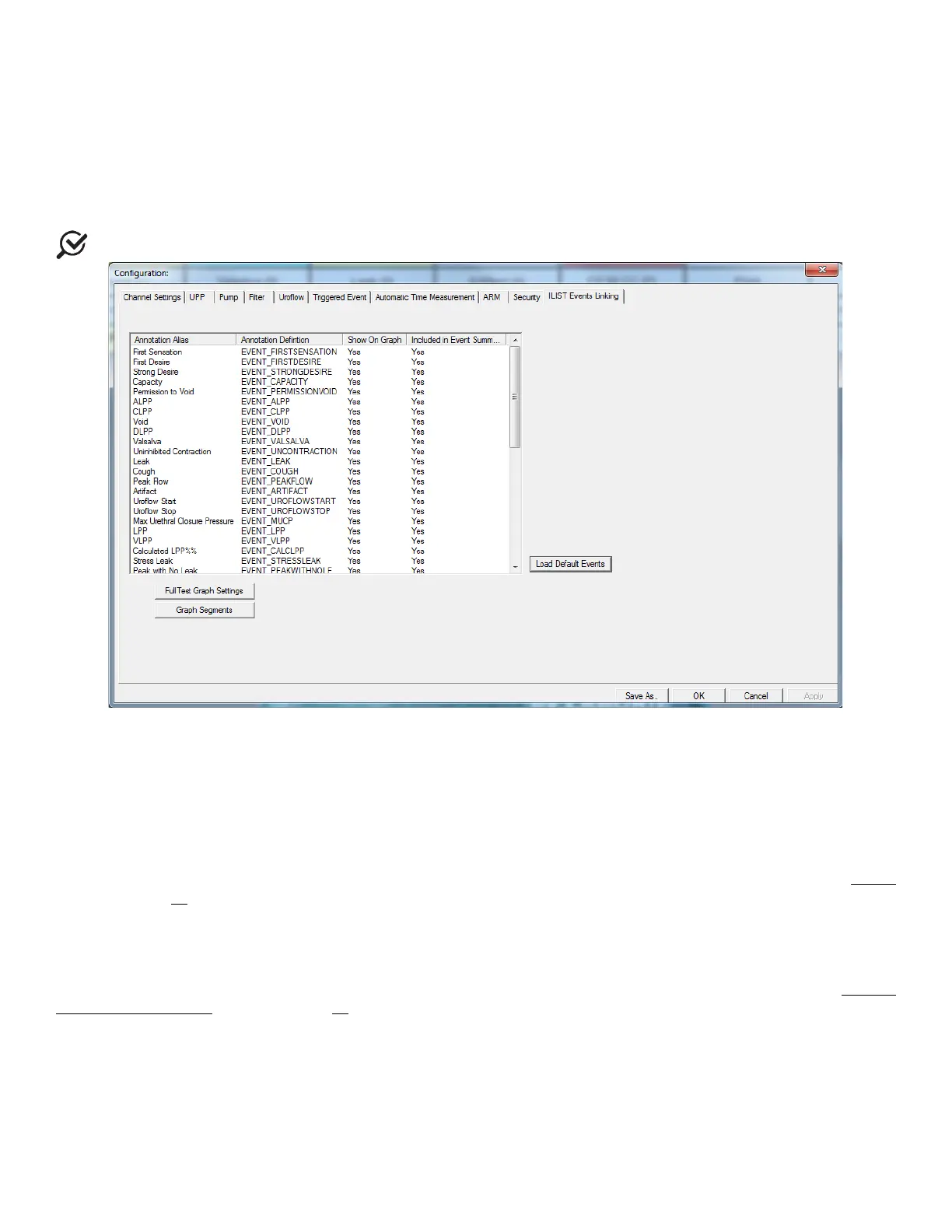
NOTE: Click the Load Default Events button to add the standard iList™ events to the listing (Figure 45).
Figure 45: Configuration – iList Even Linking Tab
iList™ Office Reporter will display only the events that appear in the list under this tab. The Annotation Alias needs to
match the event naming used in the UDS test in order to appear in the Event Summary.
If a new event is required or the software is being used with a language other than English, use the Annotation Alias listing
located at the left most column of the
iLIST Events Linking tab to add or translate an event name. Double click on the
event name and change naming as needed. For example, the event Strong Cough is added to the list. Click the
Event
button on the control panel and the newly added event will appear in the Event Annotation window. Refer to the
Events
section on page 55 for more information on the Event Annotation window.
5.5.3.9 Compliance Tab
The Compliance tab, in the Configuration window, provides configuration options for automatically calculated Bladder
Compliance. Bladder Compliance is commonly calculated from events in the filling stage of a study. Refer to the Bladder
Compliance (Optional) section on page 68 for instructions on using automatically calculated Bladder Compliance and for
information on accessing Bladder Compliance options from the Info Menu.



 To Next Page