LABORIE Goby Owner’s Manual GOBY-UM02 87
7. Ensure catheters are inserted as per the T-DOC Air-Charged Catheter and Transducer Setup section on page
21. LABORIE recommends the use of T-DOC Air-Charged for Ambulatory Monitoring to allow for freedom from
the Urodynamic System. With transducers in the open position,
to atmospheric pressure. The test
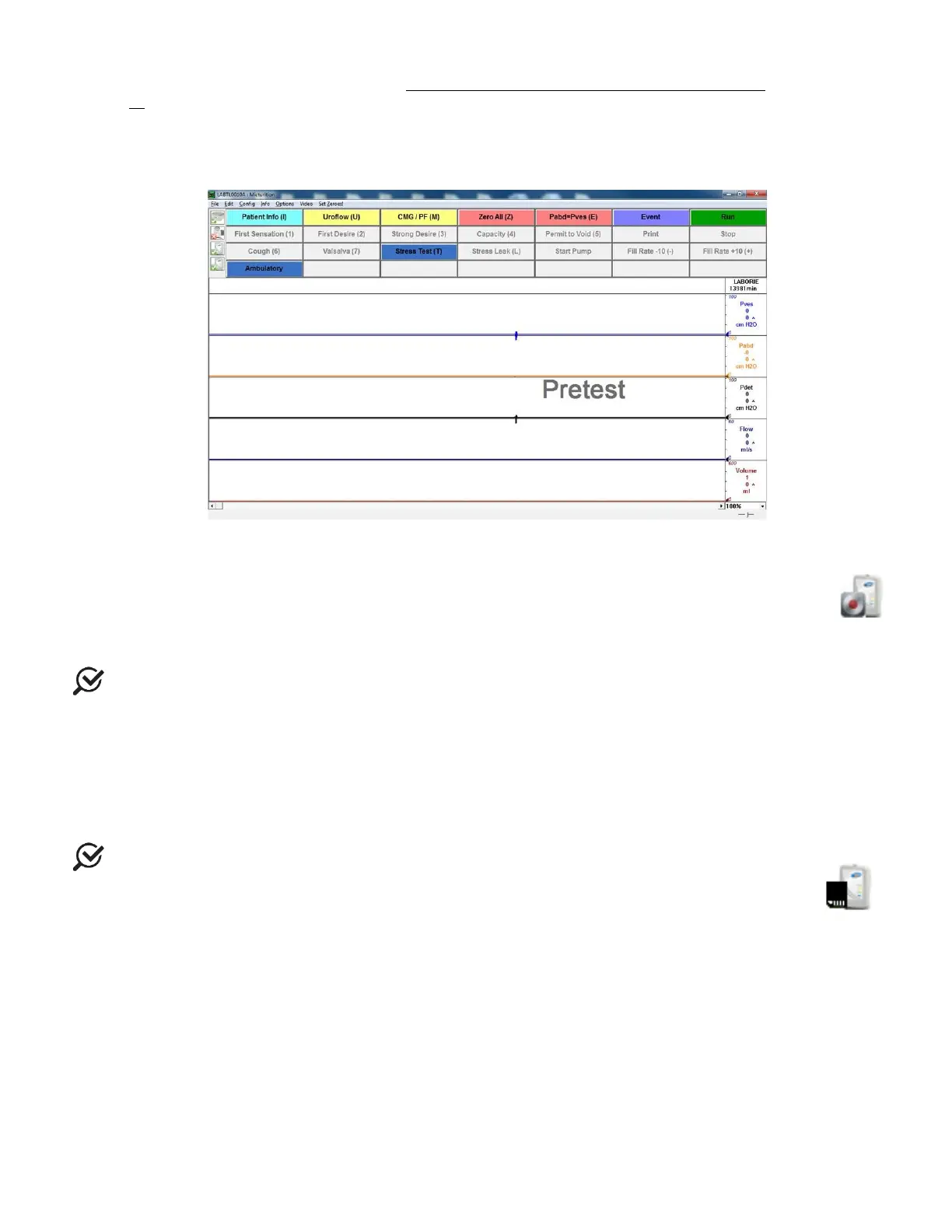
graph will begin scrolling in
mode but will not record data as shown in Figure 102 below; adjust
catheters as needed. The LED Bluetooth light on the
will light up to signal a connection has been
made.
Figure 102: Ambulatory – Pretest Window
8. Click Start Recording under section 5 of Figure 101 to start ambulatory monitoring.
Alternatively, ambulatory monitoring can be started outside of the observation mode by
clicking
then clicking
. The
icon will alert that
.
9. The patient is now in ambulatory mode and pressure recording begins. Click Close to exit the Ambulatory
window (Figure 101).
: LABORIE recommends to enter Observe mode once every hour to check catheter placement.
10. To enter observe mode, click the
button on the UDS120 control panel, click
and wait for
the Bluetooth connection to be established. All pressures are being recorded at this point as well as during the
pressure check.
11. Once Ambulatory recording is complete download all information by clicking the
in section 6
of
Figure 101.
Provide the patient with the
document found on the LABORIE software disc to help record
events.
when data is downloaded, it is erased from the storage memory of the
and
copied over to the PC. The
icon will signal if information is still stored in its memory by
displaying the following icon in the Ambulatory Configuration Manager screen:



 To Next Page